
During a recent Cisco Catalyst C9200L IOS XE upgrade, I ran into an error that initially looked straightforward: the switch did not have enough free disk space to continue the installation.
The upgrade image was stored on a USB drive and was accessible from the switch. However, after starting the installation, the process stopped during the storage check and reported that additional free disk space was required.
I then tried copying the same IOS XE image manually from USB to the internal flash. That failed as well with another clear message:
Not enough space on deviceAt that point, it was clear that this was not a USB connectivity problem or simply an incorrect install command.
In this article, I will walk through the actual troubleshooting steps I used to investigate the Cisco C9200L not enough space error, what the flash-space values revealed, and why checking storage should be part of every IOS XE upgrade preparation.
Lab Note: The switch hostname shown in screenshots has been changed for privacy. The commands, errors, software versions, and troubleshooting sequence in this article are based on the actual incident.
Table of Contents
Where the IOS XE Upgrade Problem Started
This issue occurred while I was preparing to upgrade a Cisco Catalyst C9200L running an older IOS XE release.
At that stage, the image available on my USB drive was:
cat9k_iosxe.17.15.05.SPA.binThe file was approximately 1.28 GB.
I started the upgrade directly from USB using:
install add file usbflash1:cat9k_iosxe.17.15.05.SPA.bin activate commitThe switch could access the image and began processing the request. However, the installation did not proceed.
Instead, I received:
FAILED: There is not enough free disk available to perform this operation on switch 1.
At least 1253918 KB of free disk is required
This immediately shifted my attention from the USB drive to the switch’s internal flash.
There was also another issue with my original upgrade preparation: I had started with the wrong IOS XE image family without first verifying the software packages already installed on the switch.
I documented that part of the incident separately in Cisco C9200L IOS Image Mistake: What I Should Have Checked Before Starting the Upgrade.
In this article, I am focusing specifically on the flash-space problem and how I investigated it.
Checking the Available Flash Space
After receiving the free-disk error, my next step was to inspect the internal flash.
I used:
dir flash:The switch reported:
1956839424 bytes total (1257705472 bytes free)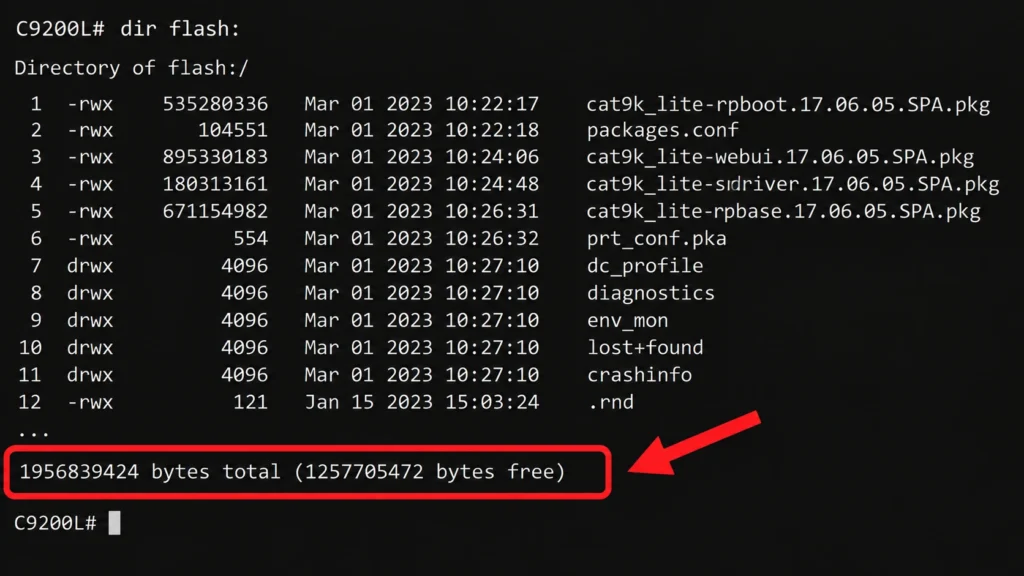
This output was important.
The switch had 1,257,705,472 bytes free, while the image I was attempting to use was approximately 1,284,011,433 bytes.
In other words, the source image itself was already larger than the available internal flash space.
That made the Cisco C9200L not enough space error much easier to understand.
It also showed why I prefer checking the actual byte values instead of looking at the numbers as roughly “1.2 GB.”
When the image size and available flash are this close, the exact values matter.
There is another important consideration: an IOS XE upgrade is not simply about storing a .bin file. The installation process may also need working space while preparing and processing the software.
Cisco’s Catalyst 9200 upgrade documentation recommends verifying sufficient flash space before beginning an upgrade and cleaning unused installation files when additional space is required.
Testing a Manual Copy from USB to Flash
I wanted to determine whether the failure was specific to the install add process or whether the internal flash simply could not accommodate the image.
Instead of immediately retrying the installation, I performed a direct copy test:
copy usbflash1:cat9k_iosxe.17.15.05.SPA.bin flash:The copy also failed:
%Error copying usbflash1:cat9k_iosxe.17.15.05.SPA.bin to flash:
(Not enough space on device)This was useful troubleshooting evidence.
The first error came from the IOS XE installation process and reported insufficient free disk space.
The second test was much simpler: copy a single file from USB to internal flash.
That failed as well.
At this point, repeatedly running the installation command would not have solved anything. The storage condition had to be understood first.
Checking What Was Already Stored in Flash
While reviewing dir flash:, I also noticed several existing IOS XE package files.
They included files such as:
cat9k_lite-rpboot.17.06.05.SPA.pkg
packages.conf
cat9k_lite-webui.17.06.05.SPA.pkg
cat9k_lite-srdriver.17.06.05.SPA.pkg
cat9k_lite-rpbase.17.06.05.SPA.pkg
This was an important point in the troubleshooting process.
The files obviously occupied flash space, but I did not want to start deleting .pkg files simply because I needed more room.
Some of those files could be part of the software currently being used by the switch.
The filenames also contained another useful clue:
cat9k_liteThat clue eventually led to the separate image-family investigation covered in Part 1.
For the storage problem, however, my immediate concern was determining the state of the current installation before considering any cleanup.
Verifying the Current Installation State
Before removing anything from flash, I checked the software installation state with:
show install summaryThe relevant output was:
[ Switch 1 ] Installed Package(s) Information:
State (St): I - Inactive, U - Activated & Uncommitted,
            C - Activated & Committed, D - Deactivated & Uncommitted

Type  St   Filename/Version
IMG   C    17.06.05.0.5797

Auto abort timer: inactive
The important line was:
IMG C 17.06.05.0.5797
According to the state information displayed by the switch, C means:
Activated & Committed
This gave me a much clearer picture of the current software state.
Instead of assuming that files were old or unnecessary based only on their names, I could first confirm that the existing installation was committed.
That is a much safer starting point when troubleshooting flash usage on a production switch.
Why I Would Not Randomly Delete .pkg Files
When you see a Cisco C9200L not enough space message, deleting large files may seem like the quickest solution.
I would avoid that approach.
Files such as:
packages.confand the associated .pkg files can be related to the currently installed IOS XE software.
Deleting files manually without first understanding their role can create a much bigger problem than the original storage error.
Instead, Cisco provides an install-mode cleanup mechanism for removing inactive installation files:
install remove inactiveCisco documents this command as part of the Catalyst 9200 upgrade workflow when old installation files need to be removed.
The important difference is that this is an installation-aware cleanup process rather than manually choosing package files and deleting them.
Even when using the supported cleanup process, I would still review what the switch proposes to remove before confirming the operation.
The objective should not simply be:
“I need more flash space.”
It should be:
“I need to safely recover flash space without affecting the currently bootable software.”
Flash Space Was Real, but It Was Not the Whole Story
The storage problem in this incident was genuine.
The installation command reported insufficient disk space, and the direct USB-to-flash copy independently confirmed it.
However, while investigating the Cisco C9200L not enough space error, I discovered that storage was not the only problem with my original upgrade plan.
The existing software files clearly contained:
cat9k_litein their package names.
That made me stop and verify the switch platform and the required IOS XE image family before doing any further cleanup.
The corrected image I prepared after that verification was:
cat9k_lite_iosxe.17.15.05.SPA.binThe Lite image was approximately 492 MB, compared with the roughly 1.25 GB standard image I had initially attempted to use.
However, there is an important distinction here:
I did not choose the Lite image simply because it was smaller.
The correct software image must be selected according to the switch platform and Cisco’s software documentation.
File size alone should never be used to decide which IOS XE image belongs on a switch.
In this incident, the smaller image size became relevant only after I had verified that cat9k_lite was the correct image family for the platform.
My Pre-Upgrade Storage Checks After This Incident
This experience changed how I prepare for IOS XE upgrades.
Before starting another Catalyst 9200L upgrade, I would now check at least:
show version
show install summary
dir flash:
dir usbflash1:
From those checks, I want to answer four basic questions before running the installation command:
- What IOS XE version is currently running?
- What is the current installation state?
- How much internal flash space is actually available?
- Is the target file the correct image family, and what is its exact size?
If there is insufficient flash, I would investigate inactive installation files and use Cisco’s supported cleanup procedure where appropriate rather than deleting active packages manually.
These checks take only a few minutes, but they can prevent a maintenance window from turning into unnecessary troubleshooting.
What I Would Do Differently Next Time
If I encountered the same Cisco C9200L not enough space error again, my first reaction would not be to delete files.
I would compare the exact target image size with the available flash.
Next, I would verify the current installation using:
show install summaryThen I would confirm that the target image is actually correct for the switch platform.
Only after those checks would I decide whether flash cleanup is necessary.
If cleanup is required, I would use the supported installation cleanup process and review the files identified for removal.
Most importantly, I would perform these checks before starting the actual upgrade, not after receiving an error.
Frequently Asked Questions
Why does a Cisco C9200L show “Not enough space on device”?
The message can appear when the internal flash does not have sufficient free capacity for the requested operation. In my case, the image I initially attempted to use was larger than the available flash, and both the IOS XE installation process and a direct file-copy test failed.
How can I check free flash space on a Cisco C9200L?
Use:
dir flash:The output shows the total flash capacity and the number of free bytes.
Can I manually delete old .pkg files to make space?
I would not delete .pkg files simply because they appear old or large. First verify the current installation state and determine whether the files are active or inactive. Cisco provides install remove inactive as part of its install-mode cleanup process.
How do I check the current IOS XE installation state?
Use:
show install summaryIn this incident, the image state was C, which the switch identified as Activated & Committed.
Does freeing flash space fix every IOS XE upgrade failure?
No. Available storage is only one part of upgrade preparation. The switch model, current software, correct IOS XE image family, target release requirements, installation state, and available flash should all be verified before proceeding.
Conclusion
The Cisco C9200L not enough space error in this incident was not something I wanted to solve by immediately deleting files and retrying the upgrade.
The numbers provided the first clue.
The switch reported 1,257,705,472 bytes free, while the original image I was attempting to use was approximately 1,284,011,433 bytes. The direct copy from USB to flash failed as well, confirming that the immediate storage limitation was real.
But inspecting the flash also revealed the cat9k_lite package family, which led me to re-check the image I had selected in the first place.
That changed the direction of the troubleshooting.
The main lesson I took from this incident is simple:
Verify the current installation, check the exact available flash space, confirm the correct image family, and only then decide whether cleanup is required.
That approach is much safer than treating every low-space error as a reason to start deleting files.
Continue the Cisco C9200L IOS XE Troubleshooting Series
Part 1: Cisco C9200L IOS Image Mistake: What I Should Have Checked Before Starting the Upgrade
Part 2: Cisco C9200L Not Enough Space on Device During IOS XE Upgrade: Issue and Resolution
Part 3: Cisco C9200L IOS XE Upgrade from USB Using the Correct cat9k_lite Image
This article is Part 2 of my Cisco C9200L IOS XE troubleshooting series. Part 1 covers the image-selection mistake that I discovered while investigating the upgrade, while Part 3 will cover the final upgrade process using the verified cat9k_lite image. The Part 3 link will be added here after it is published.
Official References
Cisco Catalyst 9200 Series Upgrade Documentation
Cisco Catalyst 9200 Series IOS XE 17.15.x Release Notes
