
Upgrading Cisco IOS XE on a Catalyst switch is usually a planned and predictable maintenance task. You verify the switch, download the required software image, transfer it to the device, perform the installation, reload if required, and finally verify that the switch is running the expected version.
At least, that is how the process should go.
During a recent Cisco Catalyst 9200L upgrade, I made a simple mistake before the actual upgrade had even started: I did not properly verify the IOS XE image family already installed on the switch before preparing the new software image.
The switch was running IOS XE 17.06.05, and the plan was to upgrade it to IOS XE 17.15.05. I initially prepared the standard cat9k_iosxe.17.15.05.SPA.bin image and attempted to install it directly from a USB flash drive.
The installation started, but it did not complete.
Instead, the switch reported that there was not enough free disk space to perform the operation. I then tried copying the binary manually from USB to the internal flash, and that operation also failed with a Not enough space on device error.
Initially, this looked like a straightforward flash-storage problem.
It was not the whole story.
While investigating the flash filesystem, I noticed that the switch’s existing IOS XE packages were all using the cat9k_lite prefix. That observation changed the direction of the troubleshooting.
The real lesson from this incident was not simply how to deal with insufficient flash storage. It was something more fundamental:
Before upgrading a Cisco Catalyst switch, verify the exact platform, current software, installed image family, available storage, and supported target image before you transfer or install anything.
This article documents what happened, how the mistake was identified, and the pre-upgrade checks I would perform before attempting another Cisco C9200L IOS image upgrade.
Lab Note: Device hostnames shown in the screenshots have been sanitized for privacy. The IOS XE versions, filenames, commands, error messages, and troubleshooting sequence are based on the actual upgrade activity.
Table of Contents
The Upgrade I Was Trying to Perform
The switch involved in this maintenance activity was a Cisco Catalyst 9200L.
The existing software installation contained IOS XE 17.06.05 packages, while the target release for the maintenance activity was IOS XE 17.15.05.
For the upgrade, the software image was placed on a USB flash drive so that it could be installed directly from external storage.
The initial file I prepared was:
cat9k_iosxe.17.15.05.SPA.binAt that point, I was focused mainly on the target IOS XE version.
That was the first mistake.
The version number was important, but it was not enough.
Before preparing a Cisco C9200L IOS image, I should also have verified the exact image family required by the switch.
The correct sequence should have started from the switch itself:
Switch -> Model -> Current IOS XE -> Current Image Family -> Supported Target Image -> DownloadInstead, my workflow effectively became:
Target Version -> Download Image -> USB -> Start Upgrade -> TroubleshootThe difference looks small, but during a maintenance window it can create unnecessary troubleshooting work.
The Initial IOS XE Image SelectionThe binary initially available on the USB drive was:
cat9k_iosxe.17.15.05.SPA.binThe filename looked reasonable when considered only in the broader Catalyst 9000 context.
However, Catalyst 9000 is a product family containing multiple platforms. An engineer should not assume that a software image used for one Catalyst 9000 platform is automatically the correct image for another.
That is why the exact model and supported software image need to be checked before an upgrade.
In my case, I had not yet compared the new filename against the packages already running on the C9200L.
If I had done that first, I would have seen something important immediately.
The installed package names contained:
cat9k_litewhile my prepared binary contained:
cat9k_iosxeThat difference should have triggered verification before the first installation command was entered.
Instead, I discovered it later.
Starting the Upgrade from USB
The USB flash drive was connected to the switch and the IOS XE binary was accessible.
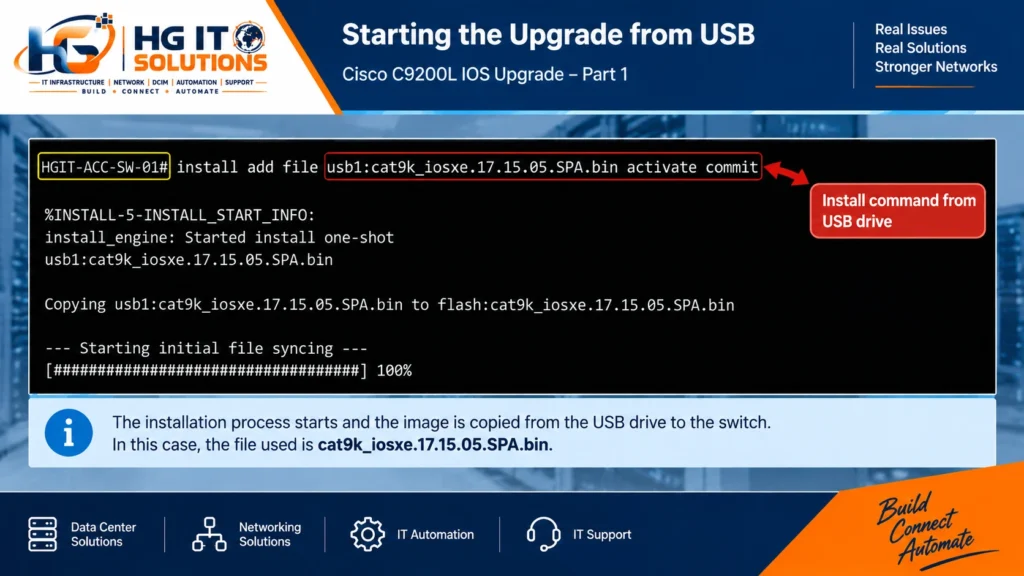
The installation was initiated using the IOS XE install workflow:
HGIT-ACC-SW-01# install add file usbflash1:cat9k_iosxe.17.15.05.SPA.bin activate commitThe switch accepted the command.
The install engine started processing the request and began working with the image stored on usbflash1:.
The console output showed that the operation had started:
%INSTALL-5-INSTALL_START_INFO:
install_engine: Started install one-shot
usbflash1:cat9k_iosxe.17.15.05.SPA.bin
The process then attempted to copy the image:
Copying usbflash1:cat9k_iosxe.17.15.05.SPA.bin
to flash:cat9k_iosxe.17.15.05.SPA.bin
At this stage, the fact that the command had been accepted did not prove that my image-selection decision was correct.
This is an important distinction.
A syntactically valid installation command is not a replacement for pre-upgrade platform verification.
The process continued until the switch performed its storage checks.
Then it stopped.
The First Problem: Not Enough Free Disk Space
The installation failed with a clear storage-related message:
--- Starting initial file syncing ---

FAILED: There is not enough free disk available to perform this
operation on switch 1. At least 1253918 KB of free disk is required
This immediately shifted my attention toward internal flash storage.
The message was real and specific. The installation engine could not proceed with the requested operation using the available storage.
At that moment, several possible causes came to mind:
- old software packages occupying flash;
- inactive installation files;
- crash or diagnostic files;
- insufficient free space for the binary;
- additional temporary space required during package extraction.
Those are all reasonable things to investigate.
However, there was another question that should have come first:
Was I attempting to install the correct software image for this switch?
The error told me why the requested operation could not proceed.
It did not validate the original image selection.
That distinction became important later in the troubleshooting.
Testing a Manual Copy to Flash
To understand the storage situation better, I also tried copying the image manually from the USB flash drive to internal flash.
The command was:
HGIT-ACC-SW-01# copy usbflash1:cat9k_iosxe.17.15.05.SPA.bin flash:The switch prompted for the destination filename and then attempted the copy.
The result was:
%Error copying usbflash1:cat9k_iosxe.17.15.05.SPA.bin
(Not enough space on device)
This confirmed that internal flash did not have sufficient room for that copy operation.
At this point, it would have been easy to treat the incident as nothing more than a storage-cleanup problem.
Delete enough files, create more free space, copy the binary again, and retry the upgrade.
But that approach would have been premature.
Before deleting anything from a production switch, I needed to understand exactly what was already stored in flash.
That investigation exposed the more important clue.
The Turning Point: Checking the Existing IOS XE Packages
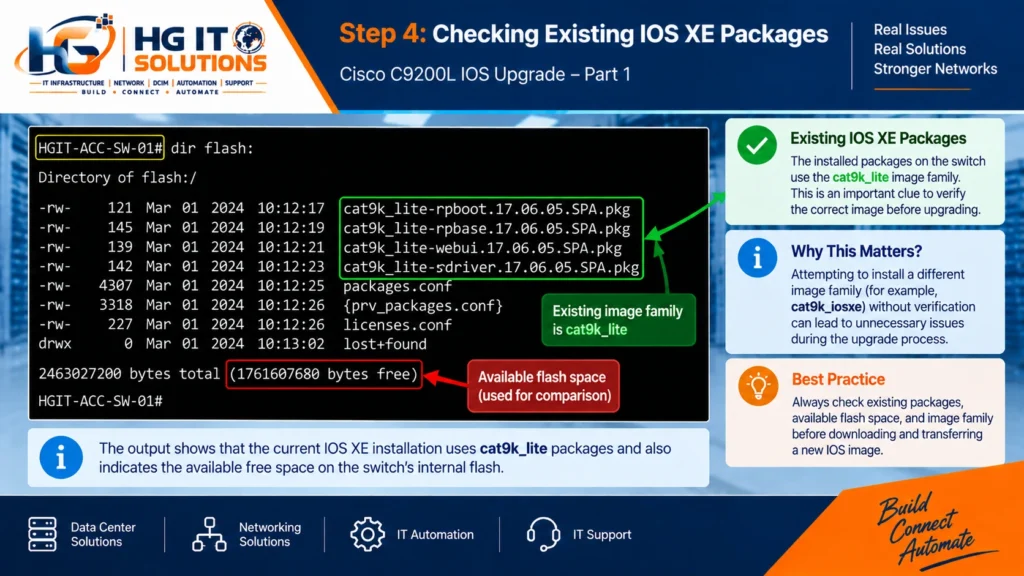
I checked the contents of the switch’s internal flash.
Among the existing files were package names similar to:
cat9k_lite-rpboot.17.06.05.SPA.pkg
cat9k_lite-webui.17.06.05.SPA.pkg
cat9k_lite-srdriver.17.06.05.SPA.pkg
cat9k_lite-rpbase.17.06.05.SPA.pkg
packages.conf
The important part was not the individual package component names.
It was the common prefix:
cat9k_liteThat immediately stood out.
The currently installed software packages belonged to the cat9k_lite image family.
The image I had initially prepared for the upgrade was:
cat9k_iosxe.17.15.05.SPA.binThe difference was now visible:
Existing installation:
cat9k_lite-*.17.06.05.SPA.pkg

Initially selected upgrade image:
cat9k_iosxe.17.15.05.SPA.bin
This was the moment when the troubleshooting direction changed.
Instead of asking only:
“How can I create enough flash space for this file?”
I needed to ask:
“Why am I trying to use this file on a switch whose existing installation clearly uses the cat9k_lite image family?”
That was a much better troubleshooting question.
Verifying the Current Installation State
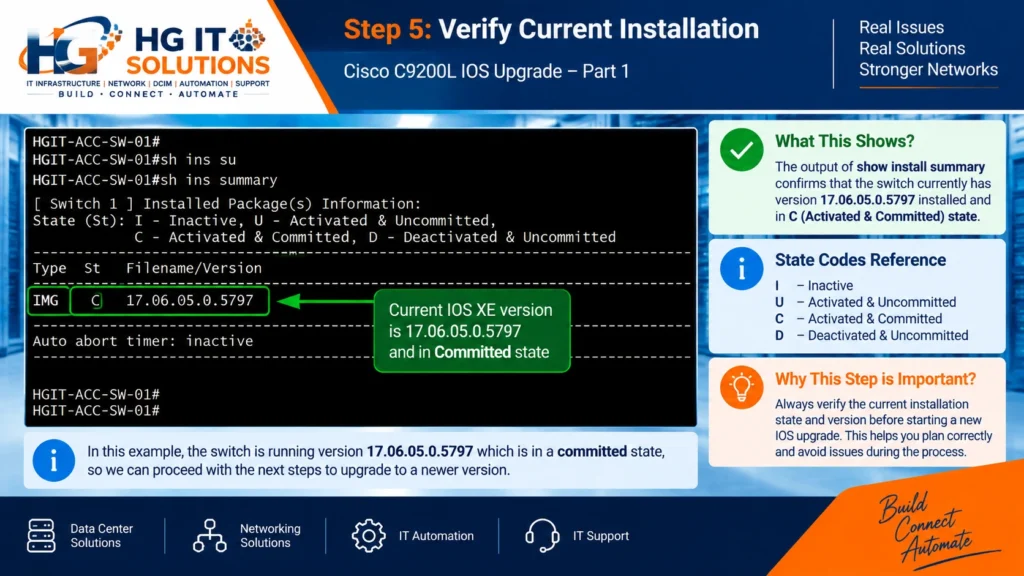
The next useful check was:
show install summaryThe output provided information about the current installed software state.
The existing version was shown as:
17.06.05.0.5797and the software was in a committed state.
This provided another useful baseline before making further changes.
During any IOS XE upgrade, I prefer to record the current state before modifying the system.
Useful pre-upgrade commands include:
show versionshow install summaryshow bootdir flash:These commands answer different questions.
show version helps identify the platform and currently running software.
show install summary helps establish the current installation state.
show boot helps verify the boot configuration.
dir flash: shows the files currently stored on internal flash and the available free space.
Together, these checks provide a much better starting point than simply knowing the target IOS XE version.
Understanding What Actually Went Wrong
There are two separate issues in this case, and keeping them separate is important.
The Immediate Failure
The requested installation could not proceed because the switch did not have enough free disk space for that operation.
The switch explicitly reported:
FAILED: There is not enough free disk available to perform this operationThe manual copy also failed with:
Not enough space on deviceTherefore, it would be wrong to say that storage was irrelevant.
It was clearly part of the failure.
The Pre-Upgrade Mistake
The more fundamental mistake happened earlier.
I had not properly verified the Cisco C9200L IOS image family before preparing the upgrade.
The switch was already showing me cat9k_lite packages, but I had initially prepared a cat9k_iosxe binary.
The appropriate response was therefore not:
“Delete files until this binary fits.”
It was:
“Stop the upgrade, verify the platform and supported software image, and then continue with the correct upgrade plan.”
That distinction is one of the most important lessons from this incident.
Why I Did Not Start Deleting Files
A flash-space error creates pressure to free storage quickly, especially during a limited maintenance window.
But manually deleting Cisco IOS XE files without understanding their purpose can create a much more serious problem.
For example, the flash filesystem contained:
packages.confalong with active .pkg files.
Those files are part of the installed software environment.
Deleting files simply because they consume a large amount of storage is not a safe troubleshooting method.
Cisco IOS XE provides software-installation mechanisms for managing inactive packages. One commonly used command is:
install remove inactiveCisco documents this cleanup operation as part of Catalyst 9200 software upgrade procedures. The purpose is to identify and remove inactive installation files rather than randomly deleting files from flash.
However, even a safe cleanup command should not replace image verification.
If the wrong software image has been selected, creating additional flash space does not correct the original planning mistake.
For this reason, I stopped treating cleanup as the first solution and went back to verifying the platform and software image.
Comparing the Two IOS XE Images
The software files involved in the troubleshooting also showed a significant size difference.
The initially prepared standard image was approximately 1.25 GB, while the Lite image later prepared for the C9200L was approximately 492 MB.
Those values are useful for understanding this particular incident, but they should not become a general rule such as:
“Always choose the smaller image for a C9200L.”
That would be the wrong way to select network operating system software.
File size is an observation.
Platform compatibility is the requirement.
The correct Cisco C9200L IOS image should be selected based on the exact switch platform, target IOS XE release, Cisco documentation, and supported software information—not simply by comparing file sizes.
The difference in size did, however, help explain why the initial operation placed such a large demand on the available flash storage.
Verifying the Correct Image for Catalyst 9200L
Once the existing cat9k_lite packages had been identified, the next step was to verify that observation against Cisco documentation.
For the Catalyst 9200 Series in the IOS XE 17.15.x release documentation, Cisco identifies the software image type as:
CAT9K_LITE_IOSXEThe corresponding binary naming format uses:
cat9k_lite_iosxe.<release>.SPA.binFor the target release in this maintenance activity, the image prepared after verification was:
cat9k_lite_iosxe.17.15.05.SPA.bin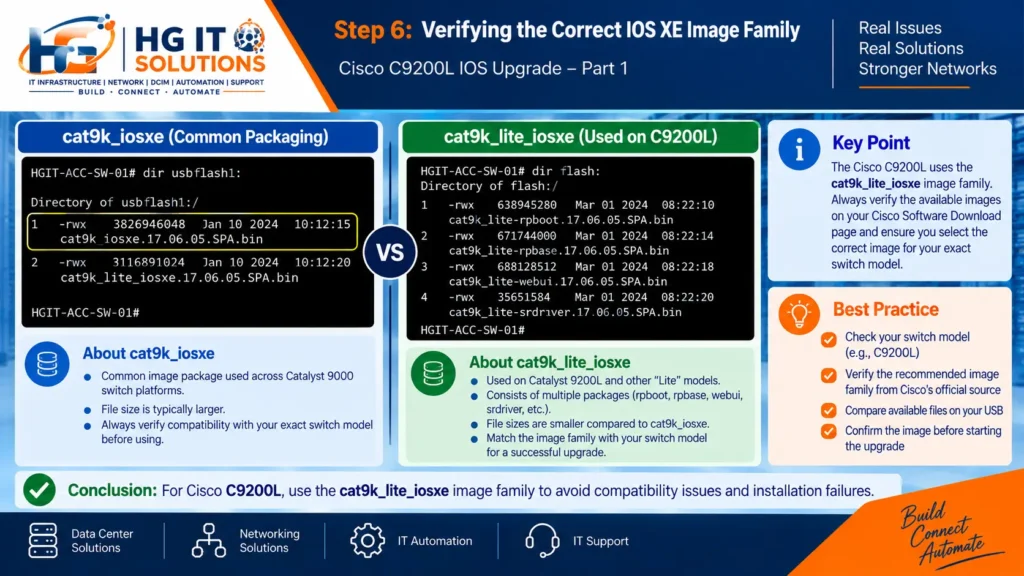
This is an important part of the troubleshooting process.
I did not want to make the opposite mistake and assume that the Lite image was correct only because I saw cat9k_lite filenames in flash.
The evidence from the switch provided the clue.
Cisco’s platform documentation provided the confirmation.
That combination is much safer than relying on assumptions.
Cisco Catalyst 9200 Series IOS XE 17.15.x Release Notes
What I Should Have Checked Before the Upgrade
Looking back at the incident, there were several checks I should have completed before putting the software image on the USB drive.
1. Verify the Exact Switch Model
The first check should be:
show versionDo not stop at identifying the device as a “Catalyst 9000.”
Record the exact model.
The Catalyst 9000 family contains multiple switch platforms, and software planning should be based on the actual device being upgraded.
2. Record the Current IOS XE Version
Before changing anything, record the currently running version.
Again:
show versionIn this case, the existing packages were associated with IOS XE 17.06.05.
Knowing the source version is important when reviewing upgrade documentation and release notes.
3. Identify the Current Image Family
This is the check that would have saved the most time in this incident.
Inspect the existing software files:
dir flash:The package names clearly showed:
cat9k_lite-rpboot
cat9k_lite-rpbase
cat9k_lite-srdriver
cat9k_lite-webui
Seeing cat9k_lite should have prompted me to verify the target image before attempting the upgrade.
This is now one of my mandatory checks before preparing a Cisco C9200L IOS image.
4. Check the Installation State
Run:
show install summaryRecord the current installed and committed software state.
This gives you a baseline before the upgrade and something to compare against after the maintenance activity.
5. Verify the Boot Configuration
Run:
show bootUnderstand what the switch is configured to boot.
In an IOS XE Install Mode environment, packages.conf plays an important role in the boot process.
Do not modify or delete boot-related files unless you understand exactly how the switch is currently operating.
6. Check Internal Flash Space
Before copying a large image, run:
dir flash:Check both the files and the amount of free storage.
Do this before the maintenance window if possible.
A large software binary plus the space required during installation and package extraction can create storage constraints that are much easier to address before the actual upgrade begins.
7. Verify the Target Image with Cisco
Once the exact switch and current software are known, verify the target release and image using Cisco’s documentation and software resources.
Do not rely only on:
- a previous Catalyst upgrade;
- another switch in the network;
- an old internal procedure;
- a filename received from someone else;
- or the fact that the release number looks correct.
The platform and image family need to match.
For the IOS XE 17.15.x Catalyst 9200 documentation relevant to this case, Cisco identifies CAT9K_LITE_IOSXE as the software image type.
8. Verify the Image Integrity
Once the correct image has been downloaded, verify its integrity before installation.
A correct filename does not guarantee that a download or file transfer completed without corruption.
The checksum published for the software should be compared using the appropriate verification process.
We will cover image verification as part of the complete USB upgrade workflow in Part 3 of this series.
9. Confirm Configuration Backup and Console Access
Before an IOS XE upgrade, make sure the switch configuration has been saved and backed up according to your operational procedure.
Also consider how you will regain access if normal management connectivity does not return after the reload.
For maintenance on production switching infrastructure, console access or an appropriate out-of-band recovery method can be extremely valuable.
10. Understand the Reload Impact
Software activation can require a reload.
Before starting, confirm that the maintenance window allows for the expected outage and that affected services have been accounted for.
The technical command is only one part of a successful upgrade.
Operational preparation matters just as much.
My Cisco C9200L Pre-Upgrade Checklist
After this experience, this is the checklist I would use before another C9200L software upgrade:
- Confirm the exact switch model.
- Record the current IOS XE version.
- Identify the current software/image family.
- Check the current installation state.
- Verify the boot configuration.
- Check internal flash contents and available space.
- Review Cisco documentation for the target release.
- Confirm the correct image filename for the platform.
- Verify the downloaded image integrity.
- Save and back up the switch configuration.
- Confirm console or recovery access.
- Confirm the maintenance and reload window.
- Only then begin the software installation.
The entire pre-check may take only a few minutes.

That is much less time than troubleshooting an avoidable problem after the maintenance window has already started.
A Note About install add file ... activate commit
The IOS XE installation command itself was not the main mistake in this incident.
The workflow uses a command similar to:
install add file <image-file> activate commitCisco documents the install process for Catalyst 9200 software upgrades. During an Install Mode upgrade, the software image is processed into the packages required by the switch, and the installation state is updated as part of activation and commit.
The important point is that a valid installation command should come after the software has been verified.
The better sequence is:
Verify platform
      ↓
Verify current software
      ↓
Verify image family
      ↓
Check flash
      ↓
Verify target image
      ↓
Verify checksum
      ↓
Install
      ↓
Activate / Commit
      ↓
Reload if required
      ↓
Post-upgrade verification
That sequence would have prevented the initial mistake in this case.
Lessons Learned from This Upgrade
The biggest lesson from this incident was surprisingly simple:
Do not begin an IOS upgrade with the file you want to install. Begin with the device you are about to upgrade.
The switch already contained most of the information I needed.
Its existing packages showed:
cat9k_liteIts current installation state showed the running software.
Its flash directory showed the available storage.
The platform information could be checked with show version.
Cisco’s documentation could then be used to verify the target software image.
Had I followed that sequence from the beginning, I would not have started with:
cat9k_iosxe.17.15.05.SPA.binand then discovered the issue only after the installation failed.
Another important lesson is that an error message should be interpreted in context.
The switch genuinely reported insufficient disk space.
But the correct troubleshooting response was not simply to make the error disappear.
It was to understand why I had reached that point in the first place.
That distinction matters in network troubleshooting.
The Storage Error Was a Symptom, but Also a Useful Warning
In a strange way, the failed installation helped.
The switch stopped the operation before I went further down the original path.
The error pushed me to inspect flash more carefully.
That exposed the existing cat9k_lite package names.
Those filenames led me back to image verification.
So the final troubleshooting chain looked like this:
Upgrade Started
      ↓
Not Enough Free Disk
      ↓
Manual Copy Failed
      ↓
Flash Investigated
      ↓
Existing cat9k_lite Packages Identified
      ↓
Initial Image Selection Questioned
      ↓
Platform Documentation Verified
      ↓
Correct Image Family Prepared
This is why I consider the incident more useful than a simple failed upgrade.
It changed the way I approach pre-upgrade checks.
What I Would Not Do
If I encountered the same situation again, there are several things I would avoid.
I would not immediately start manually deleting .pkg files.
I would not delete packages.conf just to create additional storage.
I would not repeatedly retry the same image without verifying the platform.
I would not assume that every Catalyst 9000 switch uses the same binary.
I would not choose between cat9k_iosxe and cat9k_lite_iosxe based purely on file size.
I would also not assume that because the installation command started, the complete upgrade plan must therefore be correct.
The safest approach is to verify first and change the system second.
What Happened Next?
Identifying the image-selection mistake solved only one part of the problem.
There was still a genuine flash-storage issue to understand.
The switch had reported:
FAILED: There is not enough free disk available to perform this operationand the manual copy had returned:
Not enough space on deviceThe next stage of the troubleshooting was therefore to investigate the internal flash safely and determine how to proceed without damaging the active IOS XE installation.
That is the focus of Part 2 of this series:
Cisco C9200L Not Enough Space on Device During IOS XE Upgrade: Issue and Resolution
After the storage problem is understood, Part 3 will cover the complete USB upgrade workflow using the verified cat9k_lite image.
Frequently Asked Questions
Which IOS XE image does a Cisco Catalyst 9200L use?
For the Catalyst 9200 Series IOS XE 17.15.x documentation relevant to this case, Cisco identifies the software image type as CAT9K_LITE_IOSXE. The binary follows the cat9k_lite_iosxe...SPA.bin naming format. Always verify the exact switch model and target release using current Cisco documentation before downloading an image.
How can I check the current IOS XE version on a C9200L?
Use:
show versionRecord the current version before starting the upgrade.
How can I identify the existing image family?
Inspect the software packages stored in flash:
dir flash:In this case, the existing packages contained the cat9k_lite prefix:
cat9k_lite-rpboot
cat9k_lite-rpbase
cat9k_lite-srdriver
cat9k_lite-webui
That was the clue that led to further image verification.
Why did the initial upgrade fail?
The immediate failure reported by the switch was insufficient free disk space for the requested installation operation.
However, during troubleshooting I also discovered that I had not properly verified the image family before beginning the upgrade.
Both facts are important to understanding this case.
Should I delete IOS XE files when I see “Not enough space on device”?
Do not randomly delete files from flash.
First identify what is active, what is inactive, what the switch needs to boot, and whether the software image you are attempting to install is correct.
Cisco provides install remove inactive for cleaning up inactive installation files as part of the supported IOS XE software-management workflow.
Can I delete packages.conf to free flash space?
Do not treat packages.conf as an unnecessary file. In an Install Mode environment it is part of the software boot arrangement. Storage cleanup should be performed using an understood and supported procedure rather than indiscriminate deletion.
Can I use the same IOS XE image on every Catalyst 9000 switch?
Do not make that assumption.
Verify the exact switch platform and the software image specified for the target release before downloading or installing anything.
Why check show install summary before upgrading?
It gives you a baseline of the current software installation state. That baseline can also be useful when verifying the switch after the upgrade.
Should I check flash before putting the image on USB?
Yes.
Even if the image will be read from USB, the installation process can still require internal storage for software packages and installation operations. Check the available flash before the maintenance begins.
Is the smaller IOS image automatically the correct one?
No.
File size should never be the deciding factor.
The correct Cisco C9200L IOS image is determined by the supported platform and software release, not simply by which binary is smaller.
Conclusion
This Cisco C9200L IOS XE upgrade reminded me that a failed upgrade is not always just about the error shown on the console.
The process initially stopped because of insufficient flash space, but further troubleshooting revealed a more important mistake: I had started the upgrade without first verifying the correct Cisco C9200L IOS image family.
Checking the existing cat9k_lite packages and confirming the platform requirements helped me correct the upgrade plan before making unnecessary changes to the switch.
The key lesson from this case is simple:
Verify the switch model, current software, image family, and available flash space before starting the upgrade.
A few minutes of verification before a maintenance window can save a lot of troubleshooting time later.
Continue the Cisco C9200L IOS XE Troubleshooting Series
Part 1: Cisco C9200L IOS Image Mistake: What I Should Have Checked Before Starting the Upgrade
Part 2: Cisco C9200L Not Enough Space on Device During IOS XE Upgrade: Issue and Resolution
Part 3: Cisco C9200L IOS XE Upgrade from USB Using the Correct cat9k_lite Image
This article is Part 1 of my Cisco C9200L IOS XE troubleshooting series. The next parts cover the flash-space issue in more detail and the final upgrade process using the verified cat9k_lite image. Links to those guides will be added here as they are published.
I have also documented another real-world network troubleshooting case where an Aruba AP-515 factory reset completed but no SSID appeared. That issue followed a different troubleshooting path, but it reinforced the same lesson: verify the device state and connectivity before assuming the reset or configuration has failed.
Official References
Cisco Catalyst 9200 Series Upgrade Documentation
Cisco Catalyst 9200 Series IOS XE 17.15.x Release Notes
