
HG IT Solutions — NetBox DCIM & IPAM Lab Series | Part 2: Persistent Deployment and HTTPS
Introduction
NetBox HTTPS Setup Ubuntu 24.04 is the next stage of our HG IT Solutions Data Center Infrastructure Management (DCIM) and IP Address Management (IPAM) lab series.
In Part 1 — How to Install NetBox v4.7.3 on Ubuntu 24.04 LTS, we installed NetBox Community v4.7.3 on an Oracle Cloud Infrastructure (OCI) Ubuntu server. We configured PostgreSQL, Redis, an administrator account, and secure access through a Windows SSH tunnel.
That approach was ideal for initial testing. However, it required a manually running Django development server and an active SSH tunnel.
Our next objective was to make NetBox available through a dedicated domain, with persistent background services and encrypted HTTPS access.
In this practical guide, we explain the complete deployment process, the commands needed to reproduce it, the errors encountered during our HGIT implementation, and the final verification results.
Important: This article continues from Part 1. It assumes NetBox is already installed and working. Our actual deployment was successful, but certificate renewal simulation and additional security hardening are separate follow-up checks.
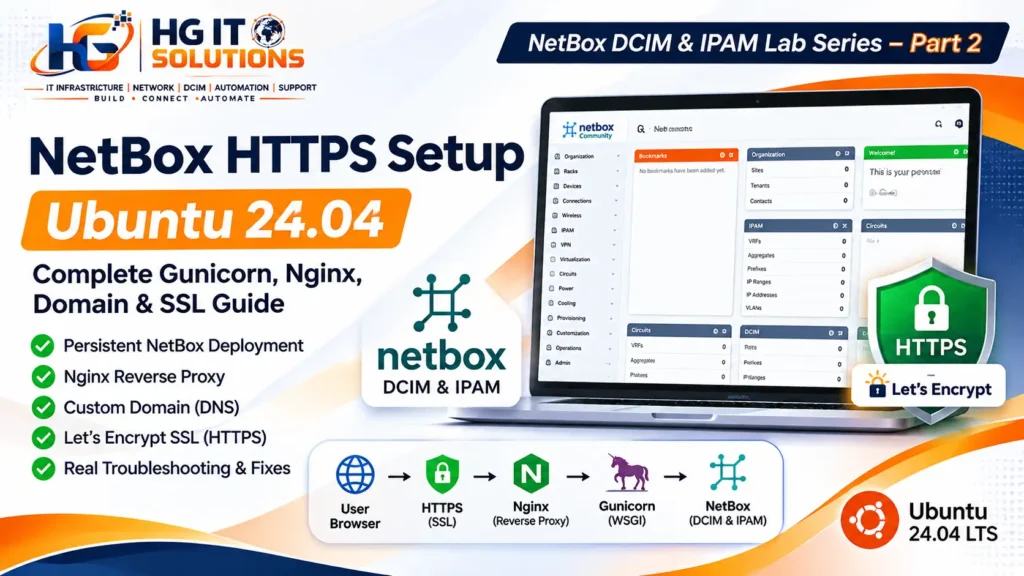
Table of Contents
1. What Are We Planning to Configure?
Our target was to transform the temporary NetBox lab into a persistent web application accessible through:
https://dcim.hgitsolutions.com
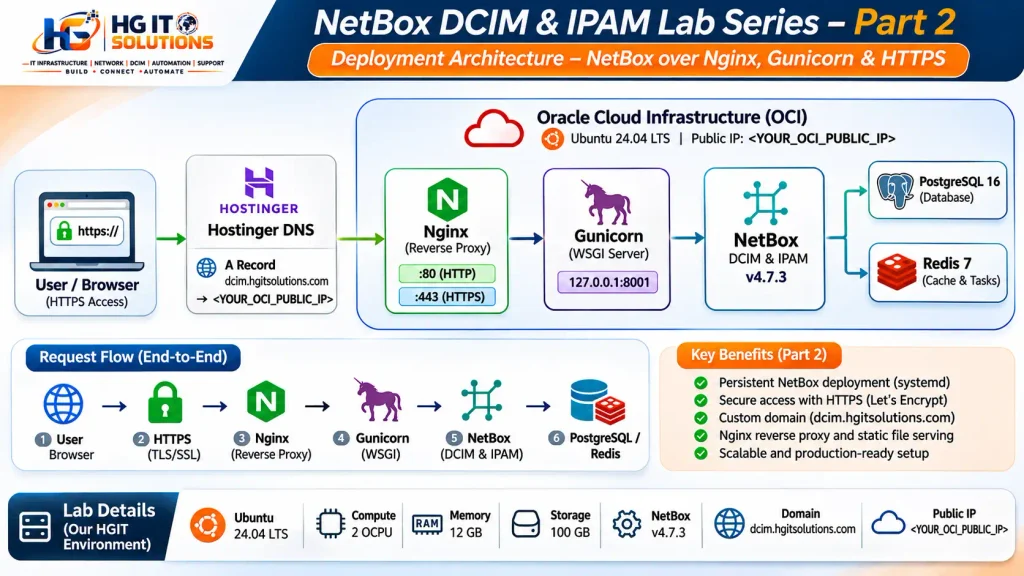
The architecture includes:
| Component | Purpose |
|---|---|
| Oracle Cloud Infrastructure | Hosts the Ubuntu virtual machine |
| Ubuntu Server 24.04 LTS | Operating system |
| NetBox Community v4.7.3 | DCIM and IPAM application |
| PostgreSQL 16 | Application database |
| Redis 7 | Cache and background tasks |
| Gunicorn | Runs NetBox as a WSGI application |
| systemd | Manages persistent application services |
| Nginx | Reverse proxy and static file server |
| Hostinger DNS | Resolves our custom domain |
| Let’s Encrypt | Provides a trusted TLS certificate |
| Certbot | Obtains and manages the certificate |
Our planned request flow:
User Browser → HTTPS → Nginx → Gunicorn → NetBox → PostgreSQL / Redis
Static application assets are served directly by Nginx rather than through Gunicorn.
This architecture removes the need to keep a Django development server or Windows SSH tunnel running for normal browser access.
2. Prerequisites and Lab Environment
Before beginning, complete the NetBox installation described in Part 1.
Our HGIT environment used:
| Item | Configuration |
|---|---|
| Cloud provider | Oracle Cloud Infrastructure |
| Operating system | Ubuntu 24.04.5 LTS |
| Architecture | ARM64 |
| Compute | 2 OCPU |
| Memory | 12 GB |
| Boot storage | 100 GB |
| NetBox version | 4.7.3 |
| NetBox installation path | /opt/netbox |
| Application upstream | 127.0.0.1:8001 |
| Local Nginx test listener | 127.0.0.1:8080 |
| Domain | dcim.hgitsolutions.com |
| Public IP in our lab | Your Oracle Public IP |
Replace our domain and public IP with your own values when following this tutorial.
Make sure you have SSH access, sudo privileges, a domain you control, and permission to configure the OCI network security rules.
Do not expose PostgreSQL, Redis, Gunicorn port 8001, or the local Nginx port 8080 directly to the internet.
3. Verify the Existing NetBox Installation
Connect to your Ubuntu server through SSH.
Run:
lsb_release -aPurpose: Confirm the operating system.
Expected output includes:
Description: Ubuntu 24.04.5 LTSVerify the NetBox installation directory:
ls -ld /opt/netboxCheck PostgreSQL:
systemctl is-active postgresqlCheck Redis:
redis-cli pingExpected results:
active
PONG
These checks confirm that the underlying database and caching services are available before we configure the public web application.
4. Configure Persistent NetBox Services with Gunicorn and systemd
In Part 1, we started NetBox using Django’s temporary development server.
For persistent operation, NetBox should run under a managed application service.
The official NetBox source installation includes service configuration examples. Use the files matching your installed NetBox release rather than downloading arbitrary service definitions.
First, inspect the available examples:
ls -l /opt/netbox/contrib/Look for the Gunicorn configuration and systemd service files.
For a standard NetBox source installation, the service templates are typically installed from the contrib directory.
If you have not configured persistent services yet, copy the matching service templates:
sudo cp /opt/netbox/contrib/netbox.service /etc/systemd/system/
sudo cp /opt/netbox/contrib/netbox-rq.service /etc/systemd/system/
Purpose: Create systemd units for the NetBox web application and its background worker.
Before enabling them, inspect the service definitions:
sudo systemctl cat netbox.service
sudo systemctl cat netbox-rq.service
Confirm that the application path, virtual environment, service account, and Gunicorn configuration match your installation.
Important: Our HGIT deployment uses Gunicorn on 127.0.0.1:8001. The standard example configuration may use a different listener. Set the Gunicorn bind address in the configuration file referenced by your service, and ensure Nginx uses the same address. Do not change the bind address blindly.
After verifying the unit files, reload systemd:
sudo systemctl daemon-reloadEnable and start the services:
sudo systemctl enable --now netbox.service
sudo systemctl enable --now netbox-rq.service
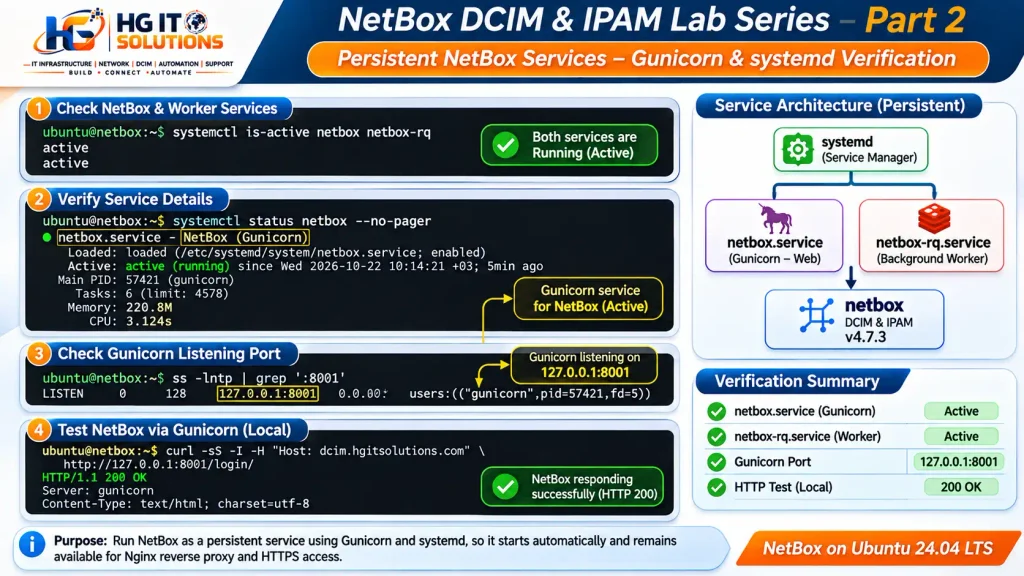
Verify both:
systemctl is-active netbox.service
systemctl is-active netbox-rq.service
Expected output:
active
active
Check the Gunicorn listener:
sudo ss -lntp | grep ':8001'In our HGIT lab, Gunicorn was confirmed listening on:
127.0.0.1:8001Test the application directly:
curl -sS -I \
  -H "Host: localhost" \
  http://127.0.0.1:8001/login/
A successful response confirms that Gunicorn can serve the application. Depending on application configuration and the request host, you may need to adjust ALLOWED_HOSTS before this test succeeds.
5. Install Nginx and Prepare the Reverse Proxy
Nginx accepts incoming browser requests and forwards application requests to Gunicorn.
Install Nginx if it is not already installed:
sudo apt update
sudo apt install -y nginx
Enable the service:
sudo systemctl enable --now nginxVerify:
systemctl is-active nginxExpected output:
activeOur deployment also retained a local Nginx virtual host on 127.0.0.1:8080 for troubleshooting.
Before creating a domain configuration, check existing sites:
sudo ls -l /etc/nginx/sites-enabled/This is important because multiple Nginx server blocks can coexist. A configuration may pass the syntax test while requests are still handled by an unexpected virtual host.
6. Configure the NetBox Domain in Nginx
Our public domain configuration was stored at:
/etc/nginx/sites-available/dcim.hgitsolutions.comCreate or edit the configuration:
sudo nano /etc/nginx/sites-available/dcim.hgitsolutions.comUse the following HTTP configuration as a starting point:
server {
    listen 80;
    server_name dcim.hgitsolutions.com;

    client_max_body_size 25m;

    location /static/ {
        alias /opt/netbox/netbox/static/;
    }

    location / {
        proxy_pass http://127.0.0.1:8001;
        proxy_set_header Host $host;
        proxy_set_header X-Real-IP $remote_addr;
        proxy_set_header X-Forwarded-For $proxy_add_x_forwarded_for;
        proxy_set_header X-Forwarded-Proto $scheme;
    }
}
Configuration explanation:
listen 80accepts HTTP requests.server_namematches the custom domain.client_max_body_sizesets the maximum request body size./static/serves collected CSS, JavaScript, and other static assets.proxy_passforwards application requests to Gunicorn.Hostpreserves the original requested hostname.X-Forwarded-Forforwards client address information.X-Forwarded-Prototells the application which protocol Nginx received.
The reverse proxy must trust forwarded headers only from appropriately controlled proxy infrastructure.
Enable the configuration:
sudo ln -s \
  /etc/nginx/sites-available/dcim.hgitsolutions.com \
  /etc/nginx/sites-enabled/dcim.hgitsolutions.com
If the symbolic link already exists, do not recreate it.
Test Nginx:
sudo nginx -tExpected output:
nginx: the configuration file /etc/nginx/nginx.conf syntax is ok
nginx: configuration file /etc/nginx/nginx.conf test is successful
Reload Nginx:
sudo systemctl reload nginx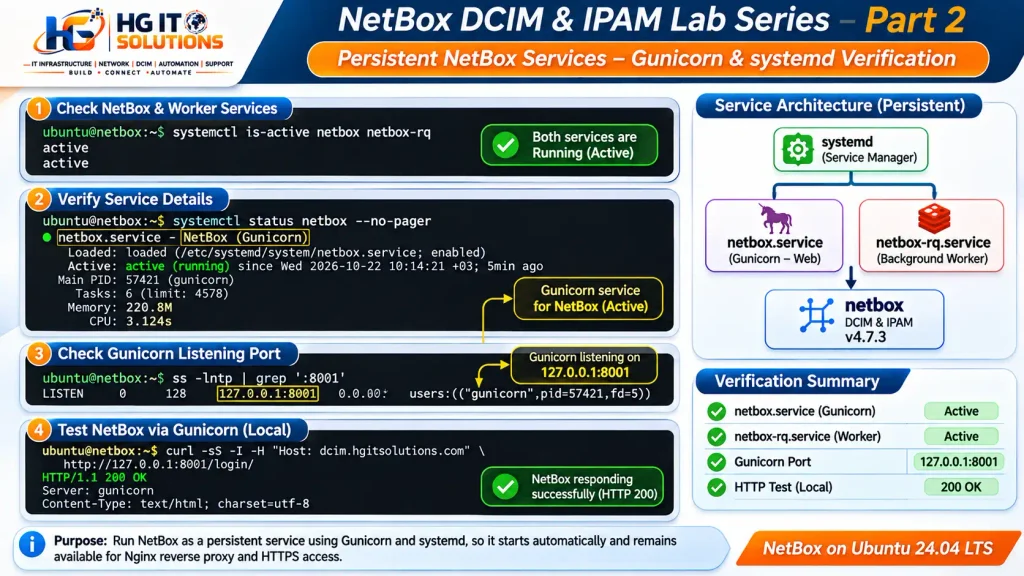
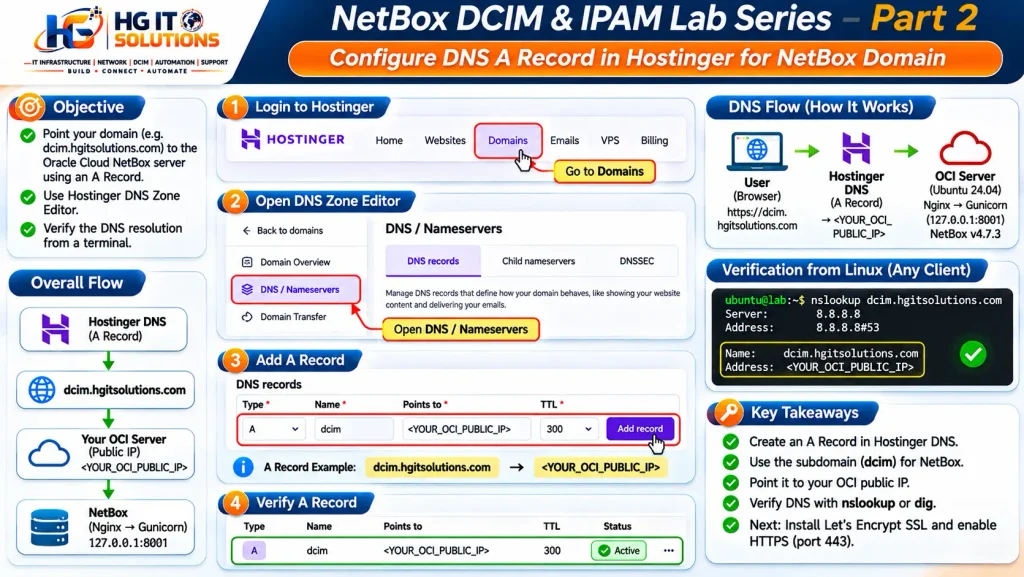
7. Configure DNS for the NetBox Domain
We manage our domain DNS through Hostinger.
Create an A record pointing the NetBox subdomain to the OCI public IP.
Our example:
| Record | Value |
|---|---|
| Type | A |
| Name | dcim |
| Target | 192.168.1.1 (Your Oracle VM IP) |
| Domain | dcim.hgitsolutions.com |
Use your own VM’s public IP.
From Windows PowerShell, verify DNS resolution:
Resolve-DnsName dcim.hgitsolutions.com -Type A -Server 1.1.1.1Our actual DNS verification returned:
Name                    Type   IPAddress
----                    ----   ---------
dcim.hgitsolutions.com  A      192.168.1.1
This confirmed that the domain was resolving to our Oracle Cloud server.
DNS resolution alone does not prove that the web application is accessible. OCI ingress rules, Ubuntu firewall rules, and Nginx must also allow the required traffic.
For HTTPS deployment, allow TCP ports 80 and 443 through the applicable OCI security list or network security group, and through any active host firewall.
Restrict SSH access to trusted administrative IP addresses wherever practical.
8. Troubleshooting: 404 Not Found on the Domain
During our initial tests, we received:
HTTP/1.1 404 Not Found
Server: nginx/1.24.0 (Ubuntu)
However, the NetBox application itself was responding successfully on the internal upstream.
This indicated that we needed to investigate Nginx request routing rather than immediately reinstalling NetBox.
Test the domain virtual host locally:
curl -sS -I \
  -H "Host: dcim.hgitsolutions.com" \
  http://127.0.0.1/login/
Inspect the enabled Nginx sites:
sudo ls -l /etc/nginx/sites-enabled/Inspect the loaded configuration:
sudo nginx -T 2>&1 | grep -n -A 18 \
  'server_name dcim.hgitsolutions.com'
Why these commands matter: A valid Nginx configuration does not guarantee that the correct virtual host is serving the request.
In our case, the domain-specific configuration and enabled-site mappings were reviewed before continuing.
Always check which virtual host handles the request before changing application files.
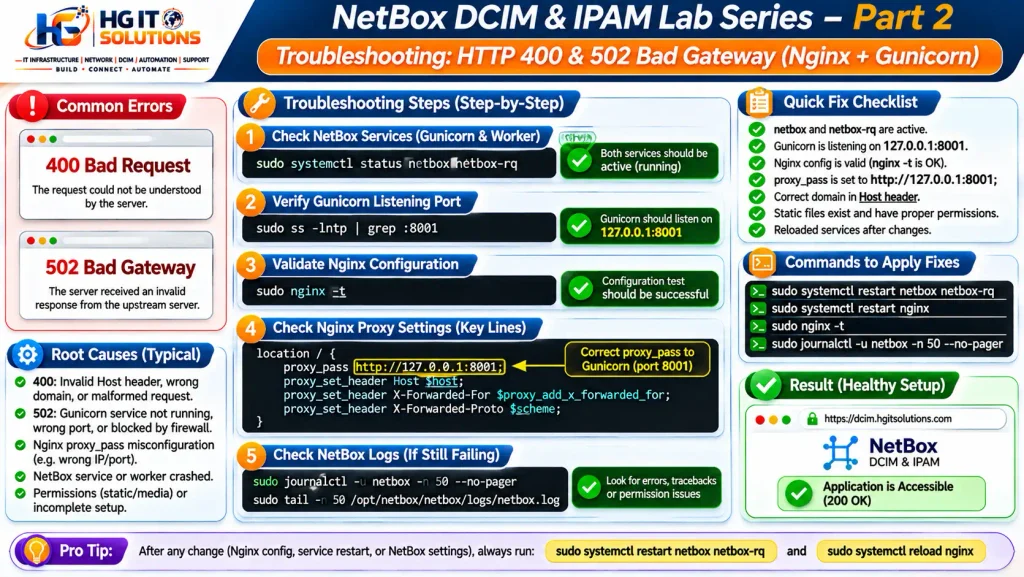
9. Troubleshooting: 400 Bad Request from NetBox
Another error encountered during testing was:
HTTP/1.1 400 Bad Request
Server: gunicorn
We also observed a 400 response when accessing the application through the domain.
One important configuration to verify is NetBox’s ALLOWED_HOSTS setting.
NetBox uses this setting to define which hostnames are accepted.
Inspect the configuration:
sudo grep -n '^ALLOWED_HOSTS' \
  /opt/netbox/netbox/netbox/configuration.py
Our original configuration included:
ALLOWED_HOSTS = ['158.101.231.62', '127.0.0.1', 'localhost']The custom domain was not included.
Before editing, create a backup:
sudo cp -a \
  /opt/netbox/netbox/netbox/configuration.py \
  /opt/netbox/netbox/netbox/configuration.py.pre-domain.bak
Edit the configuration:
sudo nano /opt/netbox/netbox/netbox/configuration.pyUpdate the existing setting to include your domain:
ALLOWED_HOSTS = [
    '158.101.231.62',
    '127.0.0.1',
    'localhost',
    'dcim.hgitsolutions.com',
]
Do not duplicate the ALLOWED_HOSTS setting elsewhere in the file.
Check Python syntax:
sudo python3 -m py_compile \
  /opt/netbox/netbox/netbox/configuration.py
Restart the application service:
sudo systemctl restart netbox.serviceOur recorded verification showed:
ALLOWED_HOSTS updated successfully
Python syntax OK
Important: A 400 response can have several causes. In our deployment, adding the domain was a necessary configuration change; do not assume that every 400 error is caused by ALLOWED_HOSTS.
10. Troubleshooting: 502 Bad Gateway After Restart
After one NetBox service restart, Nginx returned:
HTTP/1.1 502 Bad GatewayA 502 response commonly indicates that Nginx cannot obtain a valid response from its upstream application.
Our service status check still showed:
activeHowever, an active service status alone does not guarantee that the application is ready to accept requests.
Check the Gunicorn listener:
sudo ss -lntp | grep ':8001'Check recent application logs:
sudo journalctl -u netbox.service -n 80 --no-pagerTest Gunicorn directly:
curl -sS -I \
  -H "Host: dcim.hgitsolutions.com" \
  http://127.0.0.1:8001/login/
Then test Nginx:
curl -sS -I \
  -H "Host: dcim.hgitsolutions.com" \
  http://127.0.0.1/login/
If Gunicorn is not listening, investigate the NetBox service and application logs. If Gunicorn responds but Nginx returns 502, verify proxy_pass, the listening address, and Nginx error logs.
Do not repeatedly restart services without first checking the underlying error.
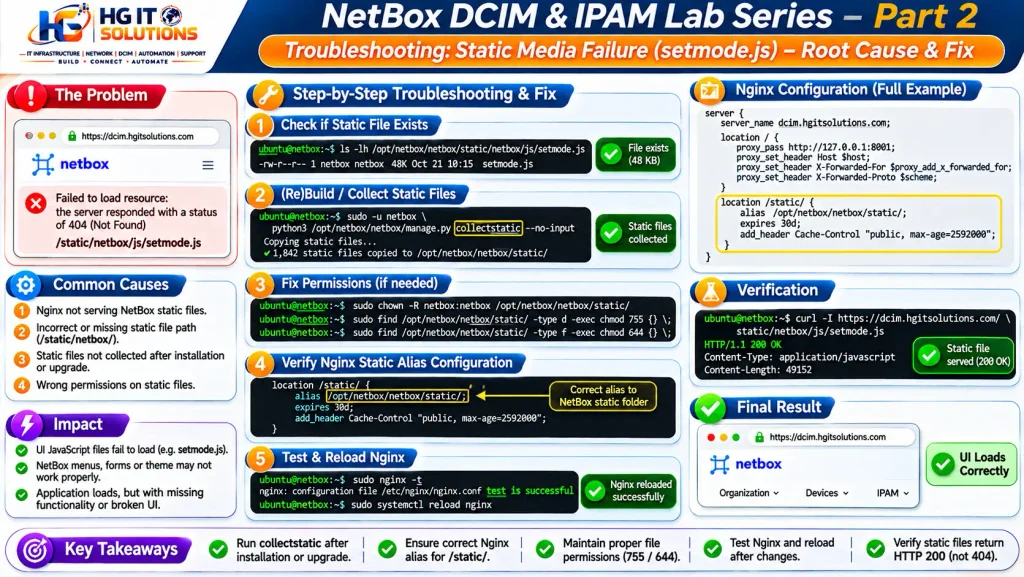
11. Troubleshooting: NetBox Static Media Failure
Once the application login page started loading, we encountered another issue:
Static Media Failure
The following static media file failed to load: setmode.js
NetBox requires its static assets to be collected and served correctly.
Our first check confirmed that the file existed:
sudo find /opt/netbox/netbox/static \
  -name setmode.js -type f
Actual result:
/opt/netbox/netbox/static/setmode.jsWe then compared the domain virtual host with our local Nginx virtual host.
Domain test:
curl -sS -o /dev/null \
  -w "Domain Static HTTP: %{http_code}\n" \
  -H "Host: dcim.hgitsolutions.com" \
  http://127.0.0.1/static/setmode.js
Actual result before the fix:
Domain Static HTTP: 404Local Nginx test:
curl -sS -o /dev/null \
  -w "Local Static HTTP: %{http_code}\n" \
  http://127.0.0.1:8080/static/setmode.js
Actual result:
Local Static HTTP: 200This comparison was important.
The static file existed and could be served by our local Nginx configuration. The problem was isolated to the public domain virtual host’s static file handling.
We added the following block to the domain configuration:
location /static/ {
    alias /opt/netbox/netbox/static/;
}
After backing up and editing the Nginx configuration, we verified its syntax:
sudo nginx -tReloaded Nginx:
sudo systemctl reload nginxAnd tested the file again:
curl -sS -I \
  -H "Host: dcim.hgitsolutions.com" \
  http://127.0.0.1/static/setmode.js
Actual successful response included:
HTTP/1.1 200 OK
Content-Type: application/javascript
The NetBox login page then loaded correctly with its required static assets.
If the static file does not exist on your own installation, consult the official NetBox installation documentation and rerun the appropriate static collection process for your installed version.
12. Troubleshooting: 403 Forbidden from the Office Network
During external access testing, Windows PowerShell returned:
HTTP/1.1 403 Forbidden
Content-Length: 504
The same response appeared during our initial direct-domain tests.
We checked the DNS record:
Resolve-DnsName dcim.hgitsolutions.com -Type A -Server 1.1.1.1The domain resolved correctly to the OCI public IP.
We also tested the connection with an explicit IP resolution:
curl.exe --noproxy "*" -I `
  --connect-timeout 10 --max-time 20 `
  --resolve "dcim.hgitsolutions.com:80:158.101.231.62" `
  http://dcim.hgitsolutions.com/login/
The 403 response remained.
Later, we switched from the office internet connection to mobile data, and the NetBox portal became accessible.
This was a valuable troubleshooting observation.
Our conclusion: The issue was network-dependent, and an office firewall, proxy, or web-filtering policy was a possible cause. We did not obtain the office security logs needed to confirm the exact blocking mechanism.
When troubleshooting similar access issues, compare the results from different trusted networks, inspect HTTP response headers, verify the target IP, and involve your network security administrator where necessary.
Do not bypass organizational security policies without authorization.
13. Install Certbot and Configure Let’s Encrypt SSL
After verifying HTTP access and application functionality, we configured HTTPS.
Install Certbot and its Nginx plugin:
sudo apt update
sudo apt install -y certbot python3-certbot-nginx
Verify Certbot:
certbot --versionOur environment returned:
certbot 2.9.0Confirm the Nginx plugin is available:
sudo certbot pluginsVerify the current Nginx configuration:
sudo nginx -tBefore allowing Certbot to edit the virtual host, create a backup:
sudo cp -a \
  /etc/nginx/sites-available/dcim.hgitsolutions.com \
  /etc/nginx/sites-available/dcim.hgitsolutions.com.pre-ssl.bak
Request the certificate:
sudo certbot --nginx -d dcim.hgitsolutions.comCertbot may ask for an email address, agreement to Let’s Encrypt’s terms, and optional email-sharing preferences.
Enter an email address you control and follow the prompts.
For our HGIT deployment, the certificate request completed successfully.
The output confirmed:
Successfully received certificate.
Successfully deployed certificate for dcim.hgitsolutions.com
Congratulations! You have successfully enabled HTTPS
The certificate was saved under:
/etc/letsencrypt/live/dcim.hgitsolutions.com/Our issued certificate reported an expiry date of January 30, 2027.
Certbot also reported that an automatic renewal task had been scheduled.
14. Verify HTTPS and HTTP-to-HTTPS Redirect
After SSL deployment, we performed final command-line checks.
Test the secure login page:
curl -sS -I --max-time 15 \
  https://dcim.hgitsolutions.com/login/
Our actual response:
HTTP/1.1 200 OK
Server: nginx/1.24.0 (Ubuntu)
Content-Type: text/html; charset=utf-8
This confirmed that the HTTPS endpoint was serving the NetBox login page.
Next, test the HTTP endpoint:
curl -sS -I --max-time 15 \
  http://dcim.hgitsolutions.com/login/
Our actual response:
HTTP/1.1 301 Moved Permanently
Location: https://dcim.hgitsolutions.com/login/
This confirmed that HTTP requests were redirected to HTTPS.
Verify Nginx syntax:
sudo nginx -tExpected:
syntax is ok
test is successful
Check the application services:
systemctl is-active nginx netbox netbox-rqOur actual result:
active
active
active
All three services were running.
15. Verify the NetBox Dashboard in a Browser
Finally, we opened:
https://dcim.hgitsolutions.com
The browser displayed a secure HTTPS connection and the NetBox Community login page.
After signing in, we successfully opened the NetBox v4.7.3 dashboard.
The interface displayed the expected DCIM and IPAM navigation, including:
- Organization and sites
- Racks and devices
- Connections
- IPAM
- Virtualization
- Circuits
- Power and cooling
- Administration
Our fresh Oracle Cloud environment showed zero inventory records, which was expected because we had not yet created the lab sites, racks, devices, or cables.
The important result was that authentication, application navigation, static assets, and the dashboard were all working through our public HTTPS domain.
16. Verify Certificate Renewal and Security Settings
Let’s Encrypt certificates require periodic renewal.
Certbot reported that a renewal task was scheduled, but a scheduled task is not the same as a successful renewal test.
Run:
sudo certbot renew --dry-runA successful simulation should report that the simulated renewals succeeded.
Status in our published case study: The original certificate issuance and HTTPS deployment were verified. The dry-run result had not yet been recorded when this article was prepared.
Additional security checks recommended before treating this as a fully hardened production deployment include:
- Confirming secure cookie settings and correct HTTPS proxy handling
- Restricting administrative SSH access
- Reviewing Nginx and NetBox security headers
- Protecting database credentials and application secrets
- Verifying automated database and application backups
- Testing recovery procedures
- Keeping Ubuntu, NetBox, and dependencies updated
- Reviewing application logs and monitoring
Use the official NetBox installation documentation and Certbot documentation when validating these settings.
17. Final Deployment Verification Checklist
| Verification | HGIT result |
|---|---|
| NetBox v4.7.3 installed | Passed |
| PostgreSQL and Redis configured | Passed |
| Gunicorn application service | Passed |
| NetBox background worker | Passed |
| Nginx reverse proxy | Passed |
| Custom domain DNS | Passed |
| Static assets through domain | Passed |
| Let’s Encrypt certificate issued | Passed |
| HTTPS login page | 200 OK |
| HTTP-to-HTTPS redirect | 301 |
| Administrator dashboard | Passed |
| Certificate renewal simulation | Pending |
| Full production security review | Pending |
18. What Comes Next in the HGIT NetBox Series?
We have now completed the first two major stages of our lab:
Part 1 — Installation and Initial Configuration
How to Install NetBox v4.7.3 on Ubuntu 24.04 LTS
Part 2 — Persistent NetBox Deployment and HTTPS
Gunicorn, systemd, Nginx, domain DNS, SSL, troubleshooting, and secure browser access.
Part 3 — NetBox Organization, Sites, and Locations
Next, we will begin building the actual infrastructure model by creating sites, locations, and the organizational structure needed for our data center documentation.
Later parts will cover rack elevations, device inventory, copper and fiber patch panels, cable tracing, IPAM, permissions, and API integration.
For more practical infrastructure tutorials, visit the HG IT Solutions Blog.
Conclusion
Our NetBox HTTPS Setup Ubuntu 24.04 deployment demonstrates how to move from a temporary SSH-tunnel-based application test to a persistent NetBox environment accessible through a custom HTTPS domain.
During the process, we encountered real deployment problems, including incorrect virtual host routing, HTTP 400 and 502 responses, static media failures, and network-dependent access restrictions.
Instead of reinstalling the application, we isolated the issues using service checks, local HTTP tests, Nginx configuration inspection, and browser verification.
The final result was a working NetBox Community v4.7.3 dashboard at https://dcim.hgitsolutions.com, protected by a trusted Let’s Encrypt certificate.
In Part 3, we will move from application deployment to actual data center infrastructure modeling.
Official Technical References
- NetBox Installation Documentation
- NetBox GitHub Repository
- Nginx Reverse Proxy Documentation
- Certbot Documentation
- Let’s Encrypt Documentation
- Oracle Cloud Documentation
HG IT Solutions — Practical IT Infrastructure, Data Center and Network Engineering Guides.
