
NetBox DCIM & IPAM Lab Series — Part 1: Installation and Initial Configuration
Introduction
NetBox installation Ubuntu 24.04 is the first step in building our HG IT Solutions DCIM and IPAM lab. In this practical guide, we install NetBox Community v4.7.3 on Oracle Cloud Infrastructure, configure PostgreSQL and Redis, create an administrator account, establish secure SSH tunnel access, and verify the NetBox dashboard.
It helps IT engineers document and manage sites, racks, network devices, interfaces, cables, IP addresses, VLANs, and infrastructure connections in one centralized system.
In this practical guide, we will install NetBox Community v4.7.3 on Ubuntu 24.04 LTS, configure PostgreSQL and Redis, create an administrator account, and access the web interface securely using an SSH tunnel.
We will also demonstrate a simple, officially supported login banner customization.
Important: This is a lab/POC installation guide. We will configure production services, Nginx, HTTPS, and public access separately in Part 2.
Managing a data center using spreadsheets can become difficult as the number of racks, switches, servers, patch panels, cables, IP addresses, and sites increases.
Imagine trying to answer these questions during an infrastructure change:
- Which switch is installed in Rack R10A at U24?
- Which patch-panel port connects to a particular network interface?
- Where does a fiber connection terminate?
- Which IP addresses and VLANs belong to a specific site?
- Can we trace the complete physical connection between two devices?
This is where a structured infrastructure management platform becomes valuable.
At HG IT Solutions, we are building a practical Data Center Infrastructure Management (DCIM) and IP Address Management (IPAM) lab using NetBox.
This article documents the first stage of our actual Oracle Cloud installation: preparing Ubuntu, installing the application dependencies, configuring NetBox, creating an administrator account, accessing the dashboard securely, and customizing the login banner.
Rather than simply copying Linux commands, we will explain what each command does and why it is required.
Table of Contents
What Will We Build in This Series?
Our objective goes beyond installing a web application.
We are preparing a practical infrastructure management environment that can eventually represent:
Site → Building → Location → Rack → Device → Interface → Patch Panel → Cable → Destination
The planned lab will include:
- Multiple organizations, tenants, and sites
- Data center rooms, rack rows, and cabinet elevations
- Servers, switches, routers, and firewalls
- Copper and fiber patch panels
- Front ports, rear ports, and physical cable connections
- IP addresses, prefixes, VLANs, and VRFs
- Physical connection tracing
- Inventory documentation and reporting
- API integration and infrastructure automation
- Role-based access and data isolation testing
We will introduce these capabilities progressively, using a working environment rather than an imaginary example.
For the importance of reliable infrastructure records, read our earlier guide: How to Create a Data Center Asset Naming Convention That Scales.
Understanding the NetBox Application Architecture
Before installing anything, it helps to understand how the main components work together.
| Component | Purpose |
|---|---|
| Ubuntu Server | Hosts the NetBox application and its services |
| Python | Runs the NetBox application |
| PostgreSQL | Stores inventory, configuration, and application records |
| Redis | Provides caching and background job queues |
| NetBox | Provides DCIM, IPAM, and infrastructure modeling |
| SSH | Provides encrypted remote administration |
| SSH tunnel | Allows secure browser access during our initial testing |
The simplified application flow is:
Browser → NetBox Application → PostgreSQL / Redis
PostgreSQL stores the persistent infrastructure data, while Redis supports caching and asynchronous processing.
Later, Gunicorn and Nginx will provide persistent application hosting and HTTPS access.
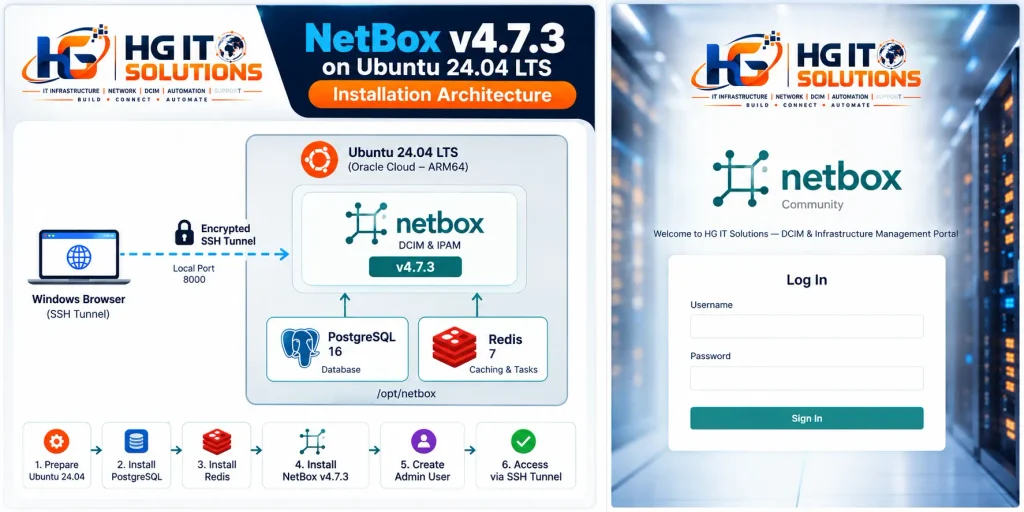
NetBox Installation Ubuntu 24.04 — Our HGIT Oracle Cloud Lab Environment
We deployed this proof of concept on Oracle Cloud Infrastructure (OCI).
| Item | HGIT Lab Configuration |
|---|---|
| Cloud platform | Oracle Cloud Infrastructure |
| Region | Saudi Arabia West — Jeddah |
| VM name | HGIT-DC-POC |
| Operating system | Ubuntu Server 24.04.5 LTS |
| CPU architecture | ARM64 |
| vCPU allocation | 2 OCPU |
| RAM | 12 GB |
| Boot volume | 100 GB |
| Python | 3.12 |
| PostgreSQL | 16 |
| Redis | 7 |
| NetBox Community | v4.7.3 |
| Installation directory | /opt/netbox |
| Test access | SSH tunnel to 127.0.0.1:8000 |
We also created an OCI boot-volume backup before proceeding with major application changes.
Before You Begin
You should have an Ubuntu 24.04 server, SSH access with sudo privileges, internet connectivity, and sufficient disk space for the application and dependencies.
If you are preparing a local VMware lab instead of Oracle Cloud, our existing tutorials cover the operating system preparation:
How to Create an Ubuntu 24.04 Lab VM in VMware Workstation Pro 17
How to Install Ubuntu Server 24.04 LTS on VMware Workstation
Ubuntu Server 24.04 Initial Configuration: Static IP, SSH and Network Setup
These tutorials explain the Ubuntu and networking foundations. In this article, we continue with the NetBox application installation on our OCI server.
Connect to the Ubuntu Server
Open Windows PowerShell or Windows Terminal.
Connect using your Oracle Cloud SSH private key:
ssh -i "C:\Path\To\Your\PrivateKey.key" ubuntu@YOUR_SERVER_PUBLIC_IPWhy this command?
sshestablishes an encrypted remote terminal session.-ispecifies the private key used for authentication.ubuntuis the server login account.YOUR_SERVER_PUBLIC_IPidentifies the OCI virtual machine.
Once connected, verify the operating system:
lsb_release -aPurpose: Confirms the installed Ubuntu release before installing application dependencies.
Expected output includes:
Description: Ubuntu 24.04.5 LTS
Release:     24.04
Check the CPU architecture:
uname -mExpected output in our OCI environment:
aarch64This confirms that our VM is using the ARM64 architecture.
Update Ubuntu and Install Required Packages
First, refresh the package index:
sudo apt updatePurpose: Downloads the latest package information from Ubuntu repositories. It does not itself upgrade installed software.
Install available package updates:
sudo apt upgrade -yPurpose: Applies available updates to installed packages. The -y option automatically accepts installation prompts.
For a fresh server, updating packages helps establish a consistent starting point.
Next, install the application development dependencies:
sudo apt install -y \
python3.12-venv \
python3-dev \
python3-pip \
build-essential \
git \
libpq-dev \
libxml2-dev \
libxslt1-dev \
libffi-dev \
libssl-dev \
zlib1g-dev
Why are these packages required?
| Package | Purpose |
|---|---|
python3.12-venv | Creates isolated Python environments |
python3-dev | Provides Python development headers |
python3-pip | Provides Python package installation tools |
build-essential | Supplies compilers and build utilities |
git | Downloads the NetBox source repository |
libpq-dev | Supports PostgreSQL client integration |
libxml2-dev / libxslt1-dev | Support XML-related Python dependencies |
libffi-dev | Supports Python packages requiring foreign-function interfaces |
libssl-dev | Provides cryptographic development libraries |
zlib1g-dev | Supports compression-related dependencies |
Verify Python:
python3 --versionExpected output:
Python 3.12.xCheckpoint: Ubuntu is updated and the required development packages are available.
Install and Configure PostgreSQL
NetBox uses PostgreSQL to store infrastructure data such as sites, racks, devices, interfaces, cables, and IP addresses.
Install PostgreSQL:
sudo apt install -y postgresqlPurpose: Installs the PostgreSQL database server and supporting packages.
Enable and start the service:
sudo systemctl enable --now postgresqlCommand explanation:
systemctlmanages Linux services.enableconfigures the service to start during boot.--nowalso starts it immediately.
Check the installed version:
psql --versionOur environment uses PostgreSQL 16.
Check database clusters:
pg_lsclustersExpected result: the PostgreSQL 16 cluster is listed with status online.
Create the NetBox Database and User
Open the PostgreSQL administrative console:
sudo -u postgres psqlPurpose: Opens the database shell using PostgreSQL’s administrative operating-system account.
Create the application database:
CREATE DATABASE netbox;Create a dedicated database account:
CREATE USER netbox WITH PASSWORD 'REPLACE_WITH_STRONG_PASSWORD';Assign ownership:
ALTER DATABASE netbox OWNER TO netbox;Exit the PostgreSQL console:
\qWhy use a separate database account?
NetBox should connect using its own database identity rather than the PostgreSQL administrative account.
Database ownership also provides the privileges required for NetBox’s schema migrations, including the ltree extension used by NetBox v4.7.
Test Database Authentication
psql -h 127.0.0.1 -U netbox -d netbox -W \
-c "SELECT current_user, current_database();"
Purpose: Tests the exact database username and password that NetBox will use.
Expected output:
 current_user | current_database
--------------+------------------
 netbox       | netbox
If this command succeeds, the database account can authenticate and connect.
Checkpoint: PostgreSQL is installed, the netbox database exists, and application authentication works.
Official reference: NetBox PostgreSQL Installation Documentation.
Install and Verify Redis
Redis is used by NetBox for caching and background task queues.
Install Redis:
sudo apt install -y redis-serverEnable and start the service:
sudo systemctl enable --now redis-serverVerify Redis:
redis-cli pingPurpose: Sends a simple health-check request to the Redis server.
Expected output:
PONGA PONG response confirms that Redis is responding to local requests.
For our installation, Redis remains accessible locally. It is not exposed to the public internet.
Checkpoint: Redis is installed and responding.
Official reference: NetBox Redis Installation Documentation.
Download NetBox Community v4.7.3
We selected NetBox Community v4.7.3 for our HGIT proof-of-concept installation.
Download the application source:
sudo git clone \
--branch v4.7.3 \
--depth 1 \
https://github.com/netbox-community/netbox.git \
/opt/netbox
What does this command do?
git clonedownloads the NetBox repository.--branch v4.7.3selects the release used in our lab.--depth 1performs a shallow checkout to reduce download size./opt/netboxis the application installation directory.
Verify the checkout:
cd /opt/netbox
git describe --tags --always
Expected output:
v4.7.3Create a Dedicated NetBox Service Account
sudo adduser --system --group netboxPurpose: Creates a dedicated operating-system identity for running NetBox.
Using a service account reduces the need to run the web application as the root user.
Prepare writable directories:
sudo chown -R netbox:netbox /opt/netbox/netbox/media
sudo chown -R netbox:netbox /opt/netbox/netbox/reports
sudo chown -R netbox:netbox /opt/netbox/netbox/scripts
Purpose: Allows the NetBox service account to manage files in the application directories intended for uploaded media, reports, and scripts.
We do not change ownership of the entire application source tree.
Create the NetBox Configuration File
NetBox includes an example configuration file.
Copy it into the active configuration location:
sudo cp \
/opt/netbox/netbox/netbox/configuration_example.py \
/opt/netbox/netbox/netbox/configuration.py
Purpose: Creates the local configuration file that NetBox will read during startup.
Generate a Secret Key
/opt/netbox/generate_secret_key.pyPurpose: Generates a cryptographically random key used by Django for security-sensitive signing operations.
Store the generated value securely. Never publish your actual secret key or database password.
Open the configuration:
sudo nano /opt/netbox/netbox/netbox/configuration.pyConfigure the application settings:
ALLOWED_HOSTS = [
    '127.0.0.1',
    'localhost',
]

DATABASE = {
    'NAME': 'netbox',
    'USER': 'netbox',
    'PASSWORD': 'REPLACE_WITH_DATABASE_PASSWORD',
    'HOST': 'localhost',
    'PORT': '',
    'CONN_MAX_AGE': 300,
}

REDIS = {
    'tasks': {
        'HOST': 'localhost',
        'PORT': 6379,
        'DATABASE': 0,
        'PASSWORD': '',
        'SSL': False,
    },
    'caching': {
        'HOST': 'localhost',
        'PORT': 6379,
        'DATABASE': 1,
        'PASSWORD': '',
        'SSL': False,
    },
}

SECRET_KEY = 'PASTE_YOUR_GENERATED_SECRET_KEY'

DEBUG = False
What are these settings for?
| Setting | Explanation |
|---|---|
ALLOWED_HOSTS | Defines the hostnames NetBox accepts in HTTP requests |
DATABASE | Provides PostgreSQL connection information |
REDIS.tasks | Configures the Redis database for background tasks |
REDIS.caching | Configures Redis caching |
SECRET_KEY | Protects Django signing operations |
DEBUG = False | Disables Django’s debugging mode |
Keep the other required settings from the example configuration file intact.
Restrict access to the configuration:
sudo chown root:netbox \
/opt/netbox/netbox/netbox/configuration.py

sudo chmod 640 \
/opt/netbox/netbox/netbox/configuration.py
Purpose: Allows the owner and NetBox group to read the configuration while preventing unrestricted access by other local users.
About API Token Peppers
During our initial installation, NetBox displayed a warning that API_TOKEN_PEPPERS was not defined.
This did not prevent the administrator from signing in.
However, API token pepper configuration must be completed before we begin using NetBox v2 API tokens for external integrations.
We will address this in the API integration stage rather than inserting unverified security values into the initial installation.
Install NetBox Python Dependencies and Initialize the Application
NetBox provides an official installation/upgrade script.
Run:
cd /opt/netbox
sudo PYTHON=/usr/bin/python3.12 ./upgrade.sh
Why do we use upgrade.sh during a new installation?
Despite its name, the script also performs the setup tasks required for a fresh source installation.
It handles:
- Creating the Python virtual environment
- Installing the required Python packages
- Applying PostgreSQL database migrations
- Building local documentation
- Collecting static application assets
The PYTHON environment variable explicitly selects Python 3.12.
Expected completion message:
Upgrade complete!Verify the Django Application
cd /opt/netbox/netbox

sudo -u netbox \
/opt/netbox/venv/bin/python manage.py check
Purpose: Runs Django’s application checks to identify configuration or application problems.
Expected output:
System check identified no issues (0 silenced).If an API token pepper warning appears, review it separately before API integration.
Checkpoint: NetBox dependencies are installed, database migrations have completed, and the application passes its basic checks.
Official reference: NetBox Source Installation Guide.
Create the NetBox Administrator Account
The next step is to create an account that can access the administrative interface.
Run:
cd /opt/netbox/netbox

sudo -u netbox \
/opt/netbox/venv/bin/python manage.py createsuperuser
Purpose: Creates a Django superuser with full administrative privileges in NetBox.
The command prompts for:
Username:
Email address:
Password:
Password (again):
Enter the required information and create a strong password.
Our HGIT lab administrator account was created successfully.
For a shared environment, additional users should receive appropriate permissions instead of sharing the superuser account.
Start NetBox for Initial Testing
We are now ready to start the application.
Run:
cd /opt/netbox/netbox

sudo -u netbox \
/opt/netbox/venv/bin/python manage.py runserver \
--insecure 127.0.0.1:8000 --noreload
What does this command do?
sudo -u netboxruns the application using the dedicated service account.manage.py runserverstarts Django’s temporary development server.127.0.0.1:8000binds the application to the server’s local loopback address.--insecureallows static files to be served during testing withDEBUG=False.--noreloaddisables automatic code reload.
Expected startup message includes:
Starting development server at http://127.0.0.1:8000/Important: This is a temporary testing server, not our final production service.
We deliberately bind it to localhost and do not open port 8000 publicly.
Keep this terminal running while testing the application.
Access NetBox Securely from Windows
Our application is running on Oracle Cloud, but it is listening only on the server’s localhost interface.
To access it from Windows without exposing the web port publicly, we use an SSH tunnel.
Open a second PowerShell window on your Windows computer.
Run:
ssh -i "C:\Path\To\Your\PrivateKey.key" `
-N -L 8000:127.0.0.1:8000 `
ubuntu@YOUR_SERVER_PUBLIC_IP
How does this work?
-iselects the SSH private key.-Nopens the connection without running a remote shell.-Lcreates a local port-forwarding tunnel.- The first
8000is the port on your Windows computer. 127.0.0.1:8000after the colon is the NetBox address on the Ubuntu server.
The traffic flow is:
Windows Browser → Local Port 8000 → Encrypted SSH Tunnel → Oracle Ubuntu → NetBox
Keep the SSH tunnel window open.
Open the NetBox Login Page
In your Windows browser, open:
http://127.0.0.1:8000/The NetBox login page should appear.
Enter the administrator credentials created earlier.
After successful authentication, the NetBox dashboard opens.
In our HGIT Oracle Cloud POC, we verified that:
- The NetBox login page loads correctly.
- Static assets are displayed.
- Administrator authentication works.
- The main application dashboard opens.
- NetBox Community v4.7.3 is displayed.
This confirms that the application can communicate with its dependencies and serve authenticated browser requests.
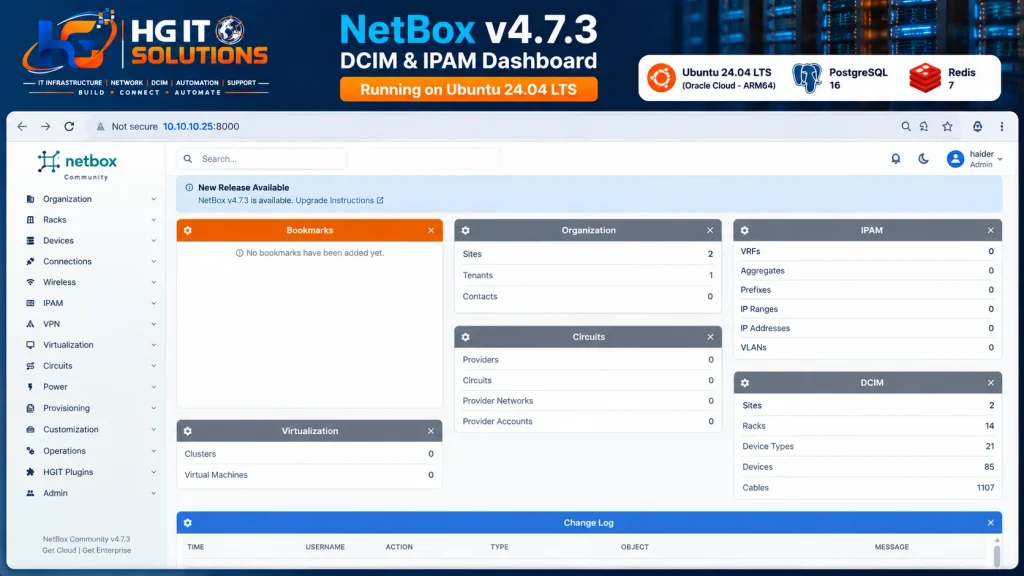
Customize the NetBox Login Banner
After confirming the installation, we added a simple HG IT Solutions welcome banner using NetBox’s built-in configuration interface.
We intentionally avoided modifying the original NetBox logo, application source code, or templates.
Step 1 — Open Configuration History
Sign in as the administrator and navigate to:
Admin → Configuration History
Click Add to create a configuration revision.
Step 2 — Locate the Login Banner Field
Find the Banners section.
In the Login banner field, enter:
Welcome to HG IT Solutions — DCIM & Infrastructure Management PortalLeave the other settings unchanged.
Click Create.
Step 3 — Verify the Configuration Revision
NetBox should display a success message and show the new configuration revision.
In our lab, this created Configuration Revision #1.
Step 4 — Verify the Login Page
Open a new InPrivate browser window and visit:
http://127.0.0.1:8000/login/The HG IT Solutions welcome message should appear above the login form.
We verified this successfully in our environment.
This is a simple way to personalize the login experience while retaining the original NetBox branding and attribution.
Common Problems and Troubleshooting
Problem 1 — PostgreSQL Authentication Failed
Test the database connection:
psql -h 127.0.0.1 -U netbox -d netbox -WIf authentication fails, check the PostgreSQL username, password, and database configuration.
Problem 2 — Redis Connection Error
Run:
redis-cli pingExpected:
PONGIf Redis is not responding, check the service:
sudo systemctl status redis-serverProblem 3 — Static Media Failure
A static media error may appear if application assets were not collected or served correctly.
Verify that upgrade.sh completed successfully.
For our temporary local test, the --insecure option allows Django to serve static assets while debugging remains disabled.
We will use a proper HTTP server for static assets in the next deployment stage.
Problem 4 — Browser Cannot Connect to NetBox
Check that:
- The NetBox development server is running.
- The SSH tunnel is still connected.
- The browser is opening
http://127.0.0.1:8000/. - Local port 8000 is not occupied by another application.
Both the NetBox development server and SSH tunnel must remain active for this temporary access method.
Problem 5 — Application Configuration Error
Run:
cd /opt/netbox/netbox

sudo -u netbox \
/opt/netbox/venv/bin/python manage.py check
Review any errors reported by Django before proceeding.
Installation Verification Checklist
Before considering Part 1 complete, confirm the following:
| Verification | HGIT Lab Result |
|---|---|
| Ubuntu Server 24.04 installed | Passed |
| PostgreSQL 16 installed | Passed |
| NetBox database created | Passed |
| Redis 7 responding | Passed |
| NetBox v4.7.3 installed | Passed |
| Python virtual environment created | Passed |
| Database migrations completed | Passed |
| Static files collected | Passed |
| Administrator account created | Passed |
| NetBox login page accessible | Passed |
| Administrator dashboard accessible | Passed |
| HGIT login banner visible | Passed |
| Gunicorn and systemd deployment | Planned — Part 2 |
| Nginx and HTTPS | Planned — Part 2 |
At this stage, our initial application installation and browser validation are complete.
What Is Coming Next in the HGIT NetBox Series?
Installing NetBox is only the beginning.
Our goal is to move from an empty application dashboard to a structured infrastructure model that reflects how equipment and connections exist in a real data center.
Here is the planned roadmap.
Part 2 — Persistent NetBox Deployment and HTTPS
We will configure Gunicorn, systemd, Nginx, secure web access, and service startup behavior.
The goal is to make NetBox available without manually starting Django’s development server or maintaining an SSH tunnel.
Part 3 — NetBox Organization, Sites, and Locations
We will build a structured organization model with sites, buildings, rooms, and other relevant locations.
We will also introduce multiple sample organizations and explore tenant-aware inventory organization.
Part 4 — Data Center Racks and Device Inventory
We will create rack groups, racks, device roles, manufacturers, device types, and rack elevations.
Our practical examples will include switches, servers, firewalls, and other data center equipment.
For background, read Data Center Rack and Equipment Labeling: A Practical Field Guide.
Part 5 — Copper and Fiber Patch Panels
This will be one of the more detailed infrastructure modeling exercises.
We plan to document:
- Copper patch panels and ports
- Fiber distribution panels
- Front-port and rear-port relationships
- MPO and LC fiber connectivity
- Rack-to-rack and device-to-panel connections
The objective is to represent the actual passive infrastructure, not just active network equipment.
Part 6 — End-to-End Physical Cable Tracing
We will build cable connections and investigate how NetBox traces physical paths through passive components.
For example:
Core Switch → Fiber Patch Panel → Backbone Fiber → Remote Fiber Panel → Distribution Switch
This builds on our existing guide: Data Center Cable Labeling Standards: Source-to-Destination Identification.
Part 7 — IPAM, VLANs, VRFs, and Network Documentation
We will introduce IP prefixes, IP addresses, VLANs, VRFs, and network interfaces.
The goal is to connect logical network documentation with the physical inventory.
Part 8 — User Permissions, Tenants, and Data Access
We will explore NetBox permissions and the additional authorization controls needed for environments serving multiple customers.
Tenant classification alone should not be treated as a complete security boundary.
Part 9 — NetBox API and Infrastructure Automation
We will explore NetBox’s REST API and demonstrate how external tools can read infrastructure information.
Potential exercises include inventory exports, validation scripts, and automated reporting.
Part 10 — Infrastructure Labeling and Documentation Automation
We plan to explore how structured NetBox inventory data can support cable labeling, rack documentation, and export workflows.
This is where DCIM records become useful to engineers performing actual installation, maintenance, and troubleshooting activities.
Each stage will be documented after practical implementation and verification.
Why Accurate Infrastructure Data Matters
A DCIM application becomes valuable when its records match the physical infrastructure.
For example, if a device is documented in Rack R10A at U24, an engineer should be able to locate that exact device.
If a cable is documented as connecting two ports, those endpoints should match the actual field installation.
This is why naming conventions, physical labeling, cable records, and rack elevations are important foundations for any DCIM project.
You may also find these HG IT Solutions articles useful:
- How to Create a Data Center Asset Naming Convention That Scales
- Data Center Rack and Equipment Labeling
- Data Center Cable Labeling Standards
These practices will become increasingly important as our NetBox lab expands.
Conclusion
In this first article, we successfully installed NetBox Community v4.7.3 on Ubuntu Server 24.04 LTS in Oracle Cloud Infrastructure.
We configured PostgreSQL and Redis, installed the Python application dependencies, initialized the database, created an administrator account, accessed the web interface through an encrypted SSH tunnel, and added an HG IT Solutions login banner.
The application is now ready for the next stage of deployment and infrastructure modeling.
In Part 2, we will replace the temporary development server with persistent application services and introduce secure HTTPS access.
After that, we will begin transforming the application into a practical DCIM/IPAM environment covering sites, racks, devices, cabling, physical tracing, and automation.
Follow the HG IT Solutions blog as we build this environment step by step.
Official Technical References
- NetBox Documentation
- NetBox GitHub Repository
- NetBox Installation Guide
- PostgreSQL Documentation
- Redis Documentation
- Ubuntu Server Documentation
- Oracle Cloud Infrastructure Documentation
