
Introduction
Installing Ubuntu Server inside a virtual machine is a practical way to build a Linux learning environment without purchasing dedicated server hardware. Whether you are learning Linux administration, preparing for virtualization projects, or building a home lab, VMware Workstation provides a convenient platform for testing server configurations.
In this second part of the HG IT Solutions Home Lab Series, we will install Ubuntu Server 24.04.4 LTS on a virtual machine created in VMware Workstation.
Unlike tutorials based entirely on theoretical examples, this guide follows an actual installation performed in our HGIT-DC-LAB environment. The screenshots document the installer workflow, disk configuration, SSH selection, installation progress, and successful first login.
We will also cover a reboot message encountered during the installation and explain how to disconnect the installation ISO when VMware keeps the virtual CD/DVD connected.
Table of Contents
What You Will Learn
By the end of this guide, you will understand how to:
- Boot an Ubuntu Server installation ISO inside VMware Workstation.
- Navigate the text-based Ubuntu Server installer.
- Configure language, keyboard, networking, and storage.
- Understand the basic LVM layout used in the lab.
- Create a Linux server hostname and administrator account.
- Select the OpenSSH server package.
- Complete installation and reboot the virtual machine.
- Handle an installation-media removal message.
- Verify that Ubuntu Server boots and accepts a login.
Before You Begin: Our HGIT Home Lab Environment
This tutorial continues from Part 1 of the HG IT Solutions Home Lab Series, where we created the virtual machine in VMware Workstation.
If you have not created your virtual machine yet, complete that tutorial first:
Previous tutorial: [Insert the published HGIT virtual machine creation article URL here.]
For this installation, we used the following configuration:
| Component | HGIT Lab Configuration |
|---|---|
| Virtualization platform | VMware Workstation |
| Virtual machine name | HGIT-DC-LAB |
| Operating system | Ubuntu Server 24.04.4 LTS |
| Virtual processors | 4 |
| Virtual memory | 12 GB |
| Virtual disk | 150 GB |
| Network adapter | NAT |
| Installation media | Ubuntu Server AMD64 ISO |
| Server hostname | hgit-dc-lab |
| Storage approach | LVM |
These resources reflect our particular home lab, not the minimum requirements for Ubuntu Server. Smaller test environments may work with fewer resources, depending on their workloads.
For an authentic Ubuntu installation image, use the official Ubuntu Server download page:
https://ubuntu.com/download/server
Step 1: Power On the Ubuntu Server Virtual Machine
Open VMware Workstation and select the virtual machine created in the previous tutorial.
In our lab, the machine is named HGIT-DC-LAB.
Before powering it on, verify that the Ubuntu Server installation ISO is attached to the virtual CD/DVD drive.
Then click Power on this virtual machine or use the green power button in the VMware Workstation toolbar.
The virtual machine will start and attempt to boot from the connected installation media.
If the VM boots to an existing operating system instead of the installer, review its virtual CD/DVD connection and boot configuration.

Step 2: Start the Ubuntu Server Installer
Once the ISO boots successfully, the GNU GRUB boot menu appears.
In our installation, the first menu option was:
Try or Install Ubuntu Server
Use the arrow keys if necessary, select this option, and press Enter.

Ubuntu will load the components needed to start the server installer. The initial loading process may take a little time, depending on the host computer’s performance.
Step 3: Select the Installation Language
The Ubuntu Server installer uses a text-based interface rather than the traditional graphical desktop installer.
On the welcome screen, choose your preferred installation language.
For this HGIT lab, we selected:
English
Press Enter to continue.
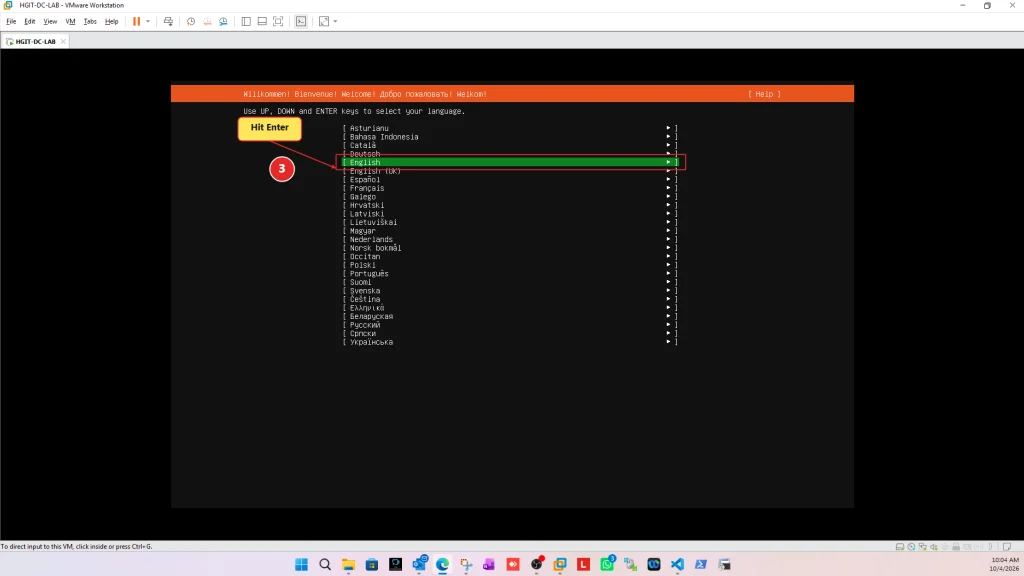
Using English in our lab makes it easier to follow official documentation and compare commands with technical references.
Step 4: Choose Whether to Update the Installer
During our installation, Ubuntu displayed a notification that a newer version of the installer was available.
The screen offered the following choices:
- Update to the new installer.
- Continue without updating.
- Go back.
For this particular lab installation, we selected Continue without updating.
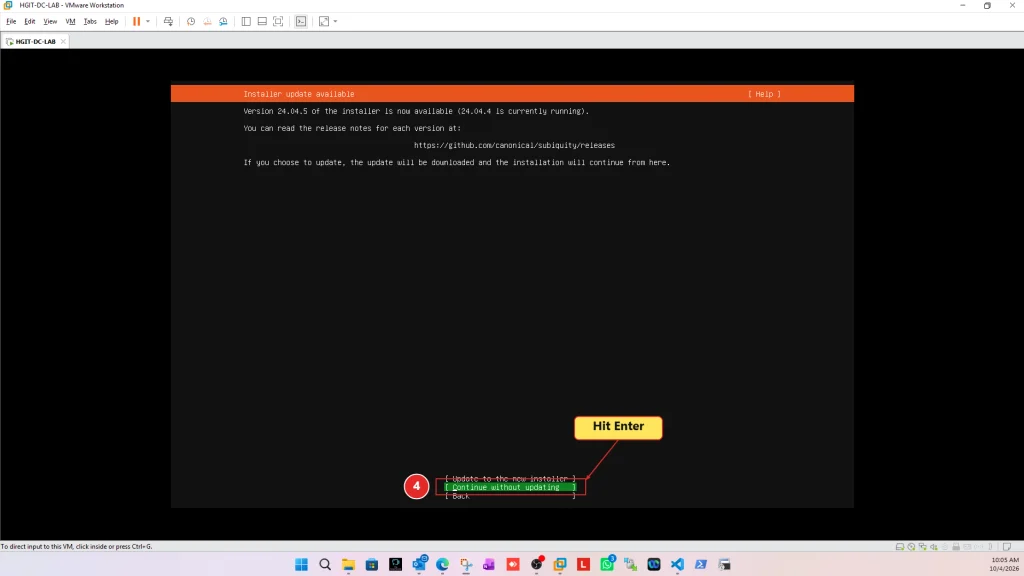
This choice allowed us to proceed using the installer already included in our Ubuntu Server ISO.
An installer update and an operating-system package update are different operations. Skipping the installer update does not prevent you from updating Ubuntu after installation.
For an internet-connected system, we recommend checking for security and package updates after the initial setup.
Step 5: Configure the Keyboard Layout
The next stage of the installation process is keyboard configuration.
For our English-language environment, the standard English keyboard layout was appropriate.
Confirm that the selected layout matches your physical keyboard, then continue.
A mismatched keyboard layout can cause problems when entering passwords, particularly when special characters are involved.
Step 6: Select the Ubuntu Server Installation Type
Ubuntu Server may offer installation choices such as the standard Ubuntu Server installation or a minimized installation, depending on the installer version.
For a general-purpose home lab, the standard Ubuntu Server installation is a reasonable choice because it provides a practical starting point for learning system administration.
Choose the option shown in your installation workflow and continue.
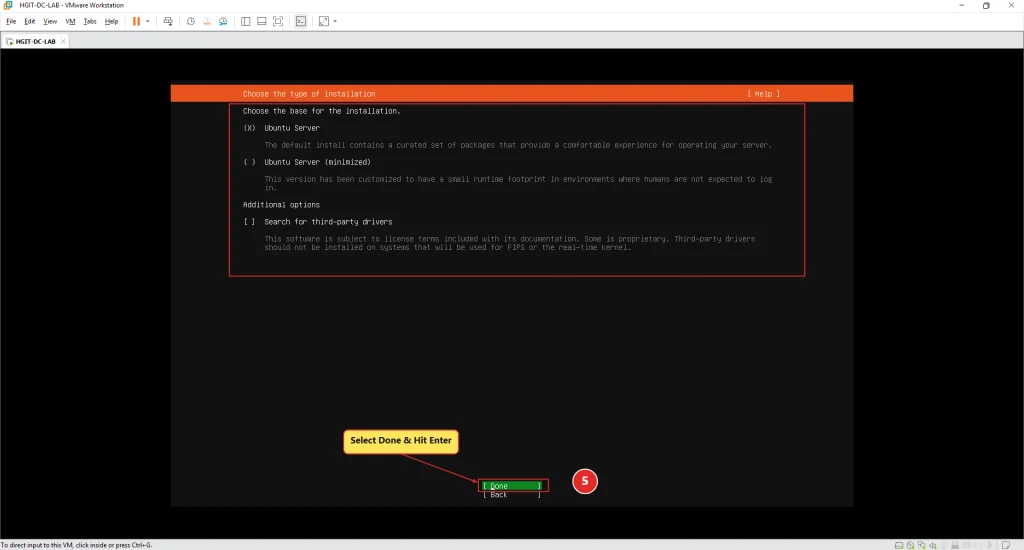
You can install additional packages and services later as the lab grows.
Step 7: Configure the Network Connection
Networking is an important part of a server installation because it allows the virtual machine to communicate with other systems and access package repositories.
In our VMware configuration, the virtual network adapter was set to NAT.
With NAT networking, VMware normally places the guest behind a virtual network and provides connectivity through the host’s network connection.
During installation, Ubuntu can obtain an IPv4 address automatically when a DHCP service is available.
Review the detected network interface and its addressing information before proceeding.

NAT vs Bridged Networking
For a home lab, both NAT and bridged networking can be useful.
NAT networking is convenient for initial operating-system installation, internet access, and controlled testing.
Bridged networking places the guest on the external network through the host’s network adapter, subject to the physical network’s configuration and restrictions.
We used NAT for this installation. Later, when building interconnected lab services, the network design can be adjusted to match the project requirements.
Step 8: Configure Proxy Settings
The installer may display a proxy configuration screen.
A proxy is typically required only when your organization routes internet access through a dedicated HTTP proxy server.
If your environment does not require a proxy, leave this field empty and continue.
For enterprise installations, always follow the proxy settings supplied by your network or security team.
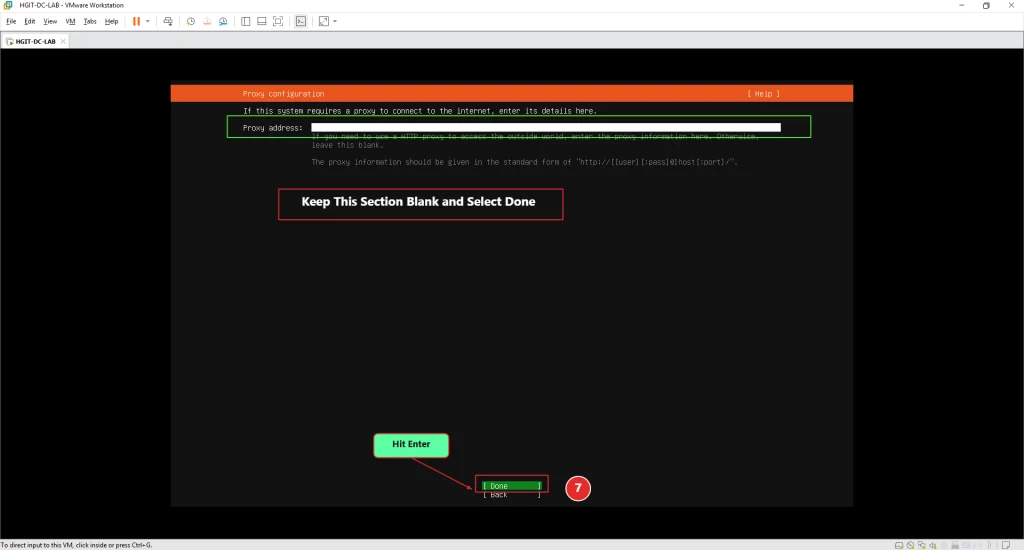
Step 9: Review the Ubuntu Archive Mirror
Ubuntu uses package repositories to download and install software.
The installer may display an Ubuntu archive mirror address and perform connectivity checks.
If the configured mirror is reachable and suitable for your region or network, continue with the installation.
If the installer cannot reach the mirror, investigate the guest’s IP address, DNS resolution, gateway, proxy requirements, and internet connectivity.
A repository connection problem does not automatically mean that the Ubuntu ISO is damaged.

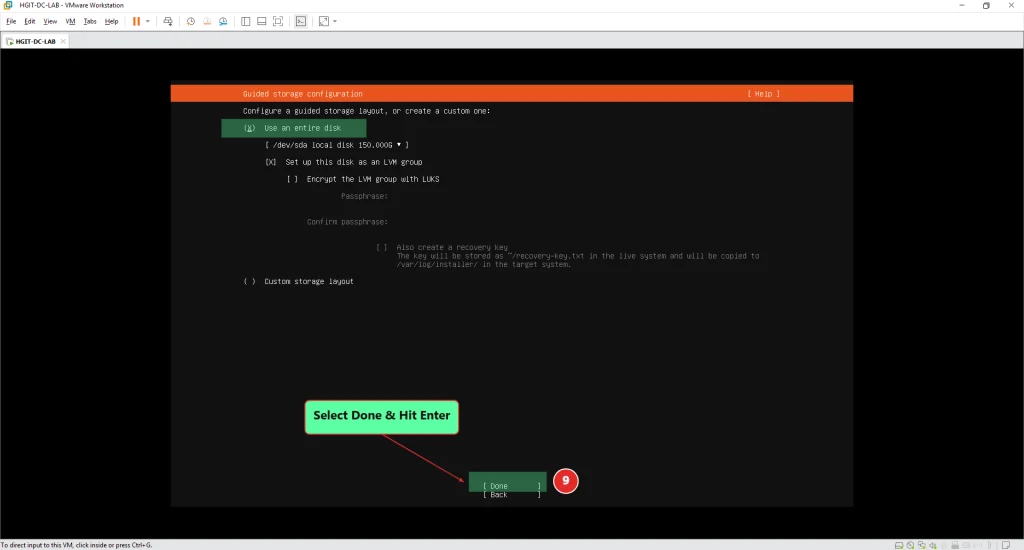
Step 10: Configure the Virtual Disk and Storage Layout
Storage configuration is one of the most important stages of installing a server operating system.
Our virtual machine was created with a 150 GB virtual disk.
During the Ubuntu Server installation, we used an LVM-based storage configuration.
LVM stands for Logical Volume Manager. It provides a layer of logical storage management between physical storage devices and the filesystems used by Linux.
In a virtual lab, LVM can be useful when practicing volume management and future storage expansion.
Why Use LVM?
LVM can provide greater flexibility than a simple fixed partition layout.
For example, administrators may use it to manage logical volumes, allocate available space, and expand storage when the underlying virtual disk capacity increases.
However, LVM does not replace backups. Storage changes still require planning, and filesystem resizing procedures depend on the filesystem and configuration involved.
Important Disk Selection Warning
When installing Ubuntu in a virtual machine, verify that the selected installation target is the intended virtual disk.
The installation process may erase data on the selected disk.
Do not confirm destructive storage operations until you have reviewed the target disk and proposed partition layout.
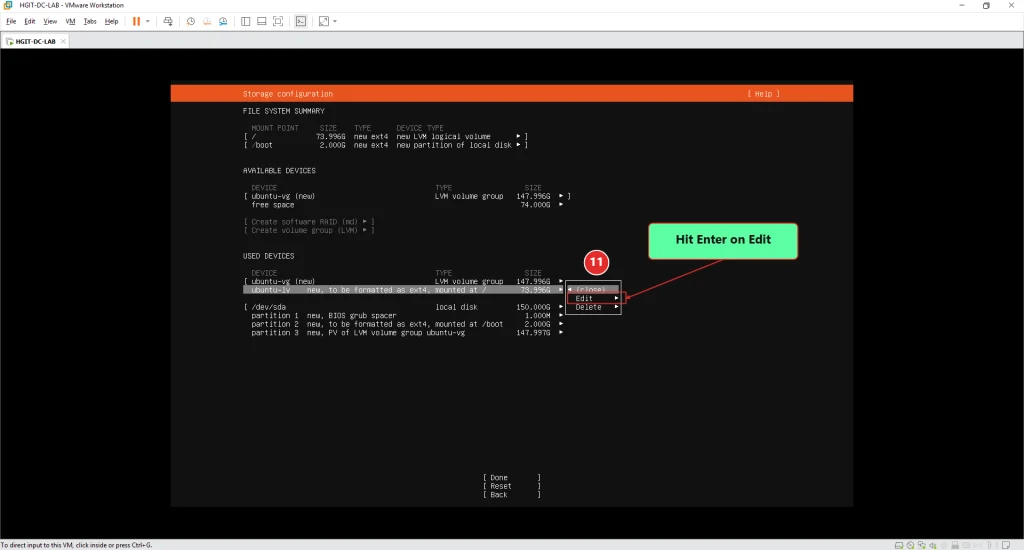
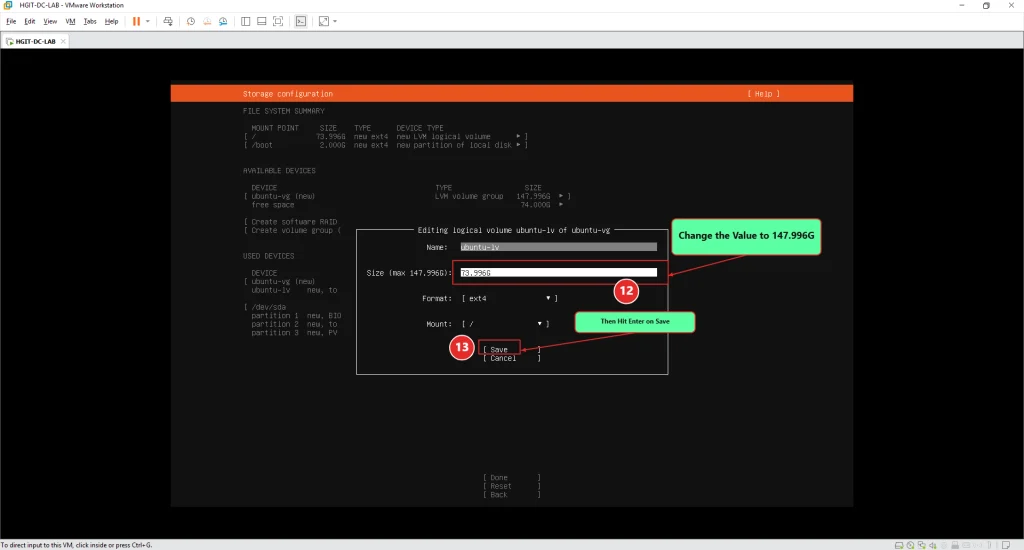
Step 11: Review the Storage Configuration
Before applying disk changes, Ubuntu displays a storage summary.
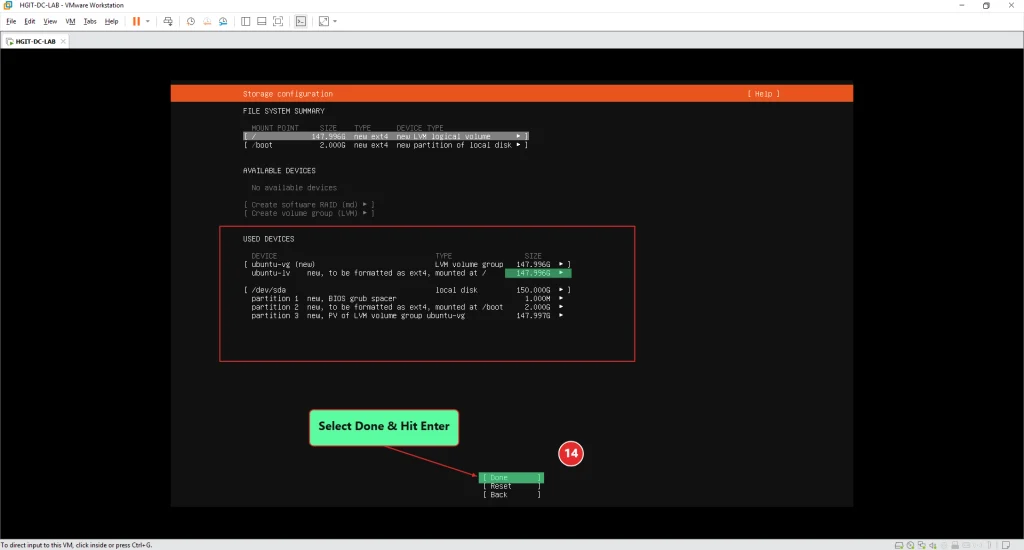
In our lab screenshot, the installer shows the following arrangement:
| Storage component | Configuration shown |
|---|---|
| Virtual disk | /dev/sda, 150 GB |
| BIOS GRUB spacer | Approximately 1 MB |
/boot | 2 GB, ext4 |
| LVM volume group | ubuntu-vg |
Root filesystem / | Approximately 147.996 GB, ext4 on LVM |
The exact sizes displayed by an installer can vary with disk size, partition alignment, and configuration choices.
In this configuration, the root filesystem is placed on an LVM logical volume.
This means Ubuntu can use the logical volume as its main filesystem while the volume group manages the underlying storage allocation.
The screenshot also shows a BIOS GRUB spacer. That detail reflects the boot layout used in this particular installation; UEFI-based virtual machines can have a different partition structure.

Step 12: Confirm the Disk Changes
After reviewing the proposed storage layout, select Done.
Ubuntu displays a confirmation dialog warning that continuing will begin the installation and can cause data loss on the disks selected for formatting.
Read the warning carefully.
If the selected disk is correct and contains no data that you need to preserve, choose Continue.
This is the point at which the installer proceeds with applying the storage configuration.
For production systems, the same stage deserves particular attention because choosing the wrong disk can have serious consequences.
Step 13: Create the Ubuntu Server User Profile
The next important task is configuring the server identity and administrator login.
Ubuntu asks for several details:
- Your name.
- Your server’s name.
- A username.
- A password.
- Password confirmation.
In our HGIT lab, the server hostname was configured as:
hgit-dc-lab

Understanding the Profile Fields
Your name: A descriptive name for the person managing the system.
Your server’s name: The hostname used to identify the Linux server.
Pick a username: The account name used to sign in.
Choose a password: A strong password used to authenticate the account and authorize administrative commands when required.
For this lab, the final successful login screenshot shows the username hgitadmin.
Use your own username and a unique password rather than copying someone else’s lab credentials.
A good password should be difficult to guess, unique to the system, and stored securely.
Step 14: Decide Whether to Enable Ubuntu Pro
The installer provides an option to enable Ubuntu Pro.
Ubuntu Pro is an optional subscription-based service that offers additional security maintenance and management capabilities, with eligibility and terms depending on the subscription.
For our initial home lab installation, we selected:
Skip for now
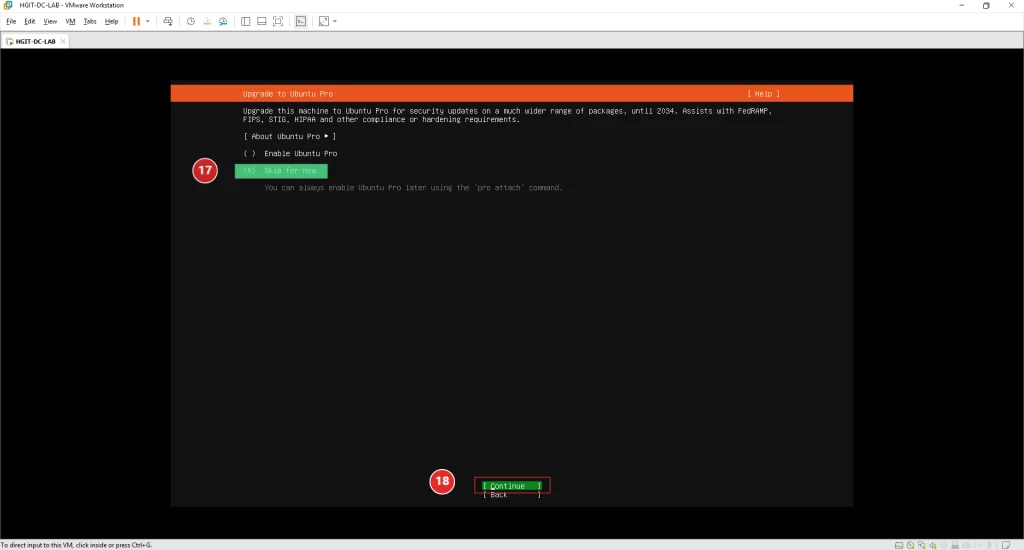
We then selected Continue to proceed.
Ubuntu Pro is not required to complete a standard Ubuntu Server installation. It can be evaluated later if its features are relevant to your environment.
Step 15: Configure OpenSSH Server
One of the most useful capabilities for a Linux server is secure remote command-line access.
Ubuntu provides an option to install the OpenSSH server during installation.
On the SSH configuration screen, select Install OpenSSH server if you intend to administer the machine remotely.
Use the Space key to toggle the checkbox, then select Done and press Enter.

In our screenshot, the SSH configuration screen also shows password authentication and an option to import SSH keys.
For a controlled home lab, password authentication may be convenient during initial learning. However, for internet-exposed or production servers, SSH key authentication, restricted access, and a properly configured firewall are preferable.
Installing OpenSSH does not mean that you should expose TCP port 22 directly to the public internet.
Step 16: Review Featured Server Snaps
Ubuntu may offer optional server applications through the featured snaps screen.
The available list can include tools related to containers, monitoring, file services, and other workloads.
In our lab, we did not need to install additional featured applications during the initial operating-system setup.
We left the optional selections unchecked and chose Done.

This keeps the initial server configuration relatively simple.
Additional services can be installed later when they are needed for a specific lab exercise.
Step 17: Wait for Ubuntu Server Installation to Finish
Ubuntu now begins installing the operating system to the virtual disk.
During this stage, the installer performs tasks such as:
- Creating partitions and filesystems.
- Configuring LVM.
- Copying the operating-system files.
- Installing and configuring packages.
- Installing the Linux kernel.
- Preparing the bootloader.
- Applying system configuration.
The installation screen displays progress messages and detailed log entries.
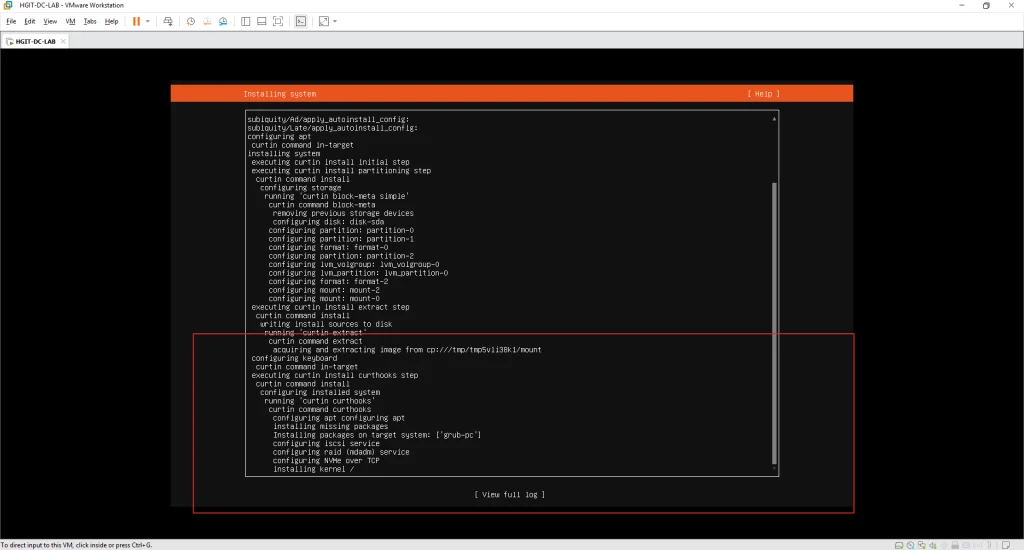
Do not interrupt the virtual machine while disk formatting, package installation, or bootloader configuration is in progress.
Installation time depends on the virtual machine resources, storage performance, and any network-dependent installation tasks.
When installation finishes, use the installer’s reboot option.
Step 18: Troubleshooting the Installation Media Removal Message
During the first reboot of our HGIT lab server, we encountered the following message:
[FAILED] Failed unmounting cdrom.mount - /cdrom.
The screen also instructed us to remove the installation medium and press Enter.
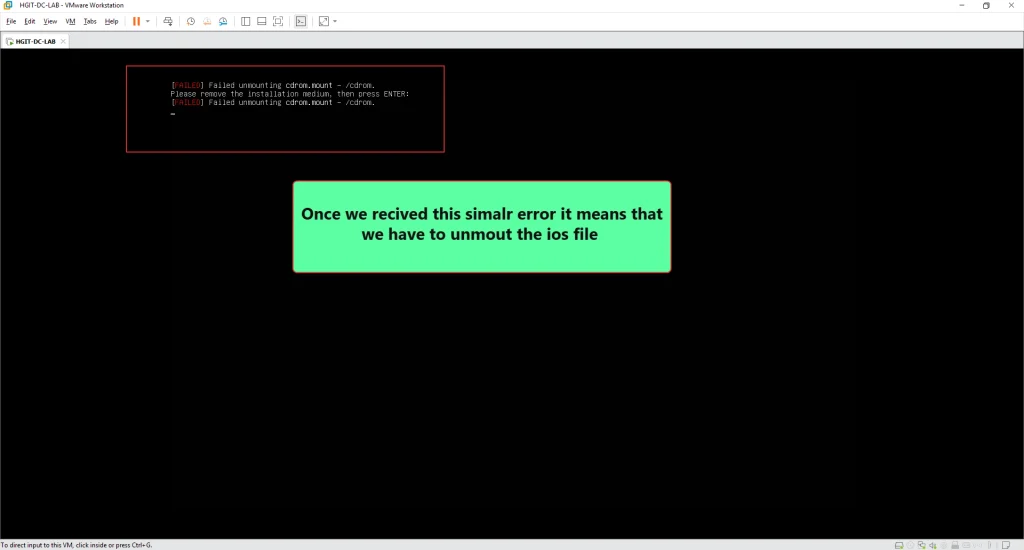
This message can occur when the Ubuntu installation ISO is still attached to the virtual machine’s CD/DVD device during the transition from installation to normal boot.
It does not, by itself, prove that the Ubuntu installation has failed.
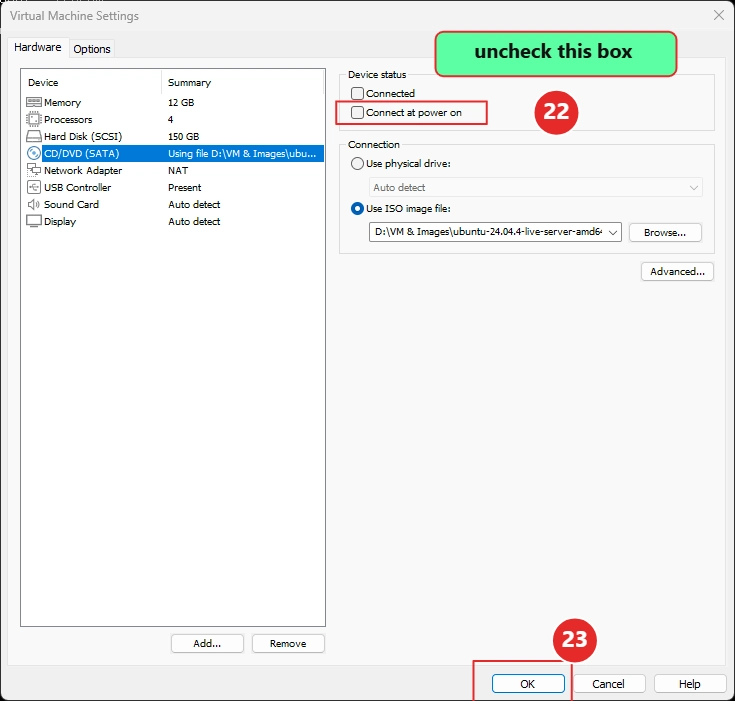
How We Addressed It in VMware Workstation
We returned to the virtual machine settings and located the CD/DVD (SATA) device.
The device was configured to use the Ubuntu Server ISO image.
We cleared the Connect at power on checkbox and confirmed the change.
Important: Disconnecting vs Disabling Automatic Connection
Unchecking Connect at power on prevents the virtual CD/DVD from being automatically connected on a subsequent power-on.
If the installation ISO is still connected to the currently running virtual machine, you may also need to disconnect the virtual CD/DVD through VMware’s removable-device controls.
Once the installation medium has been disconnected, return to the virtual machine console and press Enter if the installer is waiting for confirmation.
Avoid forcefully powering off the virtual machine while it is actively writing data.
In our case, the machine subsequently booted into the installed Ubuntu Server operating system.
Step 19: Verify the Ubuntu Server Login Screen
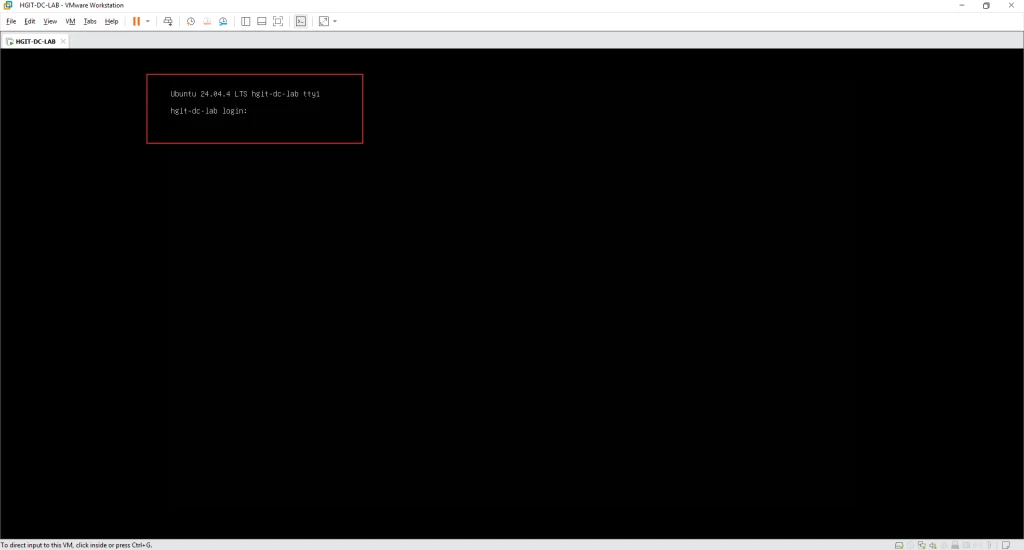
After rebooting, the virtual machine displayed the Ubuntu Server console login prompt.
The screen identified the system as:
Ubuntu 24.04.4 LTS hgit-dc-lab tty1
This confirmed that the installed operating system had reached its text console login stage.
Enter the username created during installation, followed by its password.
Ubuntu Server does not display password characters while they are being typed. This is normal Linux terminal behavior.
Step 20: Confirm Successful Login and Network Information
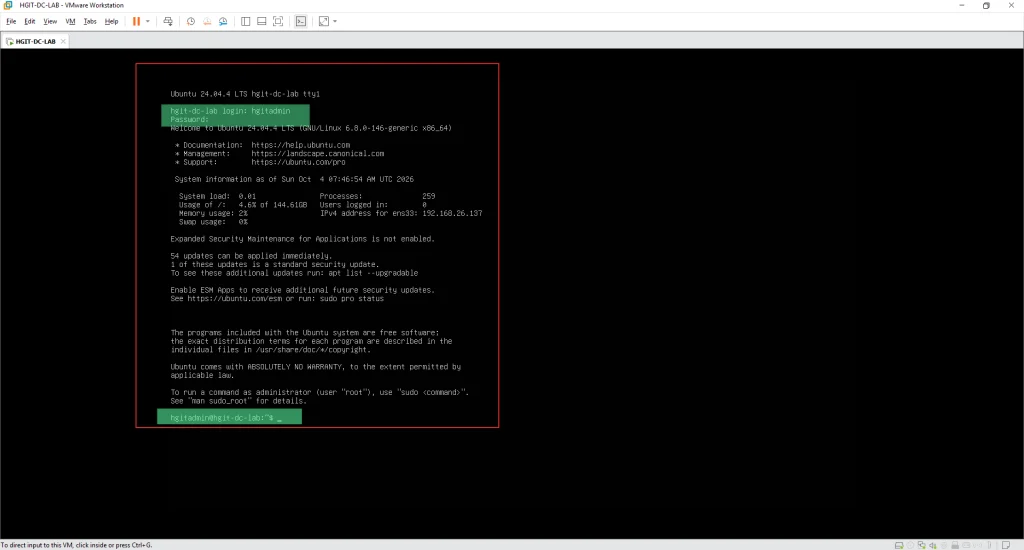
After entering the correct credentials, our server displayed the Ubuntu welcome message and an interactive shell prompt.
The successful login screenshot shows:
hgitadmin@hgit-dc-lab:~$
The welcome information also identifies Ubuntu 24.04.4 LTS and displays an IPv4 address for interface ens33.
In our recorded session, the address was:
192.168.26.137
This address belongs to the network used during our lab session. Your virtual machine will likely receive a different IP address.
The presence of a login prompt and a working shell confirms that the installation has progressed to a usable operating system.
It does not, by itself, verify every network service or confirm that SSH is accessible remotely.
Common Ubuntu Server Installation Problems
Ubuntu Boots Into the Installer Again
Possible cause: The virtual machine is still booting from the attached Ubuntu ISO.
What to check: Disconnect the installation ISO, review the VM’s boot configuration, and boot from the installed virtual disk.
No IP Address Appears
Possible cause: DHCP is unavailable, the virtual network adapter is disconnected, or the network configuration is incorrect.
What to check: VMware’s virtual network connection, the selected NAT or bridged mode, and the Ubuntu network configuration.
SSH Connection Is Refused
Possible cause: OpenSSH is not installed, the service is stopped, the destination address is incorrect, or a firewall is blocking access.
What to check: The SSH service status, guest IP address, firewall rules, and network reachability.
Ubuntu Reports an Installation Media Removal Error
Possible cause: The ISO remains connected to the virtual CD/DVD drive.
What to check: VMware CD/DVD device settings and the current connection state.
Incorrect Username or Password
Possible cause: The credentials entered do not match the profile created during installation.
What to check: Keyboard layout, username spelling, and the password used during setup.
Remember that Linux passwords are case-sensitive and do not appear on screen while typing.
Frequently Asked Questions
Can I install Ubuntu Server 24.04 LTS on VMware Workstation?
Yes. Ubuntu Server can run as a guest operating system in VMware Workstation when the host system and virtual machine meet the relevant compatibility and resource requirements.
Does Ubuntu Server require a graphical desktop?
No. Ubuntu Server can be installed and administered through a text console and remote command-line tools such as SSH.
A graphical desktop is optional and is not necessary for many server workloads.
Is 12 GB RAM required for Ubuntu Server?
No. We allocated 12 GB to this HGIT virtual machine because it is part of a broader lab environment. A basic Ubuntu Server installation can use substantially fewer resources, depending on the workload.
Should I use NAT or bridged networking?
NAT is often convenient for initial home lab setup. Bridged networking can be useful when the virtual machine needs to participate directly in the external LAN.
The best choice depends on the intended lab topology, access requirements, and network restrictions.
Is LVM mandatory for Ubuntu Server?
No. Ubuntu Server supports different storage layouts. LVM is useful for certain storage-management scenarios but is not mandatory for every installation.
Do I need Ubuntu Pro to install Ubuntu Server?
No. Ubuntu Pro is optional. A standard Ubuntu Server installation can be completed without enabling it.
Why did Ubuntu display “Failed unmounting cdrom.mount”?
In our lab, the message appeared during the reboot stage while the installation media was still associated with the virtual CD/DVD device.
Disconnecting the installation ISO and allowing the machine to continue booting addressed the installation-media issue in this workflow.
How We Annotated the 20 Lab Screenshots
Every screenshot in this tutorial comes from our practical HGIT-DC-LAB setup. To make the VM creation process easier to follow, we annotated all 20 screenshots using the HGIT Image Annotation Tool, highlighting important configuration options and installation steps.
If you create IT tutorials, troubleshooting guides, or technical documentation, you can use the HGIT Image Annotation Tool to highlight key details in your own screenshots.
Conclusion
We have successfully installed Ubuntu Server 24.04.4 LTS on VMware Workstation as part of the HG IT Solutions home lab project.
Starting with an already-created virtual machine, we followed the installer workflow, reviewed the LVM storage layout, configured the server identity, covered OpenSSH selection, and handled the installation-media removal message encountered during reboot.
The final console screenshot shows that our hgit-dc-lab server booted successfully and accepted a login.
This provides a working foundation for future Linux administration and infrastructure exercises.
Continue the HG IT Solutions Home Lab Series
Part 1 — Create a Virtual Machine in VMware Workstation
Ubuntu Server VM in VMware Workstation Pro 17
Part 2 — Install Ubuntu Server 24.04 LTS on VMware Workstation
You are reading this tutorial.
Part 3 — Ubuntu Server Post-Installation Configuration
In the next guide, we plan to cover essential server configuration tasks, including updates, IP addressing, SSH access, and basic administrative checks.
For more practical virtualization, networking, and infrastructure tutorials, explore the HG IT Solutions Blog:
Prepared by HG IT Solutions — Practical infrastructure learning through real lab exercises.

Pingback: Ubuntu Server 24.04 Initial Configuration & Network Setup
Pingback: NetBox Installation Ubuntu 24.04 – Step-by-Step Guide