
Introduction
Building a home lab is one of the most practical ways to develop real-world IT infrastructure skills. Whether you are learning Linux administration, virtualization, networking, infrastructure monitoring, or data center management, a dedicated lab provides a controlled environment where you can test configurations, troubleshoot problems, and understand how technologies work together.
At HG IT Solutions, I am building a reusable infrastructure lab on my Windows workstation to support hands-on learning, technical documentation, and future proof-of-concept deployments.
In this first tutorial, I will demonstrate how to create an Ubuntu Server VM in VMware Workstation Pro 17, using the actual configuration of my virtual machine, HGIT-DC-LAB.
Rather than simply following the installation wizard, we will examine the decisions behind the configuration, including processor allocation, memory, virtual storage, SCSI controllers, NAT networking, and Ubuntu Server installation media.
The walkthrough includes 20 screenshots captured during my VMware lab setup, making it easier to follow each stage and compare the settings with your own environment.
The configuration demonstrated here uses four virtual CPU cores, 12 GB RAM, and a 150 GB virtual disk. These values reflect my available host resources and future lab objectives; you should adjust them to match your hardware and intended workloads.
HGIT Lab Series – Part 1: This guide covers creating and preparing the virtual machine. The actual Ubuntu Server 24.04 LTS installation will be documented separately in Part 2.
Table of Contents
What We Are Building
The immediate goal is to prepare a virtual machine capable of running Ubuntu Server 24.04 LTS and supporting future infrastructure experiments.
Our first planned application project is a NetBox proof of concept (POC). NetBox is used for infrastructure resource modeling, including devices, racks, interfaces, cables, VLANs, IP prefixes, and IP addresses.
Instead of installing NetBox and stopping at its login screen, I intend to build a meaningful test environment that reflects real infrastructure workflows.
That means our lab needs to be easy to maintain, sufficiently resourced, and flexible enough to accommodate additional services as the series progresses.
HGIT-DC-LAB virtual machine specifications
| Component | Lab configuration |
|---|---|
| Virtual machine name | HGIT-DC-LAB |
| Hypervisor | VMware Workstation Pro 17 |
| Host operating system | Windows |
| Host RAM | 96 GB |
| Guest operating system | Ubuntu Server 24.04 LTS, 64-bit |
| Installation ISO | ubuntu-24.04.4-live-server-amd64.iso |
| Virtual processors | 1 processor × 4 cores |
| Allocated memory | 12 GB (12,288 MB) |
| Virtual disk capacity | 150 GB |
| Disk interface | SCSI |
| Virtual disk storage | Single file |
| Network connection | NAT |
| VM hardware compatibility | Workstation 17.5 or later |
These are the settings selected for my particular lab. They are not mandatory requirements for every Ubuntu virtual machine.
A small Linux learning environment can operate with significantly fewer resources. The appropriate configuration depends on your physical hardware and the applications you plan to install.
Prerequisites Before Creating the Ubuntu VM
Before starting the configuration, make sure you have the following components available.
1. VMware Workstation Pro
VMware Workstation Pro allows multiple operating systems to run as virtual machines on a supported Windows or Linux host.
Each virtual machine receives virtualized resources such as processors, memory, storage, and network interfaces.
For this walkthrough, I am using VMware Workstation Pro 17. Menu names and available compatibility levels may differ in other releases.
2. Ubuntu Server installation ISO
Download an Ubuntu Server 24.04 LTS AMD64 installation image from the official Ubuntu releases website.
For this lab, I used:
ubuntu-24.04.4-live-server-amd64.iso
The exact point-release filename may differ if you download the latest Ubuntu 24.04 LTS image.
Use the Server install image, rather than the Desktop image, when following this server-focused series.
Official download: https://releases.ubuntu.com/24.04/
For additional assurance, verify the downloaded ISO against Ubuntu’s published SHA256 checksum before using it.
3. Available hardware resources
Confirm that your workstation has sufficient free RAM, CPU capacity, and disk space.
My workstation has 96 GB of physical memory, so allocating 12 GB to this VM leaves substantial capacity for Windows and other workloads.
If your laptop has only 8 GB or 16 GB of RAM, you should use a smaller VM configuration rather than copying mine directly.
Also check that hardware virtualization is supported and enabled where required.
4. Dedicated VM storage location
I prefer keeping lab virtual machines in an organized directory instead of scattering them across the default Documents folder.
For this project, the VM files are stored in a dedicated directory on the D: drive.
This makes the lab easier to locate, back up, and maintain.
Remember that virtual machine disks can grow considerably as operating systems, updates, logs, and applications are installed.
Step 1: Create a New Virtual Machine
Launch VMware Workstation Pro.
On the Home screen, locate the option labeled Create a New Virtual Machine.
Click it to open the New Virtual Machine Wizard.
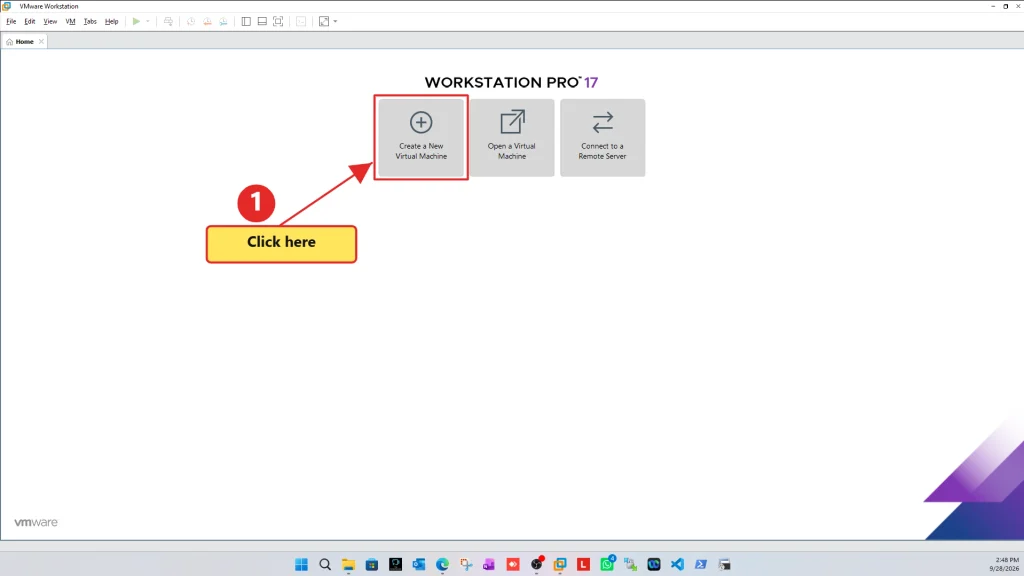
Figure 1: Starting the creation of HGIT-DC-LAB in VMware Workstation Pro 17.
This wizard walks through the virtual hardware configuration before the guest operating system is installed.
An important distinction is that creating a VM does not automatically mean Linux has been installed. At this stage, we are preparing the virtual computer that will eventually run Ubuntu Server.
Step 2: Choose Custom (Advanced) Configuration
VMware presents two configuration methods:
- Typical (Recommended): Uses common defaults and reduces the number of configuration decisions.
- Custom (Advanced): Provides additional control over hardware compatibility, processor configuration, storage controllers, and virtual disks.
For HGIT-DC-LAB, I selected Custom (Advanced) and clicked Next.
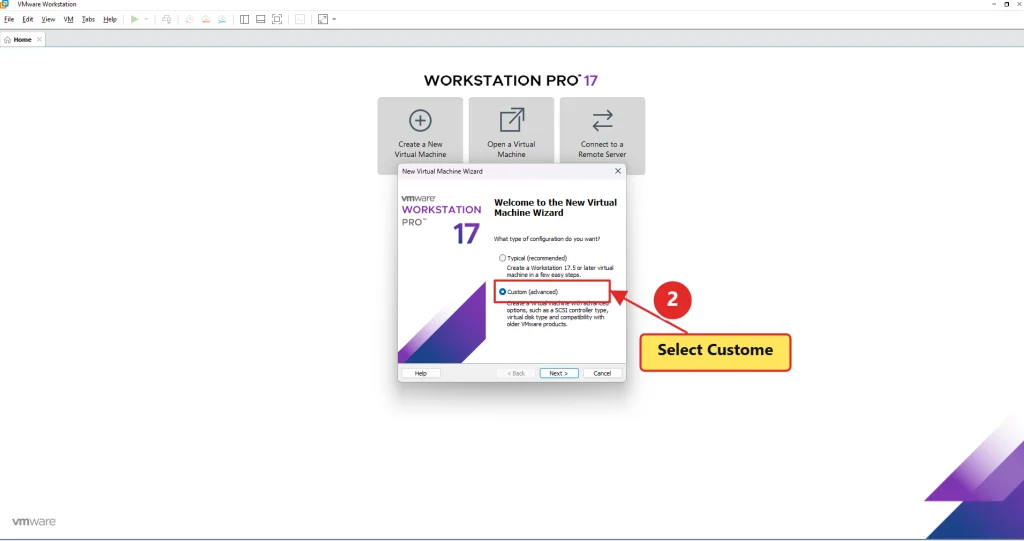
Figure 2: Selecting the Custom configuration option in the VMware wizard.
Why use Custom?
For a reusable infrastructure lab, I want to understand and document the virtual hardware rather than accept every default without reviewing it.
The Custom option is not necessarily faster or more powerful. Its advantage is configuration control.
If you are creating a basic VM simply to practice Linux commands, Typical configuration may be sufficient. For this documented lab, Custom provides a clearer learning experience.
Step 3: Select Virtual Machine Hardware Compatibility
The next screen asks which VMware virtual hardware compatibility level should be used.
My screenshot shows:
Workstation 17.5 or later
I retained this compatibility setting because it was suitable for the VMware environment where the lab was being created.
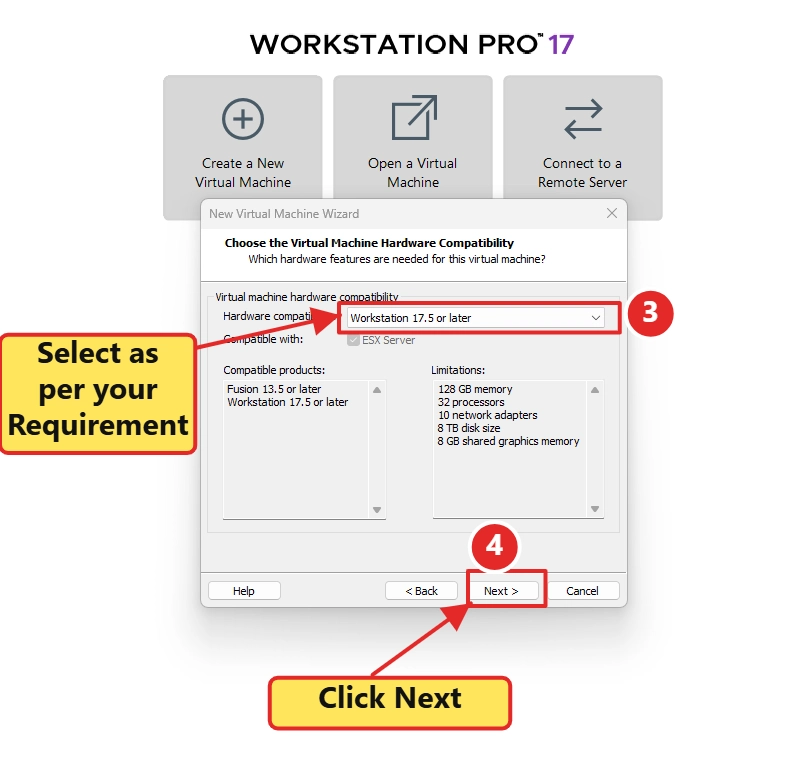
Figure 3: Selecting VMware virtual hardware compatibility.
Hardware compatibility determines which virtual hardware features and VMware versions can support a virtual machine.
A newer compatibility level can provide access to newer virtual hardware capabilities, but it may limit the ability to run the same VM on older VMware installations.
If you intend to move your VM between different computers or VMware environments, verify compatibility before choosing the newest available option.
For a VM that will remain on the same workstation, using an appropriate supported compatibility level is generally straightforward.
Click Next.
Step 4: Choose to Install the Operating System Later
The Guest Operating System Installation screen provides options for installing from a physical disc or ISO image.
For this build, I selected:
I will install the operating system later.
Then I clicked Next.

Figure 4: Choosing to configure the virtual machine before installing Ubuntu.
I prefer this approach because it separates virtual hardware preparation from operating-system installation.
It allows me to complete the VM configuration, review the hardware settings, and attach the intended ISO image before powering on the machine.
This also keeps the documentation organized into separate stages.
In Part 1, we prepare the VM.
In Part 2, we will perform the actual Ubuntu Server installation.
Select Linux as the guest operating system
On the next screen, select Linux under Guest operating system.
From the Version dropdown, choose Ubuntu 64-bit.
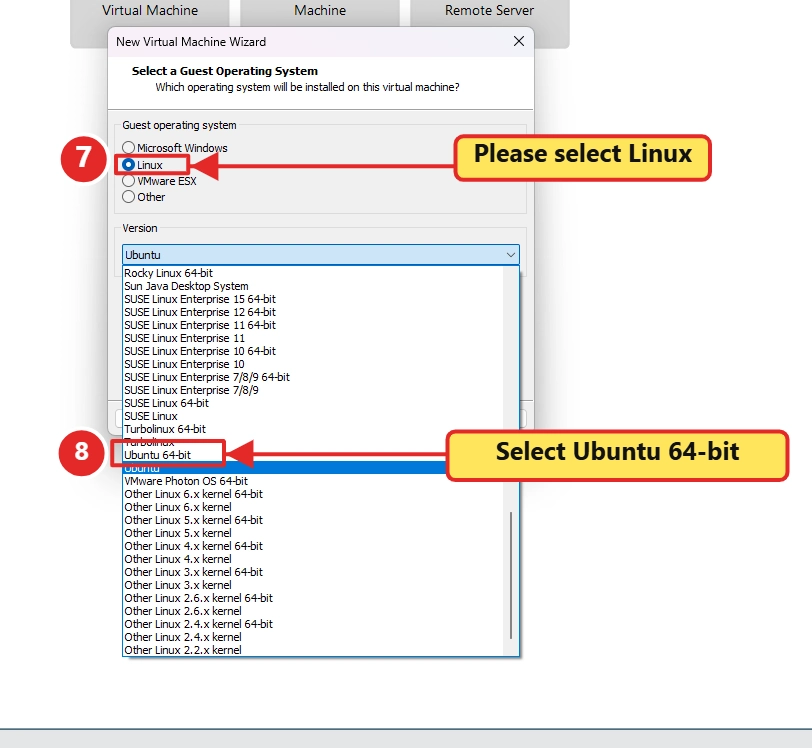
Figure 5: Selecting Linux and the Ubuntu 64-bit guest operating system profile.
The guest operating system selection helps VMware choose appropriate virtual hardware defaults and compatibility settings.
It does not install Ubuntu or determine which exact Ubuntu point release will be used.
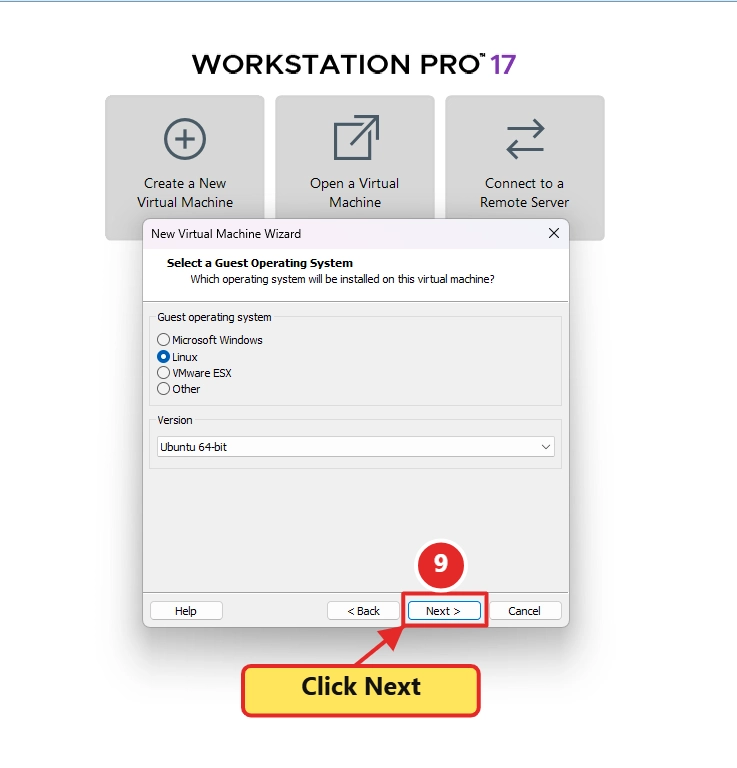
Figure 6: Confirming the Ubuntu 64-bit guest profile before continuing.
After confirming the selection, click Next.
Step 5: Name the Virtual Machine and Select Its Location
A meaningful naming convention becomes increasingly important as a lab grows.
I named the first VM:
HGIT-DC-LAB
For the virtual machine location, I selected a dedicated directory on the D: drive.

Figure 7: Naming the VM HGIT-DC-LAB and choosing its storage directory.
The VM name helps identify the system inside VMware Workstation.
The storage location determines where the VM configuration files and associated virtual disk files are stored.
For larger environments, consider adopting a consistent naming convention that identifies a system’s purpose.
Examples might include:
- HGIT-DC-LAB – General infrastructure lab
- HGIT-NETBOX-01 – Dedicated NetBox testing server
- HGIT-MONITOR-01 – Monitoring experiments
These are examples of possible future names, not additional virtual machines created in this walkthrough.
Avoid using names that are difficult to recognize or distinguish when multiple systems appear in the VMware inventory.
I named this virtual machine HGIT-DC-LAB to keep it identifiable as part of my infrastructure testing environment. Consistent naming becomes increasingly important as a lab grows to include multiple servers, network devices, and infrastructure management platforms. I have explained this approach in more detail in my Data Center Asset Naming Convention guide.
Step 6: Configure the Virtual Processors
The Processor Configuration screen contains two important settings:
Number of processors and Number of cores per processor.
For HGIT-DC-LAB, I selected:
- Number of processors: 1
- Number of cores per processor: 4
- Total processor cores: 4

Figure 8: Allocating four virtual CPU cores to the Ubuntu lab VM.
In VMware, the combination of virtual processors and cores per processor determines the total virtual CPU allocation.
For example, one virtual processor with four cores provides four virtual CPUs.
This does not mean four physical CPU cores are permanently reserved exclusively for the VM. The hypervisor schedules virtual CPU execution on available host processing resources.
Why did I choose four vCPUs?
I want this VM to support more than a minimal Linux installation.
Future workloads may include application services, databases, container-based deployments, and infrastructure testing.
Four vCPUs provide a practical initial allocation for my host environment, although actual performance will depend on the workload and host utilization.
Assigning excessive virtual CPUs can introduce unnecessary scheduling overhead or contention.
For a small Linux command-line practice VM, two vCPUs may be sufficient.
Lab recommendation: Start with the resources your application needs, monitor utilization, and increase the allocation when measurements justify it.
Click Next.
Step 7: Allocate Memory to the Ubuntu VM
Memory allocation directly affects how much RAM the guest operating system and its applications can use.
For HGIT-DC-LAB, I configured:
12,288 MB (12 GB RAM)

Figure 9: Allocating 12 GB of memory to HGIT-DC-LAB.
My Windows workstation has 96 GB of physical RAM, which influenced this decision.
However, Ubuntu Server itself does not require 12 GB just to boot and run a basic installation.
The additional memory is intended to provide room for future services and proof-of-concept workloads.
How much RAM should you assign?
| Intended workload | Example starting allocation |
|---|---|
| Basic Linux CLI practice | 2–4 GB |
| Linux administration lab | 4 GB |
| Small application testing | 4–8 GB |
| Multi-service infrastructure lab | 8–12 GB or more |
These are illustrative planning ranges, not official application requirements.
Always verify the requirements of the software you intend to deploy.
Remember that Windows, VMware, browsers, and other host applications also consume memory.
If the host becomes short of RAM, overall performance can deteriorate significantly.
Step 8: Configure VMware Network Connectivity
The next screen asks which type of network connection should be used.
VMware provides several common options:
| Network mode | Typical purpose |
|---|---|
| Bridged | Connects the VM to the external network through a host adapter |
| NAT | Allows the VM to communicate through VMware’s NAT network |
| Host-only | Provides a private network between the host and connected VMs |
| No connection | Creates the VM without an active network connection |
For the initial HGIT-DC-LAB setup, I selected:
Use network address translation (NAT)
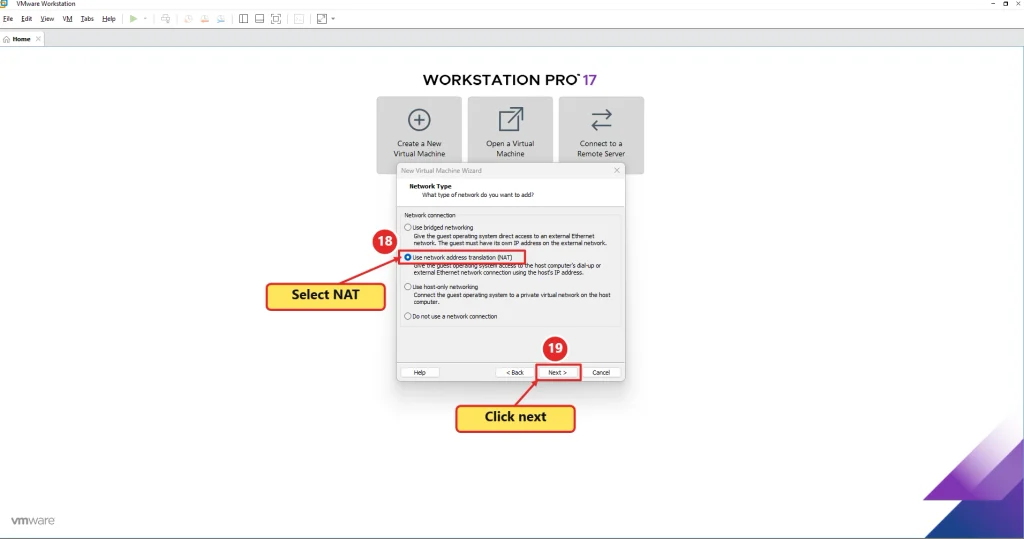
Figure 10: Selecting NAT networking for the Ubuntu virtual machine.
Why NAT for the first lab?
NAT is convenient when starting a lab because the guest can generally access external networks through the host’s network connection, provided VMware networking and the host connection are functioning correctly.
In a typical VMware Workstation installation, NAT uses the VMnet8 virtual network.
The VM usually receives an address from VMware’s virtual DHCP service.
It is important to understand that NAT does not automatically make every service inside the guest directly reachable from other devices on your physical LAN.
For example, if I later want to access NetBox from another laptop on the same physical network, I may need to configure port forwarding, a bridged adapter, or another suitable network design.
NAT is our starting configuration, not a permanent restriction on how the lab must operate.
As we progress, we can evaluate separate management networks, isolated test networks, and more advanced networking scenarios.
Step 9: Select the SCSI I/O Controller
Next, VMware asks which I/O controller should be used for SCSI virtual disks.
For this lab, I retained the LSI Logic controller shown as recommended in the wizard.
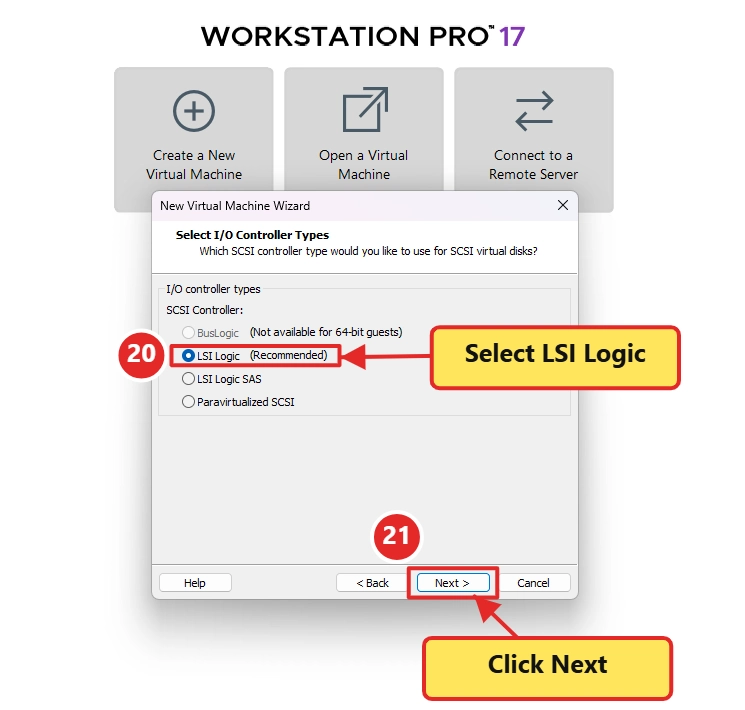
Figure 11: Selecting the recommended LSI Logic SCSI controller.
A storage controller provides the interface through which the guest operating system communicates with virtual storage devices.
Different controller types may offer different compatibility and performance characteristics.
For a general Ubuntu Server lab, retaining a VMware-recommended compatible controller is a reasonable approach unless a particular application or performance requirement calls for something different.
There is no need to change controller types simply because another option sounds newer.
Click Next.
Step 10: Select the Virtual Disk Type
On the virtual disk type screen, select SCSI.
This matches the virtual storage configuration used for HGIT-DC-LAB.
SCSI is a common virtual disk interface in VMware environments and is suitable for this Ubuntu Server setup.
The disk interface should not be confused with the physical drive technology in the Windows workstation.
A virtual SCSI disk can be backed by files stored on a physical SSD or another supported storage device.
Screenshot note: This particular wizard screen was not included in my captured screenshot collection. The next image documents the following disk-creation step.
Step 11: Create a New Virtual Disk
VMware provides options to create a new virtual disk, reuse an existing virtual disk, or use a physical disk.
For a fresh Ubuntu installation, I selected:
Create a new virtual disk
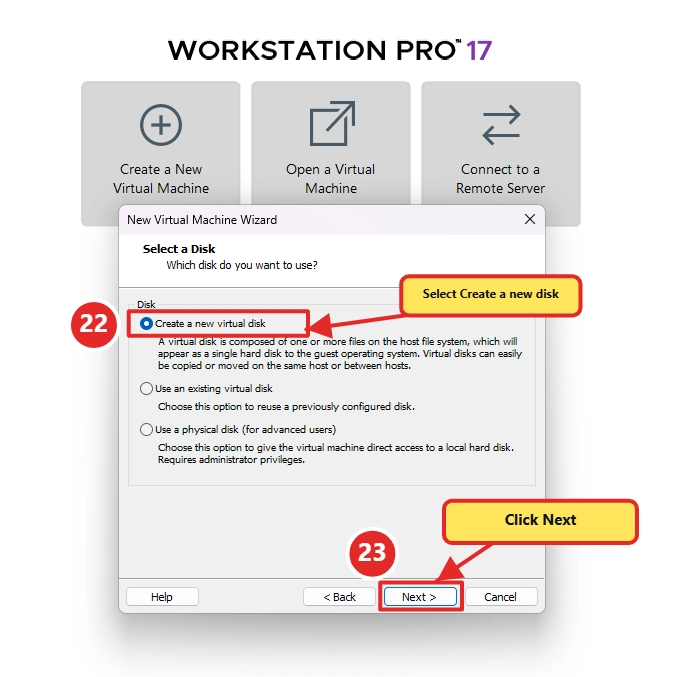
Figure 12: Creating a dedicated virtual disk for HGIT-DC-LAB.
This creates new virtual storage for the VM without reusing an existing operating-system disk.
It also helps keep the lab isolated from unrelated virtual machines.
The virtual disk will eventually contain the Ubuntu operating system, installed packages, configuration files, logs, and any application data stored within it.
Click Next.
Step 12: Configure 150 GB Virtual Disk Capacity
On the Specify Disk Capacity screen, I configured:
Maximum disk size: 150 GB
I also selected:
Store virtual disk as a single file
The option Allocate all disk space now was left unchecked.
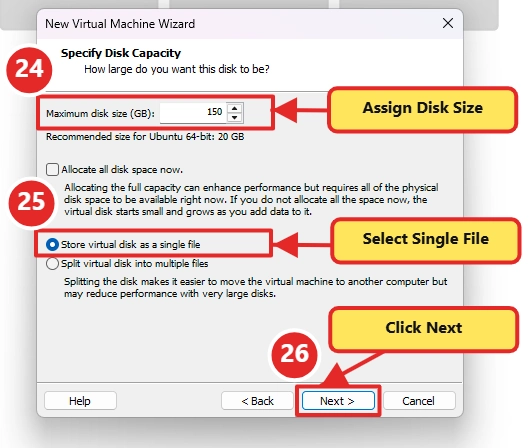
Figure 13: Configuring a 150 GB growable virtual disk stored as a single file.
Why 150 GB?
This VM is intended to become a reusable infrastructure environment.
Although a basic Ubuntu Server installation requires far less storage, future application deployments, databases, logs, test files, and lab experiments may consume additional space.
I chose 150 GB as an initial capacity planning decision for this specific project.
It is not a minimum requirement for Ubuntu or NetBox.
Does a 150 GB virtual disk immediately use 150 GB?
Not necessarily.
Because I did not select the option to allocate all disk space immediately, VMware can create a growable virtual disk.
Its host-side storage consumption generally increases as data is written, subject to virtual disk metadata and other overhead.
However, the virtual disk’s maximum capacity remains 150 GB.
You should still monitor free space on the physical host drive. A growable virtual disk can eventually consume substantial storage.
Single file versus multiple files
I selected a single virtual disk file for simplicity.
A single-file layout can be convenient for managing the VM on a modern local file system.
A split-disk layout may be useful when file-size limitations or portability requirements make smaller disk segments preferable.
Neither option eliminates the need for proper backups.
Step 13: Specify the Virtual Disk Filename
The next wizard screen asks where the virtual disk file should be stored and what it should be called.
For this lab, the filename is:
HGIT-DC-LAB.vmdk
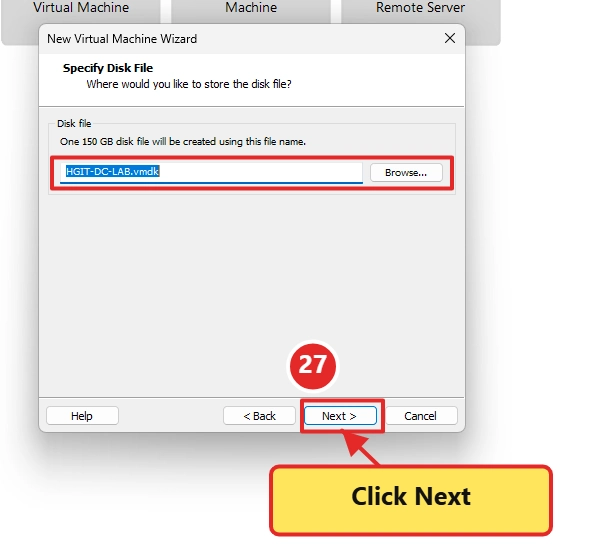
Figure 14: Naming the VMware virtual disk HGIT-DC-LAB.vmdk.
The .vmdk extension identifies a VMware virtual disk.
The VM also uses configuration files, including a .vmx file, to store information about its virtual hardware.
Keeping these files organized within the VM directory makes the environment easier to maintain.
Avoid manually renaming or moving active virtual machine files through File Explorer without following an appropriate VMware migration or relocation procedure.
Click Next.
Step 14: Review the Virtual Machine Configuration
VMware now displays the Ready to Create Virtual Machine summary.
Before completing the wizard, review the settings carefully.
For HGIT-DC-LAB, the summary shows:
- Ubuntu 64-bit guest profile
- Workstation 17.5 or later compatibility
- Four virtual CPU cores
- 12,288 MB memory
- 150 GB virtual hard disk
- NAT network adapter

Figure 15: Reviewing the virtual machine hardware before completing the configuration.
This is an opportunity to identify mistakes before creating the VM.
If the processor count, memory, disk capacity, or network type is incorrect, use Back or Customize Hardware as appropriate.
For this walkthrough, I also wanted to attach the Ubuntu ISO and verify the CD/DVD settings before starting the installation.
Step 15: Open CD/DVD Hardware Settings
Open the VM hardware customization window and select CD/DVD (SATA).
The initial configuration shows the option to use a physical drive.
For our installation, we need the virtual CD/DVD device to point to an Ubuntu ISO image.

Figure 16: Opening the VMware virtual CD/DVD device configuration.
A virtual CD/DVD drive allows an ISO image stored on the Windows host to appear as installation media inside the guest VM.
This avoids needing a physical DVD or bootable USB drive for the virtual machine.
Browse for the Ubuntu ISO
Select Use ISO image file and click Browse.
Navigate to the folder containing your downloaded Ubuntu Server ISO.
In my lab, I stored installation images in a dedicated folder on the D: drive.

Figure 17: Locating the Ubuntu Server installation ISO on the host workstation.
My ISO filename is:
ubuntu-24.04.4-live-server-amd64.iso
If you are following this tutorial later, your downloaded Ubuntu 24.04 LTS point release may have a different filename.
Select the appropriate server ISO and confirm the selection.
Enable Connect at power on
Ensure Connect at power on is checked.
This allows the virtual CD/DVD device to be connected when the VM starts.

Figure 18: Attaching the Ubuntu Server 24.04.4 ISO and enabling Connect at power on.
Attaching the ISO does not install Ubuntu immediately.
It prepares the installation media so the VM can boot from it when powered on.
If the VM does not boot into the installer later, we will check the ISO connection, boot order, and virtual firmware settings.
Step 16: Complete the Virtual Machine Wizard
After reviewing the hardware and installation media, return to the wizard and click Finish.
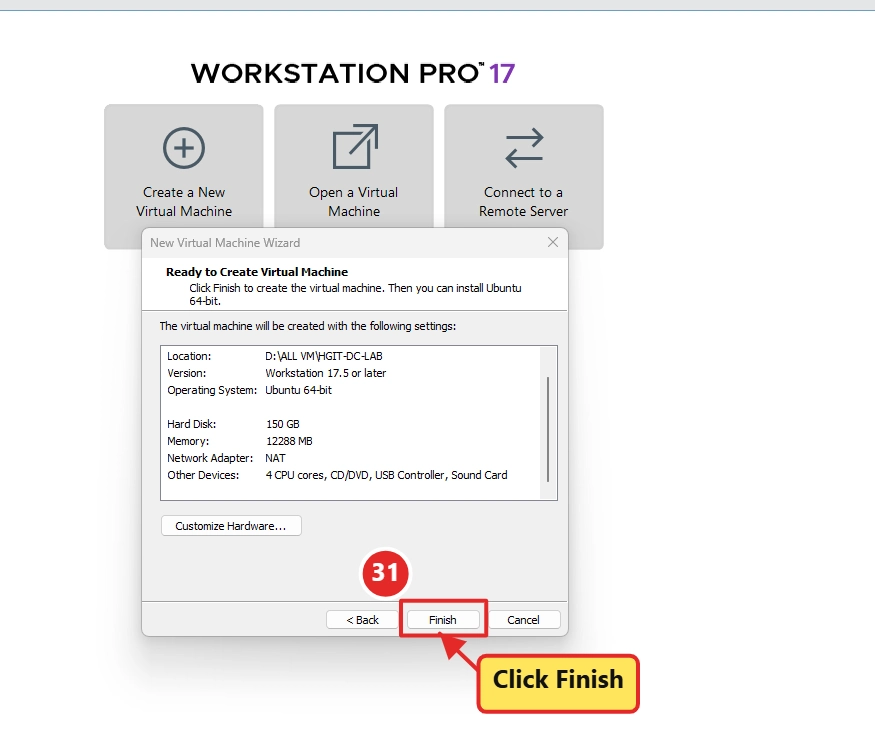
Figure 19: Completing the HGIT-DC-LAB virtual machine creation wizard.
VMware now creates the virtual machine configuration and associated virtual disk files.
At this point, the virtual computer exists, but Ubuntu has not yet been installed.
This distinction matters when documenting the progress of an infrastructure project.
The successful creation of virtual hardware is our first milestone.
The operating system installation, networking inside Ubuntu, user accounts, updates, and server hardening are separate tasks.
Step 17: Verify the Created Virtual Machine
After completing the wizard, VMware displays the newly created HGIT-DC-LAB virtual machine.
The hardware summary shows the configured resources:
- Memory: 12 GB
- Processors: 4
- Hard Disk (SCSI): 150 GB
- Network Adapter: NAT
- CD/DVD: Ubuntu ISO image
The screenshot also shows the VM in a powered-off state.
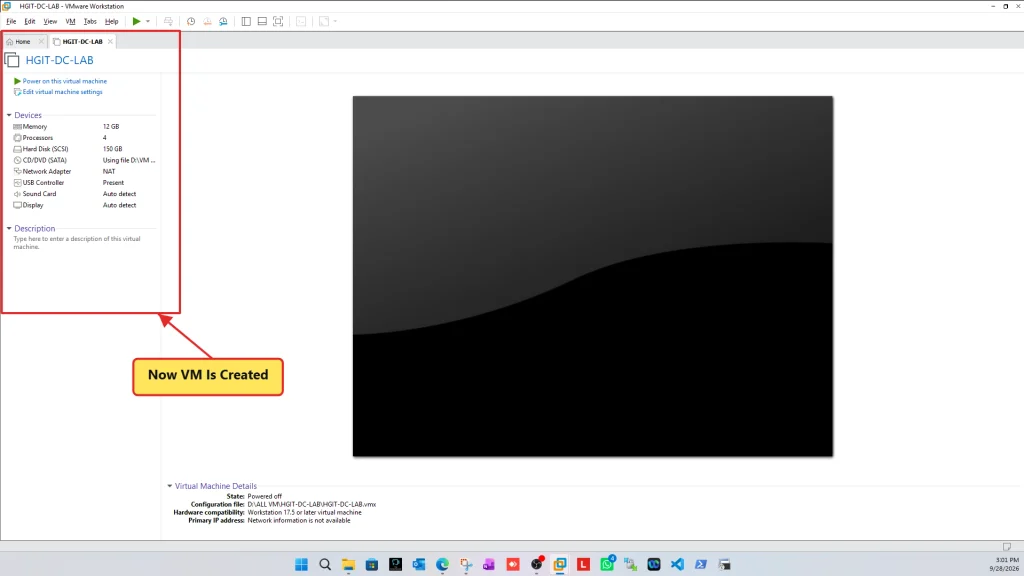
Figure 20: HGIT-DC-LAB successfully created and ready for the Ubuntu Server installation stage.
This confirms that VMware has created the virtual machine and recognizes its configured hardware.
It does not yet verify that Ubuntu boots successfully or that the guest network functions correctly.
Those checks will be performed during the next stage.
Optional: Understanding Nested Virtualization
One additional setting worth understanding is nested virtualization.
Under the VM’s processor settings, VMware may provide an option labeled:
Virtualize Intel VT-x/EPT or AMD-V/RVI
When supported and enabled, this exposes certain hardware-assisted virtualization capabilities to the guest operating system.
This can be useful when experimenting with virtualization technologies inside another virtual machine.
However, nested virtualization is not required simply to install Ubuntu Server or run NetBox.
For the initial HGIT-DC-LAB build, it should be treated as an optional setting depending on future requirements and host compatibility.
The screenshots in this article do not document whether that processor option was enabled, so I am not treating it as a verified part of the completed configuration.
Understanding the VMware Networking Decision
One of the most important choices in a home lab is how virtual machines communicate with other systems.
NAT is convenient for an initial installation, but different network designs serve different purposes.
For example, consider a future NetBox deployment.
If the NetBox web interface runs inside HGIT-DC-LAB, access from the Windows host may be possible using the guest’s VMware NAT address, depending on the configuration.
Access from another physical device on the home network may require additional configuration.
Bridged networking can provide a more direct connection to the physical network, subject to the behavior and restrictions of the host network adapter and upstream network.
Host-only networking is useful for isolated experiments where direct external connectivity is not needed.
For now, I am deliberately keeping the lab on NAT so the initial Ubuntu installation can be documented without introducing unnecessary network complexity.
Once Ubuntu is installed, we will verify the assigned IP address, gateway, DNS resolution, and connectivity.
Common Problems to Check Before Installing Ubuntu
Even when the VM creation wizard completes successfully, several configuration issues can prevent a smooth installation.
Ubuntu ISO does not boot
Check whether the correct ISO is selected in CD/DVD settings.
Verify that Connect at power on is enabled and that the VM is attempting to boot from the virtual optical drive.
If necessary, inspect the virtual firmware boot options.
Ubuntu 64-bit is unavailable
Check whether hardware virtualization is supported and enabled in the host firmware.
Also review Windows virtualization features and VMware compatibility if you encounter an explicit virtualization error.
Avoid disabling Windows security or virtualization protections without first identifying the actual cause and understanding the consequences.
VM performance is unexpectedly slow
Review CPU and memory allocation, host resource usage, and available disk space.
Assigning more resources does not always improve performance.
A heavily loaded host, insufficient physical RAM, or slow underlying storage can affect the guest.
VM cannot access the internet
Once Ubuntu is installed, verify the guest IP configuration, default gateway, and DNS settings.
On the host, inspect VMware’s NAT and DHCP services and the Virtual Network Editor configuration.
Do not assume every connectivity failure is caused by Ubuntu.
Virtual disk storage grows unexpectedly
Growable disks consume additional host storage as data is written.
Application logs, package caches, downloaded files, and snapshots can contribute to storage usage.
Monitor the host drive regularly and maintain appropriate backups.
Why This Lab Matters Beyond Ubuntu Installation
My objective with HGIT-DC-LAB is to build a practical learning and testing environment that can be expanded over time.
The first major planned application project is a NetBox POC.
That project will focus on infrastructure modeling rather than merely demonstrating software installation.
For example, a future NetBox lab may include a sample site, rack layouts, device roles, manufacturers, interfaces, cable connections, VLANs, IP prefixes, and IP address assignments.
The intention is to document how those components relate to each other in a realistic infrastructure workflow.
Later experiments may cover Linux administration, infrastructure monitoring, network automation, and additional services.
By using a consistent virtual lab, each new article can build on earlier work instead of starting from an unrelated environment.
It also gives us an opportunity to document mistakes, troubleshooting decisions, and configuration improvements as they occur.
Frequently Asked Questions
Can I install Ubuntu Server 24.04 on VMware Workstation Pro 17?
Yes. VMware Workstation Pro 17 can be used to create a compatible 64-bit Ubuntu virtual machine. Confirm that your host supports the necessary virtualization features and that you have sufficient system resources.
Is 12 GB RAM necessary for Ubuntu Server?
No. The 12 GB allocation in this article reflects my planned lab workloads and the available host memory. A basic Ubuntu Server installation can operate with substantially less RAM.
Is a 150 GB virtual disk required?
No. I selected 150 GB to allow room for future experiments. Smaller virtual disks are suitable for many Linux learning environments, provided they meet the operating system and application storage requirements.
What is the difference between NAT and bridged networking?
NAT allows the VM to communicate through a virtual network associated with the host. Bridged networking connects the VM more directly to an external network through a host network adapter. The appropriate choice depends on connectivity and isolation requirements.
Why choose Custom instead of Typical?
Custom configuration exposes more virtual hardware options during creation. It is useful when you want to document and control the configuration, although Typical is adequate for many straightforward installations.
Can I change the VM resources later?
Many virtual hardware settings, including memory and processor allocation, can be adjusted after powering off the VM. Storage changes require additional planning, particularly if the operating system has already been installed.
Does NetBox require nested virtualization?
No. NetBox does not inherently require nested virtualization. That capability is relevant to other virtualization experiments and should only be enabled when needed and supported.
Is Ubuntu already installed after clicking Finish?
No. Clicking Finish creates the virtual machine. The operating system must still be installed using the attached ISO image or another supported installation method.
What Comes Next in the HGIT Lab Series?
With HGIT-DC-LAB created, the next stage is to install Ubuntu Server 24.04 LTS.
In Part 2, we will power on the VM and work through the Ubuntu installer, including language selection, networking, storage configuration, user creation, and the initial system reboot.
After installation, we will verify the operating system, update packages, configure remote administration, and prepare the server for future application deployments.
Those steps will establish the foundation for the upcoming NetBox proof of concept.
How We Annotated the 20 Lab Screenshots
Every screenshot in this tutorial comes from our practical HGIT-DC-LAB setup. To make the VM creation process easier to follow, we annotated all 20 screenshots using the HGIT Image Annotation Tool, highlighting important configuration options and installation steps.
If you create IT tutorials, troubleshooting guides, or technical documentation, you can use the HGIT Image Annotation Tool to highlight key details in your own screenshots.
Conclusion
Creating an Ubuntu Server VM in VMware Workstation is the first milestone in the HG IT Solutions infrastructure lab project.
In this tutorial, I created HGIT-DC-LAB using VMware Workstation Pro 17 and configured four virtual CPU cores, 12 GB RAM, a 150 GB SCSI virtual disk, NAT networking, and the Ubuntu Server 24.04.4 installation ISO.
Beyond the basic configuration, this walkthrough explained why individual hardware settings were selected and how those choices can vary depending on the physical workstation and intended workloads.
The 20 real lab screenshots document the VM creation process, providing a practical reference for readers building similar environments.
With the virtual machine created and its installation media attached, the next step is to power on HGIT-DC-LAB, install Ubuntu Server, and verify the initial operating-system configuration.
This reusable lab will also provide the foundation for upcoming infrastructure projects, including Linux administration, networking experiments, and a practical NetBox proof of concept covering DCIM and IP address management.
Next in the HGIT Lab Series: Ubuntu Server 24.04 LTS Installation on VMware Workstation Pro – Part 2.
HG IT Solutions – Build • Connect • Automate

Pingback: Install Ubuntu Server 24.04 LTS on VMware Workstation
Pingback: Ubuntu Server 24.04 Initial Configuration & Network Setup
Pingback: Ubuntu Server 24.04 Infrastructure Verification Guide