
1. Introduction
After installing Ubuntu Server and configuring basic security, the next important task is to verify that the server is healthy, accessible, secure, and ready for application deployment.
In this hands-on HGIT-DC-LAB tutorial, we will verify the infrastructure foundation of an Ubuntu Server 24.04 LTS virtual machine running on VMware Workstation.
Ubuntu Server 24.04 infrastructure verification is an essential step before deploying NetBox, DCIM, or other infrastructure management applications. In this HGIT-DC-LAB guide, we verify SSH security, UFW firewall, Fail2Ban protection, CPU, RAM, LVM storage, network connectivity, DNS resolution, NTP synchronization, and overall system health on VMware Workstation.
This is not just a list of Linux commands. For each verification, we will explain:
- What the command does.
- Why it is important for infrastructure administration.
- What we observed in our lab.
- How to interpret the output.
- What the result means for the next deployment phase.
Our objective is to establish a reliable baseline before deploying NetBox and other infrastructure management components.
Table of Contents
2. Lab Environment and Server Specifications
| Component | Verified Configuration |
|---|---|
| Virtual machine | HGIT-DC-LAB |
| Hostname | hgit-dc-lab |
| Operating system | Ubuntu Server 24.04.5 LTS |
| Virtualization platform | VMware Workstation |
| CPU | 4 vCPU |
| Assigned RAM | 12 GB |
| Disk capacity | 150 GB |
| Root filesystem | LVM, ext4 |
| Network interface | ens33 |
| Server IPv4 | 192.168.26.200/24 |
| Default gateway | 192.168.26.2 |
| Administrative account | hgitadmin |
| Remote access | SSH public-key authentication |
The values above represent our specific lab environment. Your server may have different IP addresses, resource allocations, network interfaces, and storage layouts.
3. Verify Secure SSH Key-Based Login
SSH, or Secure Shell, allows administrators to connect to a Linux server remotely through an encrypted connection.
For infrastructure servers, SSH access should be configured carefully because it provides direct administrative access to the operating system.
In our lab, we verified that the Windows workstation could connect to Ubuntu using an Ed25519 SSH private key while explicitly disabling password authentication for the connection attempt.
Command used on Windows PowerShell
ssh -o PreferredAuthentications=publickey -o PasswordAuthentication=no -i "$env:USERPROFILE\.ssh\hgit_dc_lab_ed25519" hgitadmin@192.168.26.200Why did we use this command?
ssh starts a secure remote terminal session.
-o PreferredAuthentications=publickey tells the SSH client to prefer public-key authentication.
-o PasswordAuthentication=no prevents the client from falling back to SSH password authentication for this test.
-i specifies the private key file used to authenticate.
hgitadmin@192.168.26.200 identifies the Linux account and destination server.
Verified result
The SSH client requested the private key passphrase and successfully opened the Ubuntu terminal.
This demonstrated that our administrative account could access the server using its configured SSH key.
Important: A private key passphrase is different from the Linux account password. The passphrase protects the local private key file.
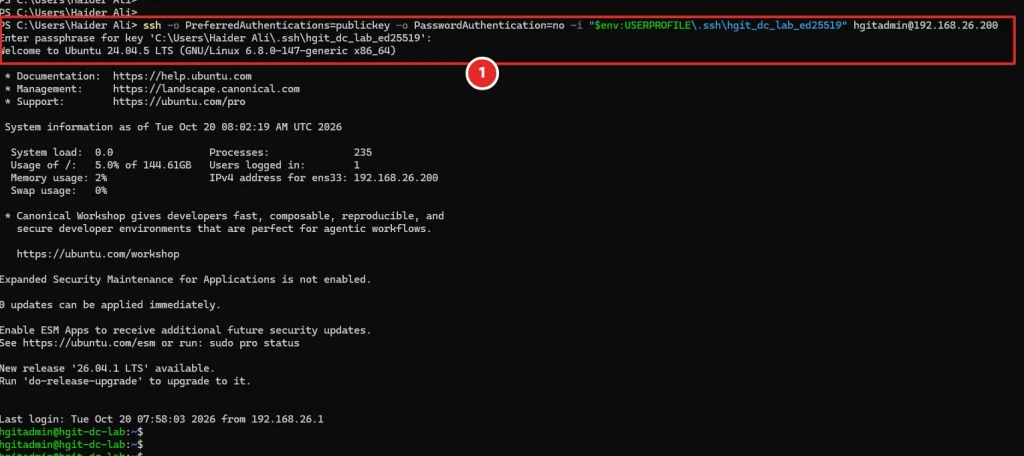
Caption: Successful Ed25519 SSH public-key authentication from Windows PowerShell to HGIT-DC-LAB.
4. Verify SSH Server Hardening Settings
After confirming successful remote access, we checked the effective SSH server configuration.
A configuration file may contain multiple settings and included configuration snippets. Therefore, checking the effective configuration is more reliable than looking at a single line in a file.
Command
sudo sshd -T | grep -E '^(permitrootlogin|passwordauthentication|pubkeyauthentication|kbdinteractiveauthentication|x11forwarding) 'Why did we use this command?
sudo provides the privileges needed to inspect the SSH server configuration.
sshd -T displays the effective configuration calculated by OpenSSH.
grep -E filters the output so that only the security-related settings we want to review are displayed.
Verified output
permitrootlogin no
pubkeyauthentication yes
passwordauthentication no
kbdinteractiveauthentication no
x11forwarding no
What do these settings mean?
PermitRootLogin no: Direct SSH login using the root account is disabled. Administrators should use their own accounts and elevate privileges when required.
PubkeyAuthentication yes: Public-key authentication is enabled, allowing users with authorized SSH keys to authenticate.
PasswordAuthentication no: SSH password authentication is disabled, reducing exposure to password-guessing attacks.
KbdInteractiveAuthentication no: Keyboard-interactive authentication is disabled, preventing an additional interactive authentication path from remaining enabled.
X11Forwarding no: SSH X11 forwarding is disabled because this headless server does not require graphical application forwarding.
These settings provide a stronger baseline for remote administration.
Validate SSH configuration syntax
sudo sshd -tThis command checks the SSH daemon configuration for syntax errors. A successful run normally produces no output.
Display the X11 forwarding setting
sudo sshd -T | grep '^x11forwarding 'The original check showed that X11 forwarding was enabled. We added an explicit override:
echo 'X11Forwarding no' | sudo tee -a /etc/ssh/sshd_config.d/01-hgit-hardening.confThe echo command outputs the required configuration line, while sudo tee -a appends it to the specified SSH configuration file.
After editing, we validated the configuration again:
sudo sshd -tWe then reloaded the SSH service:
sudo systemctl reload sshReloading applies the updated SSH configuration without intentionally terminating existing SSH sessions.
Finally, we verified the service remained active:
sudo systemctl is-active sshVerified result:
active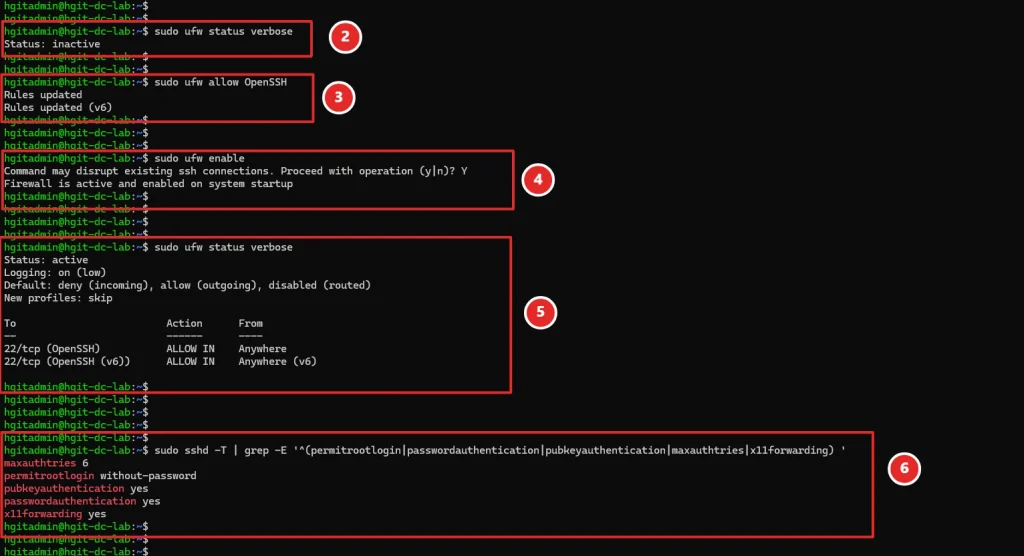
Caption: Effective SSH configuration confirms disabled root login, password authentication, keyboard-interactive authentication, and X11 forwarding.
Security note: Before disabling SSH password authentication on a remote server, verify that a working SSH key and recovery access are available. Incorrect SSH settings can lock out administrators.
5. Verify UFW Firewall and Fail2Ban Protection
Two important security controls in our Ubuntu Server environment are UFW and Fail2Ban.
UFW controls which network connections are permitted by the host firewall.
Fail2Ban monitors supported authentication logs and can temporarily block addresses that repeatedly fail authentication.
They perform different tasks and complement each other.
Check the UFW firewall
sudo ufw status verboseWhy did we use this command?
This displays the firewall status, default policies, logging level, and configured access rules.
Our lab showed:
Status: active
Logging: on (low)
Default: deny (incoming), allow (outgoing), disabled (routed)
The configured inbound rules allowed OpenSSH on TCP port 22 for IPv4 and IPv6.
This means the firewall was active and configured to reject unsolicited incoming traffic unless an allow rule matched.
However, the SSH rule was open to any source address. This is acceptable for some isolated lab environments, but a production deployment should consider restricting SSH access to trusted management networks.
Verify Fail2Ban service status
sudo systemctl status fail2ban --no-pagerThis command shows whether Fail2Ban is loaded, enabled, and running.
Our verification showed the service was active.
Check configured Fail2Ban jails
sudo fail2ban-client statusThe result showed one configured jail:
Number of jail: 1
Jail list: sshd
Inspect the SSH jail
sudo fail2ban-client status sshdThis command reports failed authentication counters and banned IP addresses for the SSH jail.
At verification time, the counters showed zero failed attempts and zero banned addresses.
This does not mean Fail2Ban is ineffective. It simply means no matching failures or bans had been recorded in the displayed counters at that time.
Check maximum failed attempts
sudo fail2ban-client get sshd maxretryVerified result:
5Fail2Ban was configured to allow five matching failures before a ban could be triggered, subject to the jail’s other settings.
Check failure detection window
sudo fail2ban-client get sshd findtimeVerified result:
600This represents a 600-second, or 10-minute, detection window.
Check ban duration
sudo fail2ban-client get sshd bantimeVerified result:
600The configured ban duration was 600 seconds, or 10 minutes.
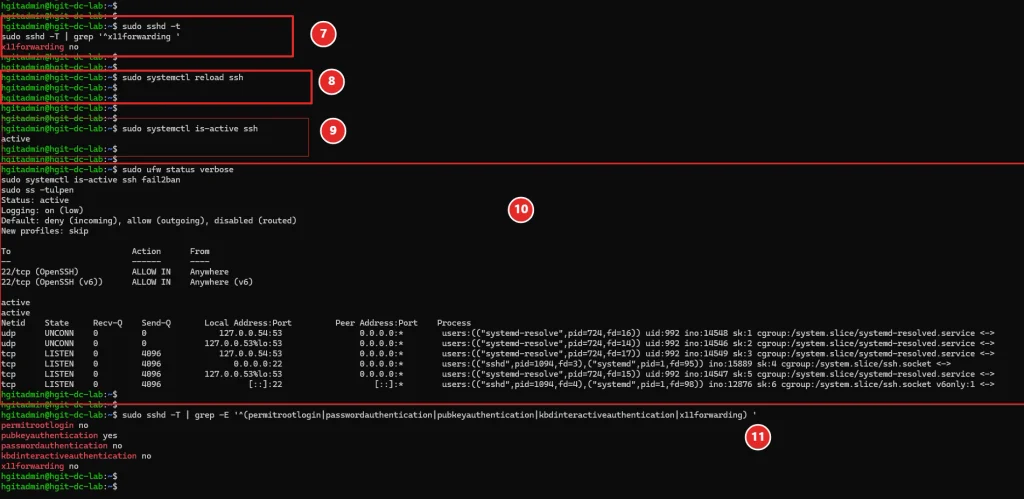
Caption: UFW is active and the Fail2Ban SSH jail is running with verified protection settings.
6. Verify Server Identity and Operating System
Correct server identity is important for infrastructure inventory, monitoring, troubleshooting, and documentation.
Command
hostnamectlWhy did we use this command?
hostnamectl displays information about the system, including its hostname, operating system, kernel, architecture, and virtualization environment.
In our lab, we verified:
- Hostname:
hgit-dc-lab - Operating system: Ubuntu 24.04.5 LTS
- Kernel: Linux 6.8.0-147-generic
- Architecture: x86-64
- Virtualization: VMware
- Hardware model: VMware Virtual Platform
This establishes the identity of the machine that will host our infrastructure applications.
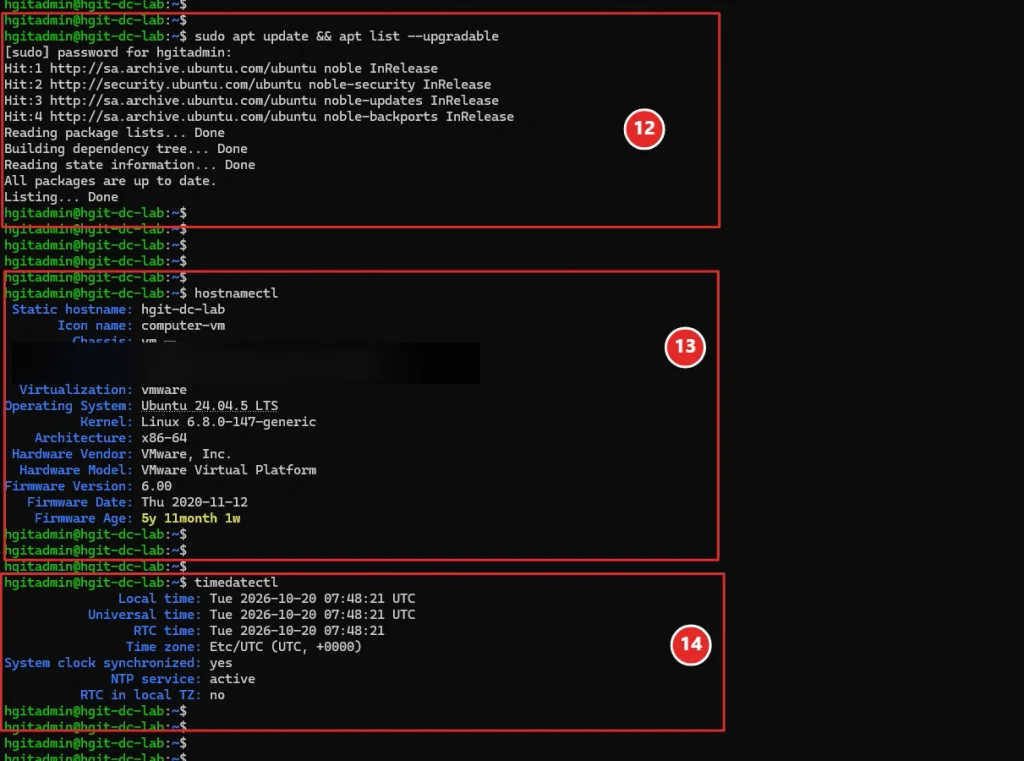
Caption: Hostname, Ubuntu version, Linux kernel, and VMware virtualization details verified with hostnamectl.
7. Verify CPU, Memory, and Disk Inventory
Before installing an infrastructure management platform, we must understand the resources assigned to the server.
This helps us plan application capacity, database storage, and future resource expansion.
Verify CPU information
lscpuWhy did we use this command?
lscpu displays the processor architecture, available CPU count, topology, and virtualization-related information.
Our lab reported four logical CPUs.
The virtual machine was assigned four vCPUs, matching the planned VMware configuration.
Verify memory
free -hWhy did we use this command?
free -h displays RAM and swap statistics in human-readable units.
Our server showed approximately 11 GiB of usable RAM, consistent with a VM configured with 12 GB of memory.
The output also showed 4 GiB of swap.
The difference between the VMware-assigned memory and the Linux-reported usable memory is normal.
Verify block devices and storage layout
lsblk -o NAME,SIZE,TYPE,FSTYPE,MOUNTPOINTSWhy did we use this command?
lsblk displays disks, partitions, logical volumes, filesystems, and mount points.
The selected columns make it easier to identify the physical or virtual disk and the filesystem layout.
Our lab showed:
sda                         150G disk
├─sda1                        1M part
├─sda2                        2G part ext4 /boot
└─sda3                      148G part LVM2_member
  └─ubuntu--vg-ubuntu--lv   148G lvm  ext4 /
The main disk is 150 GB, with a separate /boot partition and an LVM-based root filesystem.
LVM provides flexibility for managing logical volumes and future storage changes.
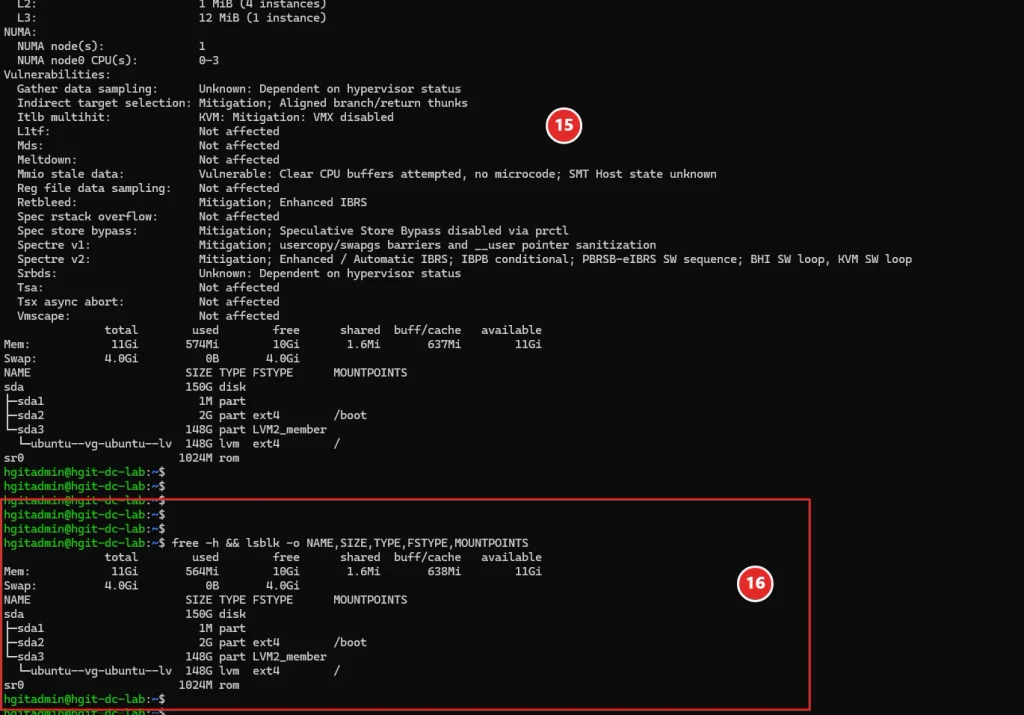
Caption: Four vCPUs, approximately 11 GiB usable RAM, and a 150 GB LVM-based disk layout verified.
8. Verify Filesystem Capacity and Free Disk Space
Knowing the disk layout is not enough. We must also verify that the operating system has sufficient available storage.
Command
df -hTWhy did we use this command?
df reports filesystem space usage.
-h makes sizes human-readable.
-T includes the filesystem type.
This helps identify which filesystem is mounted at each location and how much capacity remains available.
Verified result
Our root filesystem reported approximately:
Filesystem                          Type  Size  Used  Avail  Use%  Mounted on
/dev/mapper/ubuntu--vg-ubuntu--lv   ext4  145G  7.3G  130G    6%  /
The root filesystem was only about 6% utilized during verification.
This provided a healthy starting point for future application deployment.
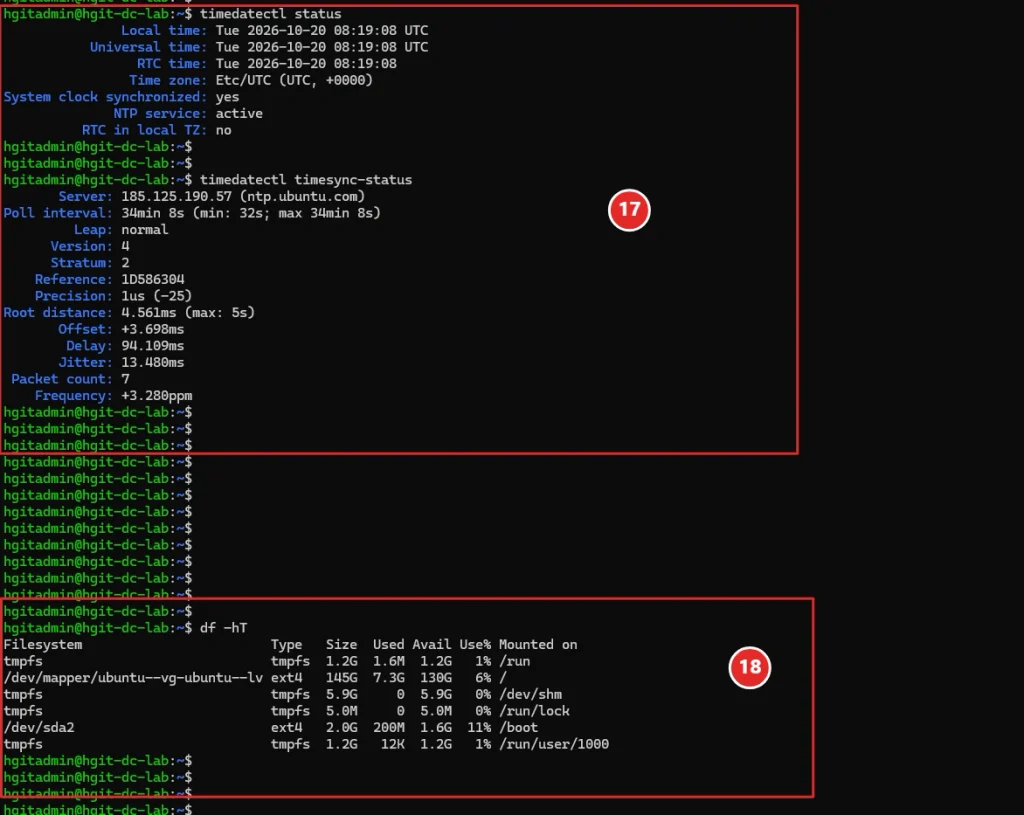
Caption: The root ext4 filesystem has approximately 130 GB of available storage.
9. Verify IP Address and Default Network Route
Networking must be verified before installing services that require browser access, package downloads, or communication with other infrastructure components.
Command
ip -br address && ip routeWhy did we use this command?
ip -br address displays network interfaces and assigned IP addresses in a concise format.
&& runs the second command only if the first command succeeds.
ip route displays the Linux routing table, including the default gateway.
Verified result
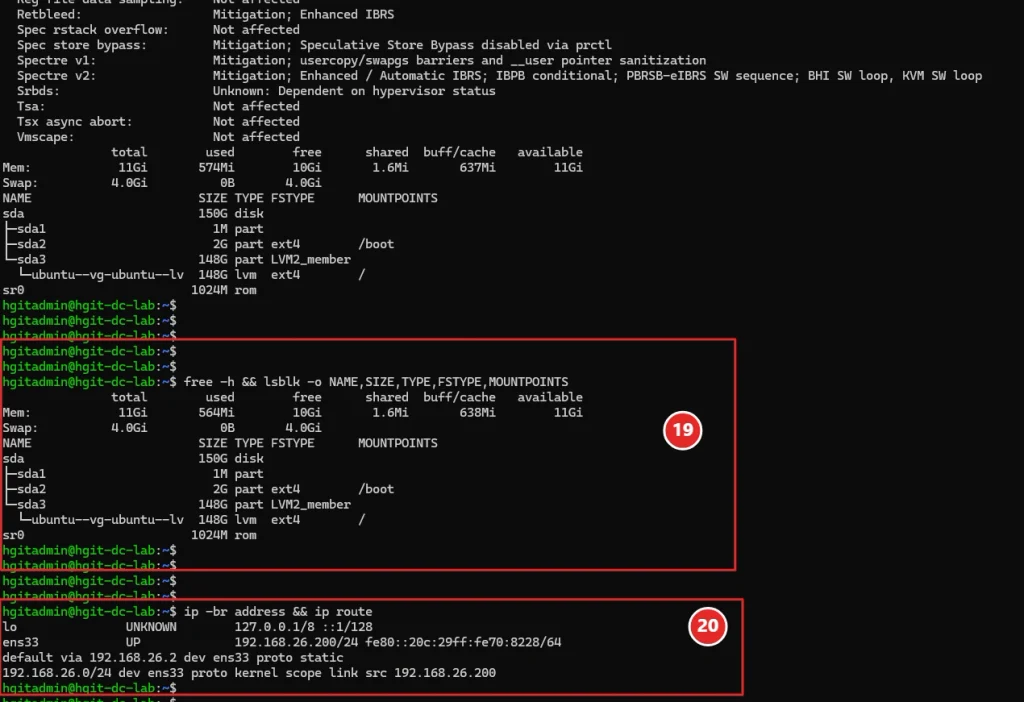
Our lab showed:
ens33 UP 192.168.26.200/24And:
default via 192.168.26.2 dev ens33 proto staticThis confirms that the server interface was active and configured with IPv4 address 192.168.26.200/24.
The default route used gateway 192.168.26.2.
The routing output identified the route as static, but this verification alone does not establish how the address is persistently configured in Netplan or VMware.
Caption: HGIT-DC-LAB network interface ens33, server IPv4 address, and default gateway verified.
10. Verify DNS Server Configuration and Name Resolution
DNS translates domain names into IP addresses.
Reliable DNS resolution is essential for Ubuntu package repositories, application installation, software updates, and many network services.
Check DNS configuration
resolvectl statusWhy did we use this command?
This command displays the DNS resolver configuration managed by systemd-resolved.
Our server reported the following DNS servers:
192.168.26.2
1.1.1.1
The current DNS server was 192.168.26.2.
Test domain name resolution
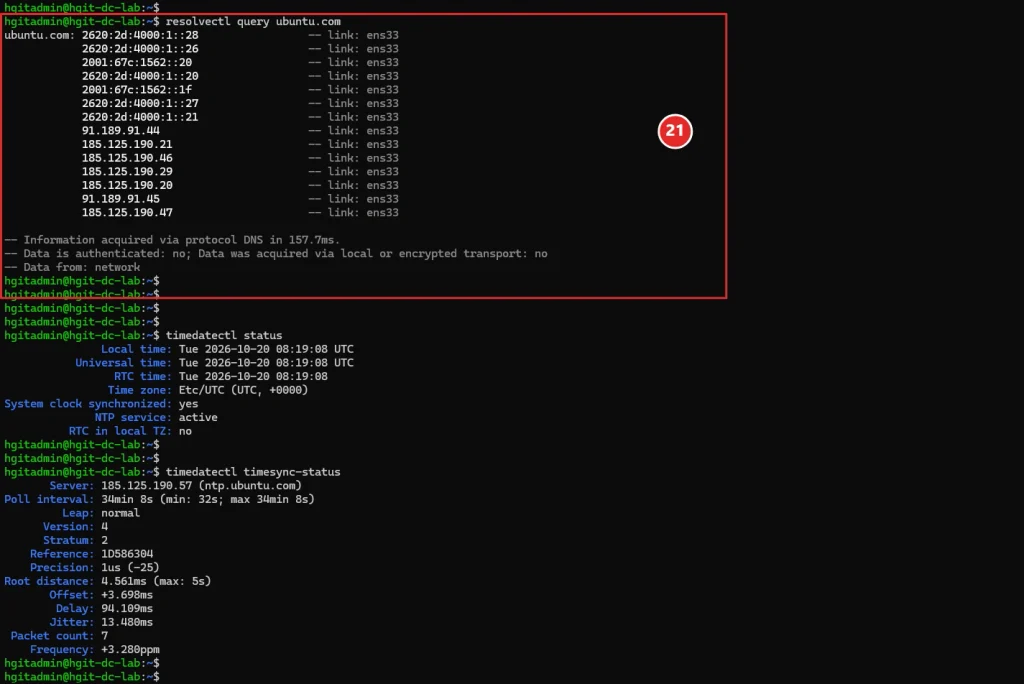
resolvectl query ubuntu.comWhy did we use this command?
This command requests DNS records for ubuntu.com using the configured resolver.
Our verification successfully returned IPv4 and IPv6 addresses for the domain.
The query completed in approximately 157.7 milliseconds.
This confirms that DNS name resolution worked during the test.
It does not, by itself, prove that every external service is reachable or that DNS traffic is encrypted.
Caption: Configured DNS servers and successful resolution of ubuntu.com verified using resolvectl.
11. Verify NTP and System Time Synchronization
Accurate time is essential for authentication logs, security monitoring, scheduled jobs, troubleshooting, and database operations.
Incorrect system time can cause confusing log timestamps and authentication problems.
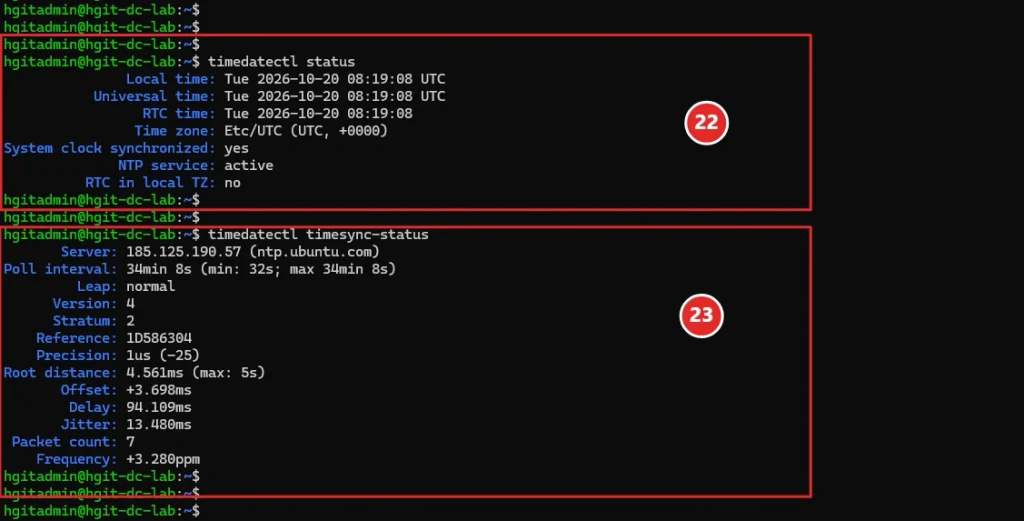
Check time synchronization status
timedatectl statusWhy did we use this command?
timedatectl displays the system time, configured time zone, NTP status, and whether the clock is synchronized.
Our lab reported:
Time zone: Etc/UTC
System clock synchronized: yes
NTP service: active
This confirmed that the system clock was synchronized and NTP was active.
Inspect the NTP synchronization source
timedatectl timesync-statusWhy did we use this command?
This provides additional information about the current NTP server, synchronization offset, delay, and related timing statistics.
Our server reported:
Server: 185.125.190.57 (ntp.ubuntu.com)
Leap: normal
Stratum: 2
The reported synchronization offset was approximately 3.7 milliseconds.
This indicates that the server was successfully synchronizing its clock with an Ubuntu NTP source at the time of verification.
Caption: Ubuntu Server clock synchronization confirmed using timedatectl and the Ubuntu NTP service.
12. Verify That No Systemd Services Have Failed
Our final operating system health check was to identify any failed systemd units.
Command
systemctl --failed --no-pagerWhy did we use this command?
systemctl --failed lists systemd units currently in a failed state.
--no-pager prints the output directly to the terminal rather than opening an interactive pager.
This is useful as a quick health check after installation, configuration changes, and security hardening.
Verified output
UNIT LOAD ACTIVE SUB DESCRIPTION

0 loaded units listed.
This means no failed systemd units were reported at the time of the check.
It is a positive health indicator, although it does not guarantee that every application or network service is fully functional.
13. Infrastructure Foundation Verification Checklist
| Verification | Result |
|---|---|
| Ubuntu operating system identity | Passed |
| VMware virtual machine identification | Passed |
| Four vCPUs detected | Passed |
| RAM and swap detected | Passed |
| LVM disk layout verified | Passed |
| Root filesystem free space checked | Passed |
| SSH key-based login tested | Passed |
| SSH password authentication disabled | Passed |
| Direct root SSH login disabled | Passed |
| SSH X11 forwarding disabled | Passed |
| UFW firewall active | Passed |
| Fail2Ban service and SSH jail active | Passed |
| Server IP and default route verified | Passed |
| DNS name resolution tested | Passed |
| NTP synchronized | Passed |
| Failed systemd units | None reported |
| VMware snapshot | Completed in this session |
These results document the baseline observed in HGIT-DC-LAB on October 20, 2026.
14. What Comes Next After Ubuntu Server 24.04 Infrastructure Verification?
With the Ubuntu Server infrastructure foundation verified, the next stage is to prepare the application deployment environment.
Upcoming work includes confirming application prerequisites, preparing the NetBox deployment architecture, installing the required components, configuring access, and validating the NetBox environment.
After deployment, we will begin building the DCIM inventory structure using the agreed tenant, site, location, rack, device, interface, and cable workflow.
The objective is to build a repeatable infrastructure management lab rather than simply install software without a documented architecture.
Conclusion
Infrastructure verification is an essential step between operating system installation and production-style application deployment.
In this HGIT-DC-LAB session, we verified secure SSH access, firewall rules, Fail2Ban protection, server identity, CPU, memory, storage, network configuration, DNS resolution, NTP synchronization, and overall systemd health.
Our final check reported zero failed systemd units.
These checks give us a documented foundation for continuing with the NetBox and DCIM deployment phases.
Recommended Internal Links
Add links to the corresponding published HGIT guides:
External References
- Ubuntu Server Documentation
- OpenSSH Manual Pages
- Ubuntu Firewall Documentation
- Fail2Ban Official Repository
- NetBox Documentation
These references provide additional information about the tools and technologies used in the lab.
