
Cisco Catalyst 9500 IOS XE Upgrade from version 17.18.03 to 17.18.04 using a USB flash drive, followed by StackWise Virtual (SVL) and Dual-Active Detection (DAD) configuration, is covered in this practical engineering guide.
On October 28, 2026, we performed a real IOS XE upgrade on a Cisco Catalyst C9500-24Y4C switch at a remote site. The software image was transferred from USB, verified using MD5, and installed using Cisco’s install-mode workflow.
During installation, we encountered an actual error because the running configuration had not been saved. We resolved the issue with write memory and successfully completed the upgrade.
We also cover the two-switch Stack Wise Virtual design, including physical MAC-address verification, switch renumbering, priorities 15 and 10, SVL ports 23 and 24, and DAD port 22.
Need the commands quickly? Start with the CLI reference below. For detailed explanations, troubleshooting, physical connections, screenshots, and verification, continue through the complete guide.
Table of Contents
1. Quick CLI Reference — Cisco Catalyst 9500 IOS XE Upgrade
Step 1 — Pre-upgrade verification
terminal length 0
show version
show inventory
show boot
show install summary
show file systems
dir flash:
dir usbflash0:
Step 2 — Copy the IOS XE image from USB
copy usbflash0:cat9k_iosxe.17.18.04.SPA.bin flash:Step 3 — Verify the image checksum
dir flash:cat9k_iosxe.17.18.04.SPA.bin
verify /md5 flash:cat9k_iosxe.17.18.04.SPA.bin
Compare the calculated checksum with Cisco’s published checksum for the exact image.
Step 4 — Save the configuration before installation
copy running-config startup-configStep 5 — Install, activate, and commit
install add file flash:cat9k_iosxe.17.18.04.SPA.bin activate commitConfirm the required reload during the approved maintenance window.
Step 6 — Verify after reboot
show version
show install summary
show boot
show redundancy
Expected result: IOS XE 17.18.04 running successfully, with installation state C (Activated and Committed).
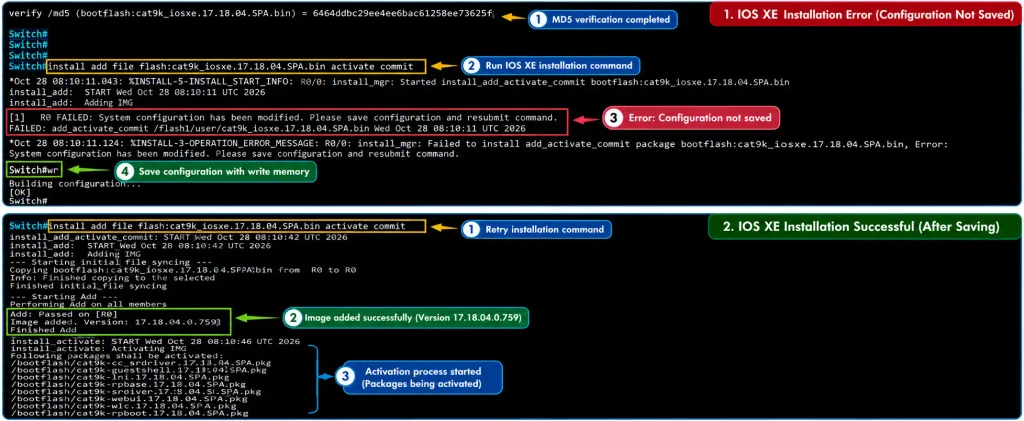
Important: Actual IOS Upgrade Error Encountered at Site
After copying the IOS image and calculating its MD5 checksum, our first installation attempt failed:
[1] R0 FAILED: System configuration has been modified.
Please save configuration and resubmit command.
Root cause: The running configuration contained unsaved changes.
Solution:
write memoryRetry:
install add file flash:cat9k_iosxe.17.18.04.SPA.bin activate commitThe console subsequently confirmed:
SUCCESS: install_add_activate_commitEngineering takeaway: Always review and save the intended configuration before starting an IOS XE installation. An image can be copied and checksum-verified successfully while installation still fails because of unsaved configuration changes.
2. Quick CLI Reference — StackWise Virtual and DAD
Deployment parameters
| Parameter | Switch 1 | Switch 2 |
|---|---|---|
| Model | C9500-24Y4C | C9500-24Y4C |
| Member number | 1 | 2 |
| Priority | 15 | 10 |
| SVL port 1 | TwentyFiveGigE1/0/23 | TwentyFiveGigE2/0/23 |
| SVL port 2 | TwentyFiveGigE1/0/24 | TwentyFiveGigE2/0/24 |
| DAD port | TwentyFiveGigE1/0/22 | TwentyFiveGigE2/0/22 |
| Example SVL domain | 101 | 101 |
Domain 101 is the verified office reference value. Use the approved domain assigned to your actual deployment.
Switch 1 — Configuration reference
Identify the physical chassis and confirm its member number:
show inventory
show version
show switch
Set priority 15:
switch 1 priority 15Configure the StackWise Virtual domain and links:
configure terminal
stackwise-virtual
 domain 101
exit
interface TwentyFiveGigE1/0/23
 stackwise-virtual link 1
exit
interface TwentyFiveGigE1/0/24
 stackwise-virtual link 1
exit
interface TwentyFiveGigE1/0/22
 stackwise-virtual dual-active-detection
end
Save the configuration:
copy running-config startup-configSwitch 2 — Renumbering and configuration reference
Identify the second physical chassis using its serial number and MAC address:
show inventory
show version
show switch
If the standalone second switch is numbered 1, renumber it:
switch 1 renumber 2Complete the platform-required reload and confirm the member number:
show switchAfter confirming member 2, set priority 10:
switch 2 priority 10Configure the domain, SVL, and DAD interfaces:
configure terminal
stackwise-virtual
 domain 101
exit
interface TwentyFiveGigE2/0/23
 stackwise-virtual link 1
exit
interface TwentyFiveGigE2/0/24
 stackwise-virtual link 1
exit
interface TwentyFiveGigE2/0/22
 stackwise-virtual dual-active-detection
end
Save:
copy running-config startup-configDeployment caution: These are staged configuration references, not an unattended paste-and-reload script. Verify the supported C9500-24Y4C StackWise Virtual provisioning sequence for your IOS XE release before renumbering or forming the pair. Some stages require reloads, and interface numbering must match the actual member state.
Quick SVL/DAD verification commands
show switch
show stackwise-virtual
show stackwise-virtual link
show stackwise-virtual dual-active-detection
show redundancy
show version
show running-config | section stackwise-virtual
Expected results include both members Ready, one Active and one Standby, SVL links Up/Ready, and DAD links Up without dual-active recovery.
3. Hardware and Software Environment
The recorded IOS upgrade was performed using the following equipment and software.
| Component | Details |
|---|---|
| Manufacturer | Cisco |
| Switch model | Catalyst C9500-24Y4C |
| Original IOS XE | 17.18.03 |
| Target IOS XE | 17.18.04 |
| Image filename | cat9k_iosxe.17.18.04.SPA.bin |
| Boot mode | Install mode |
| Boot variable | bootflash.conf |
| Image transfer | USB flash drive |
| Management access | Console CLI |
| Upgrade date | October 28, 2026 |
The switch initially reported:
Cisco IOS XE Software, Version 17.18.03
System image file is "bootflash:packages.conf"
The installation summary showed:
IMG C 17.18.03.0.5496The letter C indicates the active installation was committed.
4. Prepare the Switch for an Offline IOS XE Upgrade
At remote sites, network access may be unavailable. Prepare the software and recovery materials before travelling.
Recommended preparation includes the approved Cisco IOS XE image, trusted checksum, USB flash drive, console cable, configuration backup, rollback image, and relevant Cisco release documentation.
Verify storage:
show file systems
dir flash:
Verify USB detection:
dir usbflash0:The recorded USB drive contained:
cat9k_iosxe.17.18.04.SPA.binThe image size was:
1,249,489,705 bytes5. Copy the IOS XE Image from USB to Bootflash
Execute:
copy usbflash0:cat9k_iosxe.17.18.04.SPA.bin flash:Accept the default destination filename when prompted.
The actual console session reported:
1249489705 bytes copied in 44.193 secsVerify the destination:
dir flash:cat9k_iosxe.17.18.04.SPA.binDo not proceed if the transfer is incomplete or the file size is unexpected.
6. Verify the IOS XE Image Using MD5
Before installing the new image, calculate its checksum:
verify /md5 flash:cat9k_iosxe.17.18.04.SPA.binThe actual switch calculated:
verify /md5 (bootflash:cat9k_iosxe.17.18.04.SPA.bin)
= 6464ddbc29ee4ee6bac61258ee73625f
Compare this value with the trusted Cisco-published checksum for the exact image.
Important: A locally calculated checksum does not independently prove authenticity. It must match the trusted vendor value.
7. Real Site Troubleshooting — Installation Failed Because Configuration Was Not Saved
This was an actual issue encountered during our recorded upgrade.
After copying the IOS image and completing MD5 verification, we ran:
install add file flash:cat9k_iosxe.17.18.04.SPA.bin activate commitThe switch returned:
[1] R0 FAILED: System configuration has been modified.
Please save configuration and resubmit command.
The installation process stopped.
Root cause
The running configuration had been modified but had not been saved to startup configuration.
The error was not caused by the USB transfer or the MD5 calculation.
How we resolved the error
We saved the configuration:
write memoryThen repeated the installation:
install add file flash:cat9k_iosxe.17.18.04.SPA.bin activate commitThe second attempt proceeded successfully.
The installer confirmed:
SUCCESS: install_add_activate_commitLesson learned
Before running install add file ... activate commit, always verify that intended configuration changes have been saved.
Use:
copy running-config startup-configIf the installation reports unsaved configuration changes, review the pending changes, save the approved configuration, and retry.
8. Install IOS XE 17.18.04 and Verify After Reboot
After saving the configuration, execute:
install add file flash:cat9k_iosxe.17.18.04.SPA.bin activate commitThe install workflow adds, activates, and commits the software. A system reload is required to run the new version.
After the switch returns, verify:
show version
show install summary
show boot
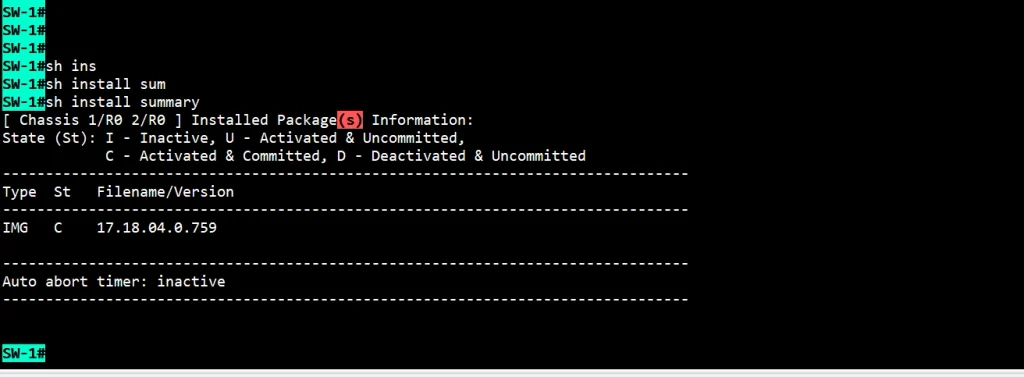
The actual recording confirmed the committed package version:
IMG C 17.18.04.0.759The boot variable continued to use:
bootflash:packages.confThe upgrade to IOS XE 17.18.04 was successful.
Optional inactive-package cleanup
Cisco IOS XE provides:
install remove inactiveUse this only after verifying the successful upgrade and reviewing the files selected for removal.
In the recorded session, inactive-file cleanup also removed the transferred 17.18.04 .bin file from bootflash. For offline sites, retain a verified recovery image on external media.
9. What Is Cisco StackWise Virtual?
Cisco StackWise Virtual allows two supported Catalyst switches to operate as one logical switching system.
The system has an Active switch and a Standby switch. The StackWise Virtual Link provides inter-chassis communication, while Dual-Active Detection helps identify split-brain conditions if SVL communication is lost.
For this example, the intended design is:
| Parameter | Switch 1 | Switch 2 |
|---|---|---|
| Member | 1 | 2 |
| Priority | 15 | 10 |
| SVL domain | 101 | 101 |
| SVL interfaces | 23, 24 | 23, 24 |
| DAD interface | 22 | 22 |
The SVL/DAD operational results described below come from a separately verified office pair, not from the recorded site upgrade session.
10. StackWise Virtual Physical Cabling — SVL and DAD
The reference configuration uses two SVL links and one DAD link.
Physical connection mapping
| Connection | Switch 1 interface | Switch 2 interface |
|---|---|---|
| SVL link 1 | TwentyFiveGigE1/0/23 | TwentyFiveGigE2/0/23 |
| SVL link 2 | TwentyFiveGigE1/0/24 | TwentyFiveGigE2/0/24 |
| DAD link | TwentyFiveGigE1/0/22 | TwentyFiveGigE2/0/22 |
Logical connection diagram
          CISCO CATALYST C9500-24Y4C

       SWITCH 1                   SWITCH 2
       Member 1                   Member 2
       Priority 15                Priority 10

       Port 23 ================= Port 23
                     SVL 1

       Port 24 ================= Port 24
                     SVL 2

       Port 22 ----------------- Port 22
                      DAD
The diagram represents the intended reference cabling. Confirm actual physical connections at the rack before activation.
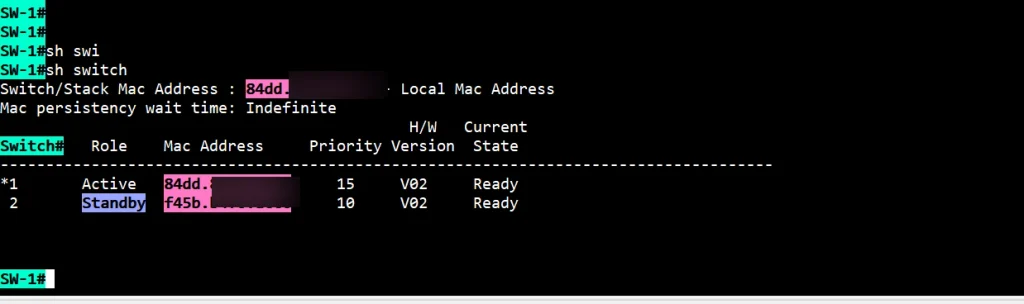
Use supported optics and cable types. Verify fiber polarity, link speed, transceiver compatibility, and interface status.
11. Identify Switch 1 and Switch 2 Before Renumbering
Before assigning member numbers, identify both physical chassis.
Run:
show inventory
show version
show switch
Record the serial number, MAC address, physical rack position, and current member number.
In our deployment, both switches were physically identified and checked against their MAC addresses before renumbering.
The intended final member assignments were:
- Switch 1: Member 1, priority 15.
- Switch 2: Member 2, priority 10.
This step helps prevent the wrong chassis from receiving the wrong logical identity.
12. Configure Switch Numbering and Priority
The second standalone switch may initially appear as member 1.
If renumbering is required, use the supported procedure:
switch 1 renumber 2Complete the required reload and verify the resulting member number:
show switchAfter the member numbers are correct, assign priorities.
For Switch 1:
switch 1 priority 15For Switch 2:
switch 2 priority 10Priority influences the election preference. It does not automatically force an already established Active switch to change roles.
13. Configure StackWise Virtual Domain and SVL Interfaces
Both switches must use the same approved domain.
Switch 1
configure terminal
stackwise-virtual
 domain 101
exit
interface TwentyFiveGigE1/0/23
 stackwise-virtual link 1
exit
interface TwentyFiveGigE1/0/24
 stackwise-virtual link 1
end
Switch 2
After confirming the switch is member 2:
configure terminal
stackwise-virtual
 domain 101
exit
interface TwentyFiveGigE2/0/23
 stackwise-virtual link 1
exit
interface TwentyFiveGigE2/0/24
 stackwise-virtual link 1
end
Use the domain number approved for your environment. Domain 101 is the office reference value, not a universal requirement.
14. Configure Dual-Active Detection on Port 22
Dual-Active Detection is an important protection mechanism for StackWise Virtual deployments.
Switch 1
configure terminal
interface TwentyFiveGigE1/0/22
 stackwise-virtual dual-active-detection
end
Switch 2
configure terminal
interface TwentyFiveGigE2/0/22
 stackwise-virtual dual-active-detection
end
Save the approved configuration:
copy running-config startup-configFollow the platform-specific StackWise Virtual activation and reload procedure.
15. Verify StackWise Virtual, SVL and DAD
After formation and reload, verify the operational state.
Verify both members
show switchExpected: Two members, one Active and one Standby, both Ready.
Verify StackWise Virtual configuration
show stackwise-virtualConfirm the domain and configured interfaces.
Verify SVL links
show stackwise-virtual linkThe verified office setup reported Up/Ready for:
TwentyFiveGigE1/0/23
TwentyFiveGigE1/0/24
TwentyFiveGigE2/0/23
TwentyFiveGigE2/0/24
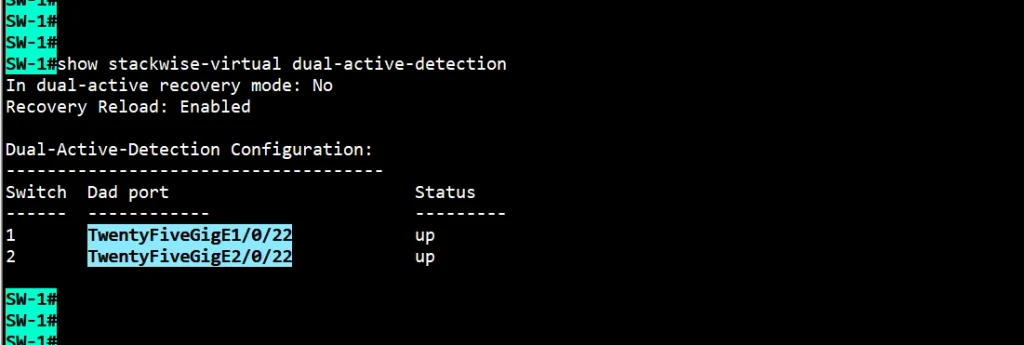
Verify Dual-Active Detection
show stackwise-virtual dual-active-detectionThe verified office setup reported both DAD interfaces Up, with no dual-active recovery condition.
Verify redundancy
show redundancyConfirm the intended Active/Standby state.
Verify saved configuration
show running-config | section stackwise-virtual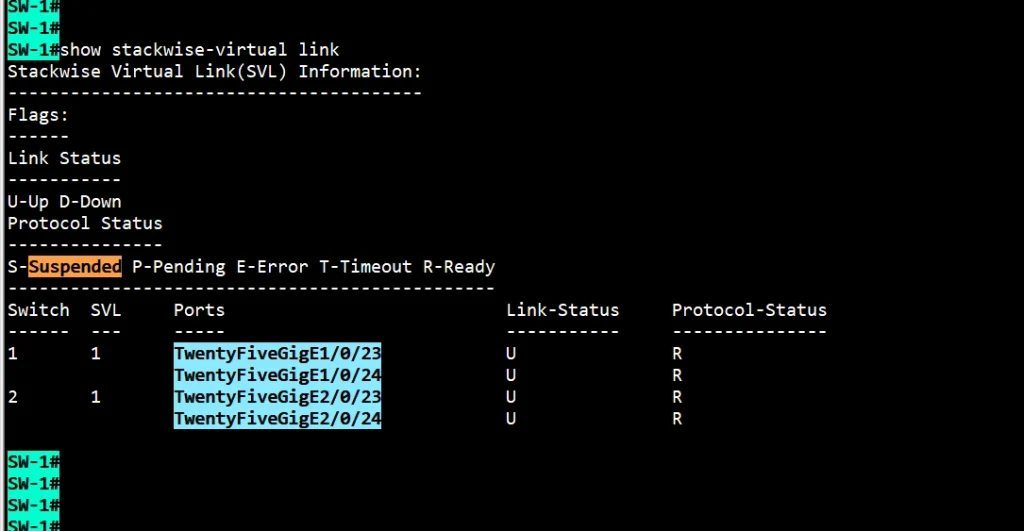
16. Common Troubleshooting Scenarios
| Problem | Recommended verification |
|---|---|
| USB not detected | show file systems, dir usbflash0: |
| IOS installation rejected | Check for unsaved running configuration |
| Incorrect software after reboot | show version, show install summary |
| SVL does not form | Domain, numbering, software, interfaces and optics |
| Wrong switch member | show switch, physical chassis identity |
| Unexpected Active/Standby role | Member priority and election state |
| SVL link Down | Fiber patching, optics, interface configuration |
| DAD link Down | DAD interface and physical connectivity |
| Standby not Ready | show redundancy, SVL status and logs |
Do not perform disruptive SVL-failure or switchover testing on production equipment without an approved maintenance plan.
17. Final Engineering Verification Checklist
Before handover, verify:
- Both physical chassis identities and MAC addresses match the deployment records.
- Switch 1 is member 1 with priority 15.
- Switch 2 is member 2 with priority 10.
- Both switches run compatible, approved IOS XE versions.
- The software installation is committed.
- The boot variable is correct.
- SVL ports 23 and 24 are operational.
- DAD port 22 is operational on both switches.
- Both members are Ready.
- Active/Standby redundancy is healthy.
- Running configurations are saved.
- Console logs and screenshots are retained.
- Offline recovery media and backups are available.
18. Related HG IT Solutions Technical Articles
Explore these related networking and infrastructure guides from HG IT Solutions.
Cisco Nexus 93180YC-FX3 NX-OS Upgrade Using USB — A related practical guide for software upgrades on Cisco Nexus switches.
Cisco Catalyst 2960-X Factory Reset and Bootloader Recovery — Learn Cisco switch recovery, bootloader operations and configuration reset procedures.
Single-Mode vs Multimode Fiber — Understand fiber selection for network and data center connections.
OM3 vs OM4 vs OM5 Fiber — Compare multimode fiber types for high-speed network applications.
Network Device Security — Review SSH, SNMP and device-hardening practices.
Data Center Rack Installation Checklist — Practical physical-infrastructure checks before installing network equipment.
19. Official Cisco Documentation
Always confirm release-specific support and command behavior against official Cisco documentation.
Cisco — Upgrading Catalyst 9500 Switches
Cisco — Configuring StackWise Virtual on Catalyst 9500
The second reference is from the 17.17 configuration guide. Check the documentation applicable to your exact 17.18.x release before executing the deployment procedure.
Frequently Asked Questions
Can I upgrade Cisco Catalyst 9500 IOS XE without internet access?
Yes. The recorded deployment successfully transferred the image using USB and installed it locally.
Why did the IOS XE installation fail after MD5 verification?
The switch detected unsaved configuration changes. Saving the configuration with write memory resolved the error.
Does installing IOS XE require a reboot?
Yes. Activating the new IOS XE software requires the appropriate system reload.
Why do we renumber the second switch?
StackWise Virtual requires the intended member identities to be established correctly. The second chassis is assigned member 2.
Why use priority 15 on Switch 1 and 10 on Switch 2?
These values provide the intended election preference. They do not guarantee an immediate change in Active role.
Why use two SVL connections?
Multiple supported SVL interfaces provide additional interconnect capacity and resilience.
Why is Dual-Active Detection important?
DAD helps identify split-brain conditions if StackWise Virtual communication is lost.
How can I verify that StackWise Virtual is healthy?
Use show switch, show stackwise-virtual link, show stackwise-virtual dual-active-detection, and show redundancy.
Conclusion
A successful Cisco Catalyst 9500 IOS XE Upgrade involves much more than transferring a software image. Engineers must validate the image, save the configuration, complete the installation and verify the running software after reboot.
Our actual site upgrade from IOS XE 17.18.03 to 17.18.04 also demonstrated a useful troubleshooting lesson: even after a successful USB transfer and MD5 calculation, an unsaved running configuration can prevent installation.
For StackWise Virtual, accurate physical switch identification, member numbering, priorities, SVL connectivity, DAD protection and final verification are essential for a reliable deployment.
HG IT Solutions — Build • Connect • Automate
