
The Cisco Nexus 93180YC-FX3 NX-OS Upgrade requires careful preparation, software compatibility checks, and post-upgrade verification.
In this hands-on guide, we demonstrate upgrading a physical Cisco Nexus 93180YC-FX3 switch from NX-OS 10.6(1)F to 10.6(4)M using a USB flash drive and SecureCRT console access. We also cover real CLI commands, common mistakes, BIOS upgrade results, and verification steps.
The upgrade also updated the system BIOS from 01.11 to 01.12.
We will explain every major command, share actual observations, discuss two command-entry errors encountered during the procedure, and provide a practical post-upgrade verification checklist.
Important: This example demonstrates a disruptive upgrade on an individual Nexus switch. Production environments and existing vPC deployments require additional planning, redundancy checks, maintenance approval, and topology-specific upgrade procedures.

Table of Contents
1. Cisco Nexus 93180YC-FX3 NX-OS Upgrade — Step-by-Step Procedure
Upgrade Environment and Objective
The following hardware and software were used during this procedure.
| Parameter | Actual Environment |
|---|---|
| Switch | Cisco Nexus N9K-C93180YC-FX3 |
| Operating mode | Cisco NX-OS standalone mode |
| Existing software | NX-OS 10.6(1)F |
| Target software | NX-OS 10.6(4)M |
| Existing BIOS | 01.11 |
| Target BIOS | 01.12 |
| Upgrade image | nxos64-cs.10.6.4.M.bin |
| Image size | 2,962,740,224 bytes |
| Transfer method | USB flash drive |
| Console software | SecureCRT |
| Console speed | 9600 baud |
| Installation method | install all nxos |
| Expected impact | Disruptive reboot |
Our objective was to install the target NX-OS release, allow the installer to perform the required BIOS upgrade, and confirm that the switch would continue booting from the correct image.
The procedure was completed through a direct console connection.
Why Use the install all Method?
Cisco recommends the install all method for Nexus NX-OS software upgrades.
Unlike manually changing the boot variable and reloading, this method performs compatibility checks and handles supported BIOS upgrades as part of the installation workflow.
The general process is:
- Inspect the existing system.
- Verify the new NX-OS image.
- Copy the image into bootflash.
- Run the upgrade impact assessment.
- Save the running configuration.
- Start installation.
- Confirm the expected reboot.
- Verify software, BIOS, modules, and boot settings.
A successful image transfer does not mean that the software has been installed. The installation and post-reboot validation are separate stages.
Connect to the Nexus Console
Connect the console cable between the Cisco Nexus switch and your computer.
Open SecureCRT and select the appropriate serial COM port.
For our connection, the console operated at 9600 baud.
After accessing the CLI, the privileged prompt appeared as:
switch#If the device is being initialized for the first time, complete the authorized initial login and administrator password setup before proceeding.

Verify the Existing NX-OS Version
Before installing a new image, record the existing software and hardware details.
Run:
show versionIn our initial verification, the important values were:
NXOS: version 10.6(1)
BIOS: version 01.11
NXOS image file is: bootflash:/nxos64-cs.10.6.1.F.bin
The switch was identified as:
Cisco Nexus9000 C93180YC-FX3 ChassisWhy this command matters
show version provides information about the installed software, BIOS, boot image, hardware model, memory, and system uptime.
Recording these details creates a baseline for comparison after the upgrade.

Verify Hardware Modules and Diagnostics
Run:
show moduleThe Nexus C93180YC-FX3 reported two logical module entries:
| Module | Description | Initial status |
|---|---|---|
| 1 | 48 × 10/25G and 6 × 40/100G Ethernet Module | ok |
| 27 | Virtual Supervisor Module | active |
Both modules reported:
Online Diag Status
1    Pass
27   Pass
Why this check matters
If a module is already unhealthy before an upgrade, troubleshooting becomes more complicated afterward.
The objective is to establish that the hardware is operational before introducing a software change.
We also inspected the hardware environment using:
show environmentThis command helps assess temperature, fans, and power-related hardware conditions. Any abnormal environmental alarms should be understood and addressed according to the deployment requirements before performing a disruptive upgrade.

Verify the Current Boot Image
Run:
show bootBefore the upgrade, the NX-OS boot variable referenced:
bootflash:/nxos64-cs.10.6.1.F.binThis confirmed which software image the switch was configured to load.
The command also displayed the boot settings for the next reload.
Why this matters
The currently running software and the image selected for the next reboot should be checked independently.
After the upgrade, we repeated this command to confirm that the new image was configured for future reloads.
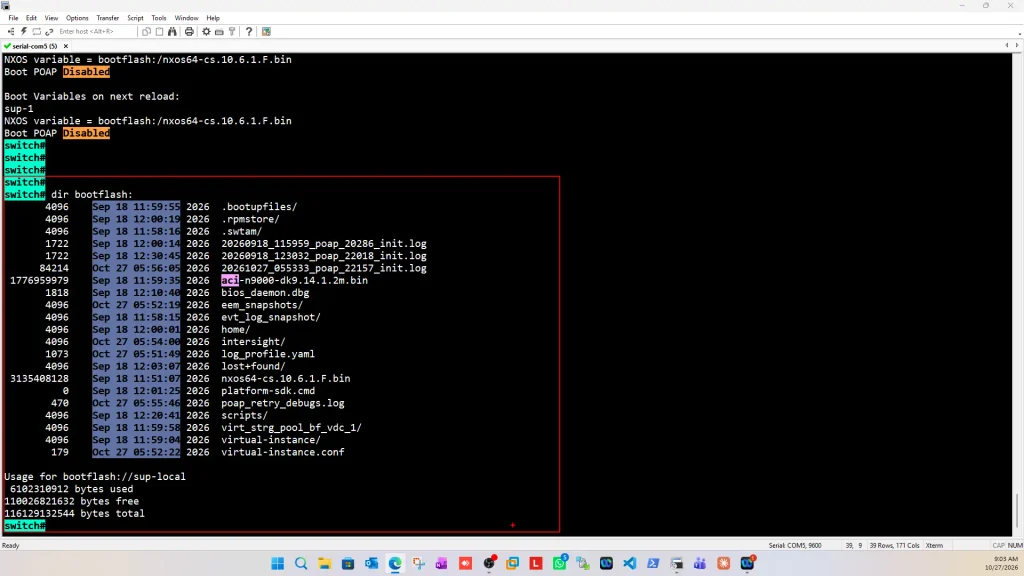
Inspect Available Bootflash Storage
Run:
dir bootflash:The existing NX-OS image was present:
nxos64-cs.10.6.1.F.binThe device also contained other existing system files.
We confirmed that sufficient storage was available for the new image before copying it.
Engineering recommendation
Do not immediately delete the previous NX-OS image to free storage.
Keeping a known previous image can be useful during recovery planning, although a downgrade must still follow Cisco’s supported procedure and compatibility restrictions.
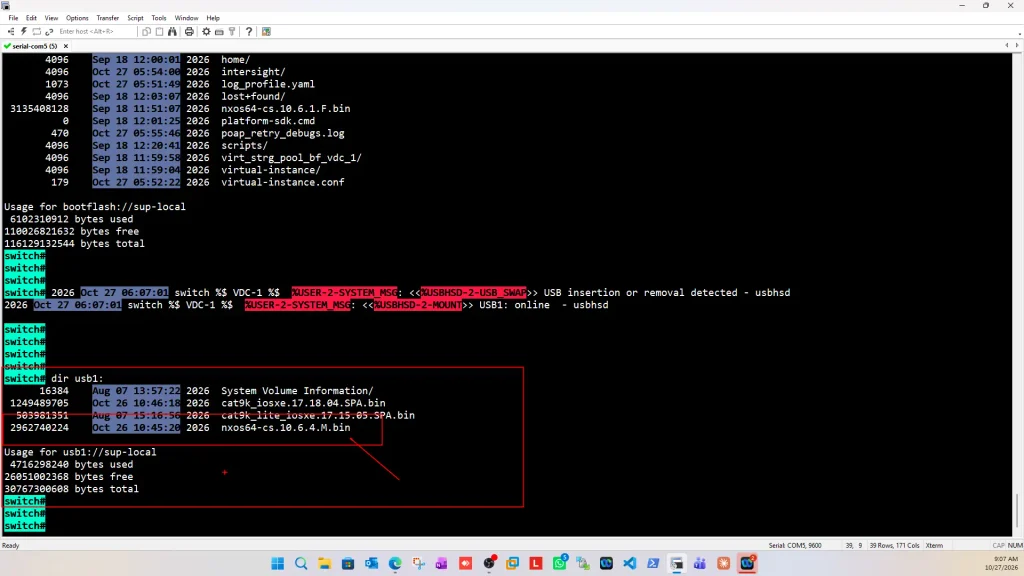
Insert the USB Drive and Verify Detection
We prepared a USB flash drive containing the target image:
nxos64-cs.10.6.4.M.binAfter inserting the USB drive, the Nexus console reported that USB1 was online.
We then ran:
dir usb1:The output included:
2962740224 nxos64-cs.10.6.4.M.binThis confirmed that the USB device was readable and the required image was accessible.
Understanding the command
dirdisplays filesystem contents.usb1:identifies the detected USB storage.- The number preceding the filename is the file size in bytes.
Copy the NX-OS Image to Bootflash
The correct transfer command is:
copy usb1:nxos64-cs.10.6.4.M.bin bootflash:nxos64-cs.10.6.4.M.binCommand explanation
| Command section | Purpose |
|---|---|
copy | Copies a file |
usb1: | Source storage |
nxos64-cs.10.6.4.M.bin | Source NX-OS image |
bootflash: | Destination storage |
| Destination filename | Name used to store the copied image |
The successful transfer produced messages similar to:
Copy progress 100%
Copy complete, now saving to disk (please wait)...
Copy complete.
After copying, verify the destination:
dir bootflash:nxos64-cs.10.6.4.M.binOur copied image size matched the source image:
2962740224 nxos64-cs.10.6.4.M.binA matching file size is useful but does not replace checksum verification.
Troubleshooting: Two Real Command-Entry Mistakes
During our upgrade preparation, we encountered two command-entry mistakes. Neither prevented us from completing the upgrade.
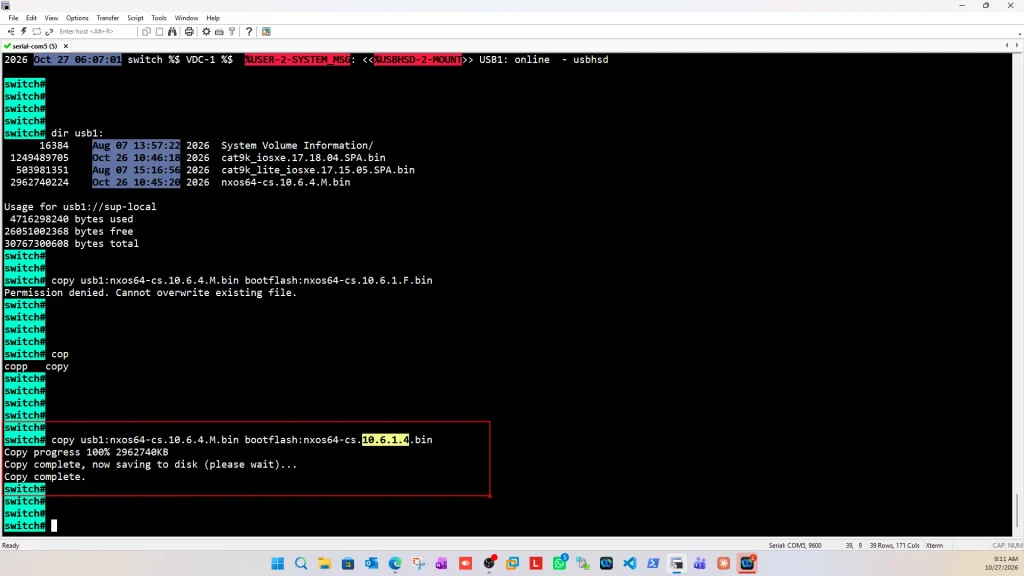
Mistake 1 — Attempting to Overwrite the Existing NX-OS Image
We initially entered:
copy usb1:nxos64-cs.10.6.4.M.bin bootflash:nxos64-cs.10.6.1.F.binThe source was the new software image, but the destination used the filename of the existing image.
The switch responded:
Permission denied. Cannot overwrite existing file.What happened?
The command attempted to write the new image over an existing file.
What did we learn?
Always verify both the source and destination filenames before pressing Enter.
For this upgrade, the intended destination was:
bootflash:nxos64-cs.10.6.4.M.binWe did not need to delete or overwrite the original NX-OS image.

Mistake 2 — Copying the Image Under an Incorrect Filename
In the next transfer attempt, the image was copied successfully, but the destination filename was entered as:
nxos64-cs.10.6.1.4.binThe actual source image was:
nxos64-cs.10.6.4.M.binThe copied file had the expected size, but its name was misleading.
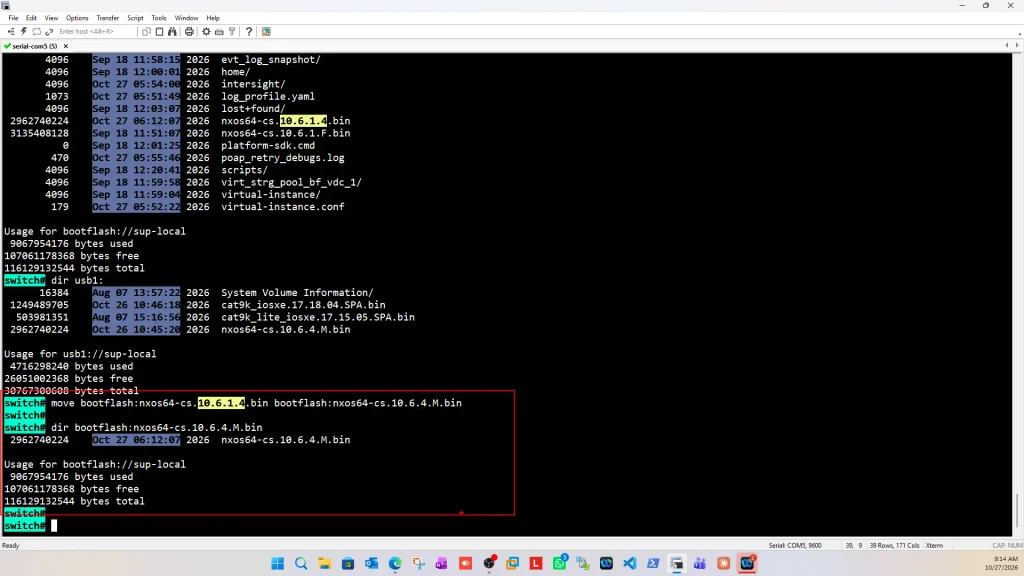
We corrected the filename using:
move bootflash:nxos64-cs.10.6.1.4.bin bootflash:nxos64-cs.10.6.4.M.binThen verified it:
dir bootflash:nxos64-cs.10.6.4.M.binThe switch displayed the corrected filename and expected file size.
Engineering lesson: A filename is not proof of software version or image integrity. Verify the image content using its published checksum and the installer compatibility checks.
Verify the NX-OS Image Checksum
Before installing software, verify that the copied image matches the official Cisco release.
For MD5 verification, run:
show file bootflash:nxos64-cs.10.6.4.M.bin md5sumCompare the generated checksum with the value published for the exact image on Cisco Software Download.
In our session, the checksum was checked and confirmed as matching.
We do not reproduce an unrecorded checksum value here.
For a stronger hash verification, Cisco also documents SHA-512:
show file bootflash:nxos64-cs.10.6.4.M.bin sha512sumUse the hash value published for the corresponding image.
Why checksum verification matters
A software image may have the expected filename and file size but still be incomplete or corrupted.
Checksum comparison provides additional assurance that the file matches the expected image.
Run the Upgrade Impact Assessment
Before installing the software, we ran:
show install all impact nxos bootflash:nxos64-cs.10.6.4.M.binThis is one of the most important commands in the upgrade procedure.
It evaluates the proposed image and reports the expected installation impact.
Our output showed successful image preparation and module compatibility checks.
The compatibility table reported:
Module  Bootable  Impact       Install-type
1       yes       disruptive   reset
27      yes       disruptive   reset
The reason indicated:
default upgrade is not hitlessWhat does “disruptive” mean?
A disruptive upgrade reloads the switch.
During this process, network traffic through the device is interrupted.
In a production network, engineers must plan the maintenance window and assess the connected systems before continuing.
What else did the impact check reveal?
| Component | Existing version | Target version | Upgrade required |
|---|---|---|---|
| Ethernet module | 10.6(1) | 10.6(4) | Yes |
| Supervisor NX-OS | 10.6(1) | 10.6(4) | Yes |
| BIOS | 01.11 | 01.12 | Yes |
| MI FPGA | 0x20 | 0x20 | No |
| IO FPGA | 0x13 | 0x13 | No |
This confirmed that the installation would update both NX-OS and BIOS, while the displayed FPGA components did not require an update.

Save the Running Configuration
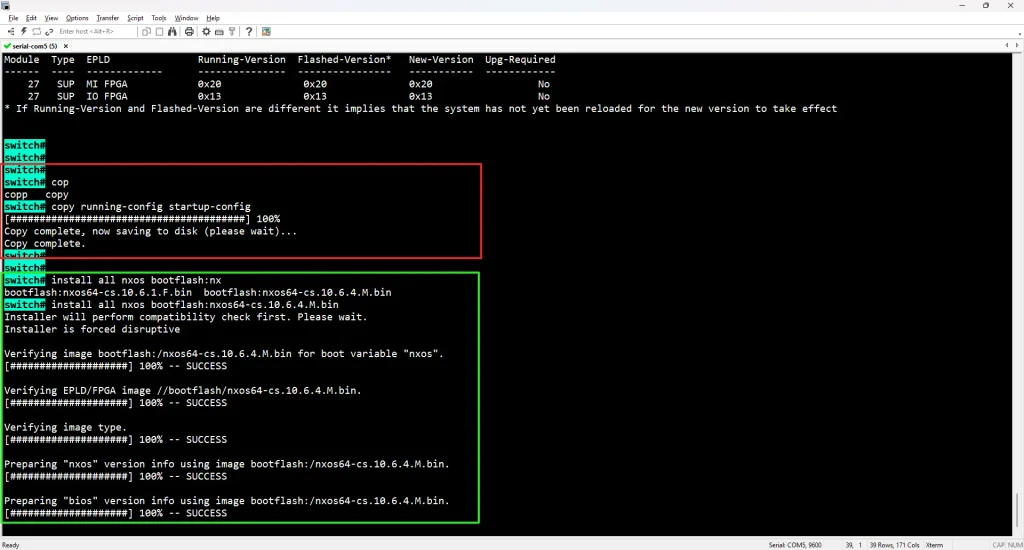
Before installation, save the active configuration:
copy running-config startup-configOur switch responded:
Copy complete, now saving to disk (please wait)...
Copy complete.
Why save the configuration?
The running configuration is the active configuration currently in memory.
The startup configuration is used when the device boots.
Saving ensures that intended configuration changes are preserved for the next startup.
In a production environment, also maintain an appropriately secured external configuration backup.
Start the NX-OS Upgrade
We initiated the installation with:
install all nxos bootflash:nxos64-cs.10.6.4.M.binThe installer responded:
Installer will perform compatibility check first. Please wait.It then verified the image, checked module compatibility, and prepared the required software components.
Successful stages included:
Verifying image ... SUCCESS
Verifying EPLD/FPGA image ... SUCCESS
Verifying image type ... SUCCESS
Preparing "nxos" version info ... SUCCESS
Preparing "bios" version info ... SUCCESS
Why not simply change the boot variable?
Changing the boot image and reloading can bypass important installation checks and BIOS upgrade handling.
For this procedure, we used Cisco’s recommended install all workflow.
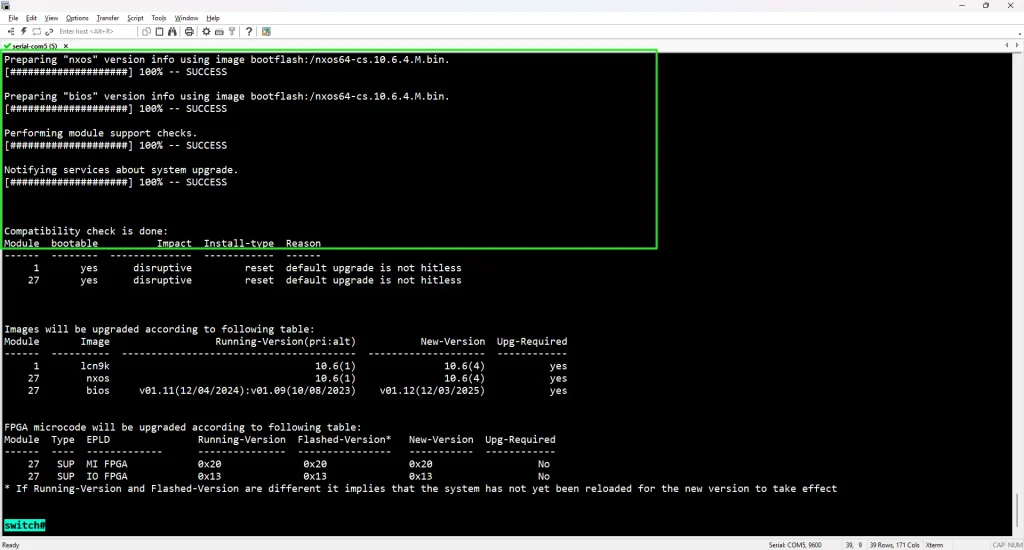
Troubleshooting: Installation Confirmation Input
The installer displayed:
Switch will be reloaded for disruptive upgrade.
Do you want to continue with the installation (y/n)? [n]
During our session, we initially entered:
YesThe switch responded:
input string too longThis happened because the confirmation prompt expected a single-character response.
After entering:
Ythe installer accepted the confirmation and continued.
The console then displayed:
Install is in progress, please wait.Engineering lesson
Read interactive CLI prompts carefully.
A (y/n) prompt generally expects y or n, not a full word.
Do not assume that a rejected confirmation means the installation failed. Check whether the installer is still waiting for valid input.

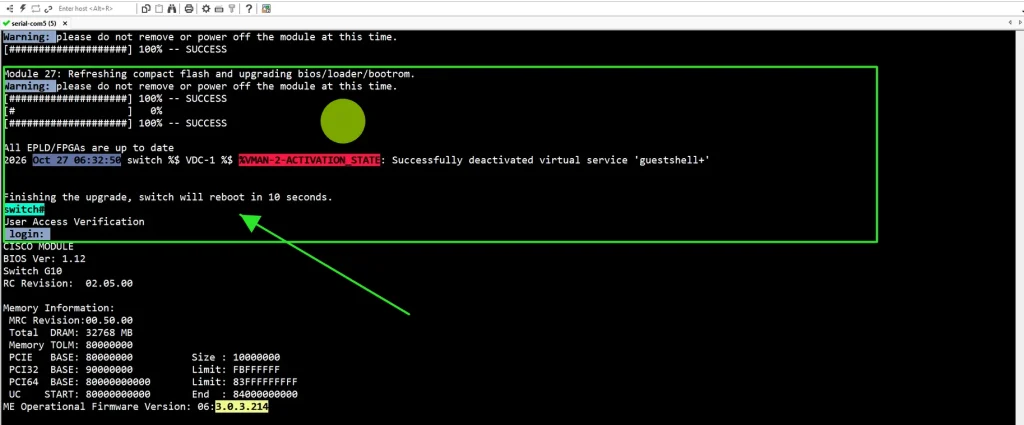
Installation, BIOS Upgrade and Automatic Reboot
After accepting the installation confirmation, the switch continued processing the upgrade.
The console displayed:
Setting boot variables.The installer prepared the target boot image and continued with the disruptive upgrade sequence.
During a software and BIOS upgrade:
- Keep the console session connected.
- Avoid interrupting device power.
- Do not manually reload the switch while the installer is active.
- Allow the system to complete its reboot sequence.
After the reboot, our switch reported that its virtual device context was online and the system had reached the CLI.
The console also displayed configuration replay and system initialization messages.
Verify the New NX-OS and BIOS Versions
After the switch rebooted, we logged in and ran:
show versionThe new software information showed:
BIOS: version 01.12
NXOS: version 10.6(4) [Maintenance Release]
Host NXOS: version 10.6(4)
NXOS image file is: bootflash:///nxos64-cs.10.6.4.M.bin
The reset information also indicated:
Reason: Reset due to upgradeWhat did this confirm?
- The target NX-OS release was running.
- The BIOS upgrade had taken effect.
- The switch had rebooted as part of the upgrade process.
- The expected NX-OS image was loaded.
The reset-history section also referenced the previous software version. That is historical reset information, not evidence that the switch was still running the old software.

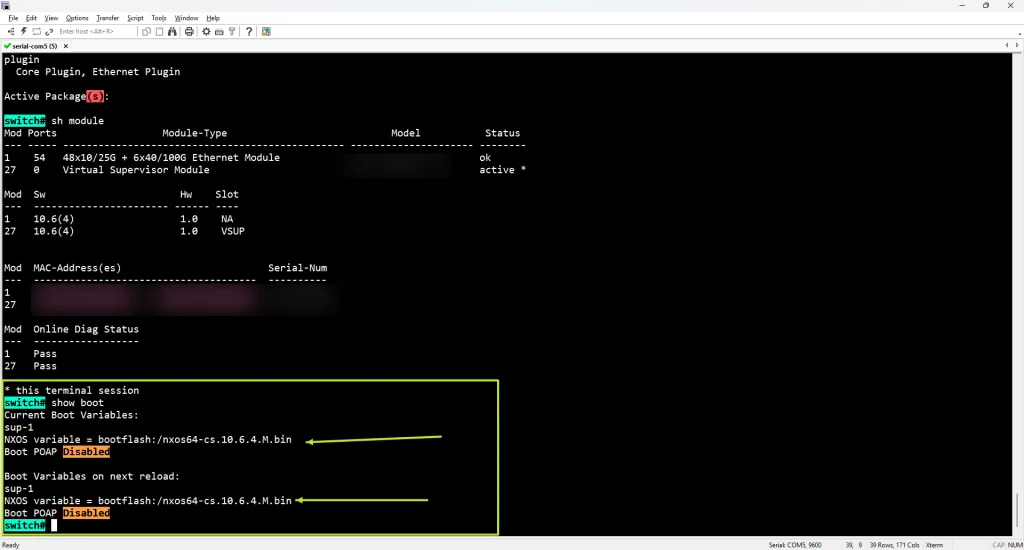
Verify Module Status and Diagnostics
Next, we ran:
show moduleThe post-upgrade results were:
| Module | Status | Software | Diagnostics |
|---|---|---|---|
| 1 — Ethernet Module | ok | 10.6(4) | Pass |
| 27 — Virtual Supervisor | active | 10.6(4) | Pass |
Both modules were operational and reported successful online diagnostics.
Why this check matters
Verifying the operating system version alone is not enough.
A post-upgrade inspection should also confirm that the hardware modules are online and healthy.

Verify Current and Next-Reload Boot Variables
Run:
show bootOur output showed:
Current Boot Variables:
NXOS variable = bootflash:/nxos64-cs.10.6.4.M.bin
Boot POAP Disabled
It also showed:
Boot Variables on next reload:
NXOS variable = bootflash:/nxos64-cs.10.6.4.M.bin
Boot POAP Disabled
Why this is important
The switch was not only running the upgraded release; it was also configured to load the same image on its next reboot.
This is an essential final verification before considering the upgrade successful.
Additional Post-Upgrade Health Checks
The following commands provide further verification before production deployment.
show install all status
show version
show module
show boot
show environment
show interface status
show logging last 50
dir bootflash:| Command | Verification purpose |
|---|---|
show install all status | Installer completion information |
show version | Running NX-OS and BIOS versions |
show module | Module health and diagnostics |
show boot | Current and future boot image |
show environment | Environmental hardware health |
show interface status | Interface operating states |
show logging last 50 | Recent system messages |
dir bootflash: | Image files and storage |
The first three major post-upgrade checks—software version, module status and boot variables—were successfully verified in our recorded session.
The remaining operational checks are recommended as part of the final deployment acceptance process.
Final Upgrade Verification Summary
| Check | Result |
|---|---|
| Image copied from USB | Successful |
| File size verified | Successful |
| Image checksum comparison | Matched |
| Upgrade impact assessment | Passed |
| Configuration saved | Successful |
| Installation initiated | Successful |
| Automatic reboot | Completed |
| NX-OS 10.6(4)M | Verified |
| BIOS 01.12 | Verified |
| Ethernet module | Operational |
| Virtual supervisor | Active |
| Online diagnostics | Passed |
| Current boot image | Correct |
| Next-reload boot image | Correct |
| Installer history/status audit | Additional verification |
The available console evidence confirms that the switch successfully booted the target NX-OS release, the BIOS was updated, both modules were operational, and the correct image was configured for the next reload.
Common Questions
Can Cisco Nexus NX-OS be upgraded using a USB drive?
Yes, on supported Nexus platforms and software releases. The USB device must be recognized, and the software image must be compatible with the specific switch model.
Does install all automatically upgrade BIOS?
The install all workflow can perform required BIOS upgrades. In our case, the impact check explicitly identified a BIOS upgrade from 01.11 to 01.12, which was verified after reboot.
Is a Nexus NX-OS upgrade always disruptive?
Not always. Some platforms and supported software paths offer In-Service Software Upgrade options. However, this particular upgrade was reported as disruptive by the installer.
Can I delete the previous NX-OS image after upgrading?
Do not delete it immediately. Retain the previous image until the new software has been validated and the recovery plan has been reviewed.
Why did the switch display “Permission denied. Cannot overwrite existing file”?
The destination filename matched an existing image. Correct the destination filename rather than attempting to overwrite the running system image.
Why did the installer reject “Yes”?
The (y/n) prompt expected a single-character answer. Entering Y allowed the installation to continue.
How can I confirm the switch will boot the new NX-OS after another reboot?
Use show boot and verify that the current and next-reload NX-OS variables reference the intended image.
Key Engineering Lessons
This upgrade demonstrated several practical lessons.
First, image handling must be precise. A single destination filename mistake can prevent a copy or leave a misleading file name in storage.
Second, software integrity verification should happen before installation. Do not rely on the filename or file size alone.
Third, always review the installation impact. A successful compatibility check does not necessarily mean a non-disruptive upgrade.
Fourth, BIOS updates and hardware module status are part of the complete upgrade assessment, not optional details.
Finally, a successful reboot is not the final acceptance criterion. Verify the running version, module health, boot variables and installation status.
Related HG IT Solutions Technical Guides
Readers interested in additional network infrastructure troubleshooting and operational best practices can explore:
- Cisco Catalyst 2960-X Factory Reset and Bootloader Recovery
- Network Device Security: A Practical Hardening Guide
- Data Center Rack Installation: 15 Essential Checks
- HG IT Solutions Networking Guides
Official Cisco References
For release-specific prerequisites, supported upgrade paths, known limitations, and software downloads, consult Cisco’s documentation:
- Cisco Nexus 9000 Series NX-OS Software Upgrade and Downgrade Guide, Release 10.6(x)
- Cisco NX-OS Software Upgrade Procedure
- Cisco Software Download
Conclusion
We successfully upgraded a Cisco Nexus N9K-C93180YC-FX3 switch from NX-OS 10.6(1)F to NX-OS 10.6(4)M using a USB flash drive and the Cisco install all workflow.
The upgrade also updated the BIOS from 01.11 to 01.12.
The process included software image verification, hardware checks, installation impact analysis, configuration backup, disruptive installation, and post-upgrade validation.
Our two command-entry mistakes reinforced an important engineering principle: carefully verify command syntax, filenames, and interactive prompts before making changes to network infrastructure.
For more practical networking, data center, and infrastructure deployment guides, visit HG IT Solutions and the HG IT Solutions Technical Blog.
This article documents an actual hands-on upgrade. Commands, output and behavior may differ by Nexus platform, NX-OS release and network topology. Always consult Cisco documentation for the exact device and upgrade path before working on a production system.

Pingback: Cisco Catalyst 9500 IOS XE Upgrade & StackWise Virtual Guide