
A Cisco C9200L IOS XE upgrade is normally straightforward when the preparation is correct. In my case, the command itself was never the difficult part.
The real work happened before I ran the upgrade again.
My first attempt had already exposed two problems: I had started with the wrong image family, and the switch did not have enough available flash space for that image. Once those issues were understood, I went back to the basics verify the platform, verify the existing software family, prepare the correct image, and only then start the upgrade.
For this Cisco C9200L, the image I used for the successful upgrade was:
cat9k_lite_iosxe.17.15.05.SPA.binThis is the process I followed.
Table of Contents
Before the Upgrade: Verify, Don’t Assume
One habit I have learned over the years is not to start a software upgrade just because the image is already downloaded and the maintenance window has started.
Before touching the software, I want to know exactly what the switch is currently running.
In this case, I had already checked:
show version
show install summary
dir flash:
The existing installation showed IOS XE 17.06.05.0.5797 in the Activated & Committed state, and the files already present in flash included cat9k_lite packages.
That was an important clue.
Cisco’s Catalyst 9200 IOS XE 17.15 documentation identifies the image type as CAT9K_LITE_IOSXE, with filenames following the cat9k_lite_iosxe...SPA.bin format.
So instead of making another assumption based only on the release number, I prepared the Lite image for the next attempt.
Related troubleshooting from this same upgrade
This is Part 3 of the same real-world troubleshooting case.
In Part 1, I explained how the image-selection mistake was discovered:
Cisco C9200L IOS Image Mistake: What I Should Have Checked Before Starting the Upgrade
In Part 2, I covered the Not enough space on device failure, the flash-space checks, and why randomly deleting .pkg files was not the right response.
For this final part, I am keeping the focus on the working upgrade process.
The Correct Image I Used
I had two IOS XE files available during this troubleshooting:
cat9k_iosxe.17.15.05.SPA.bin
cat9k_lite_iosxe.17.15.05.SPA.bin
The first image was approximately 1.25 GB.
The Lite image was approximately 492 MB.
The image used for the final upgrade was:
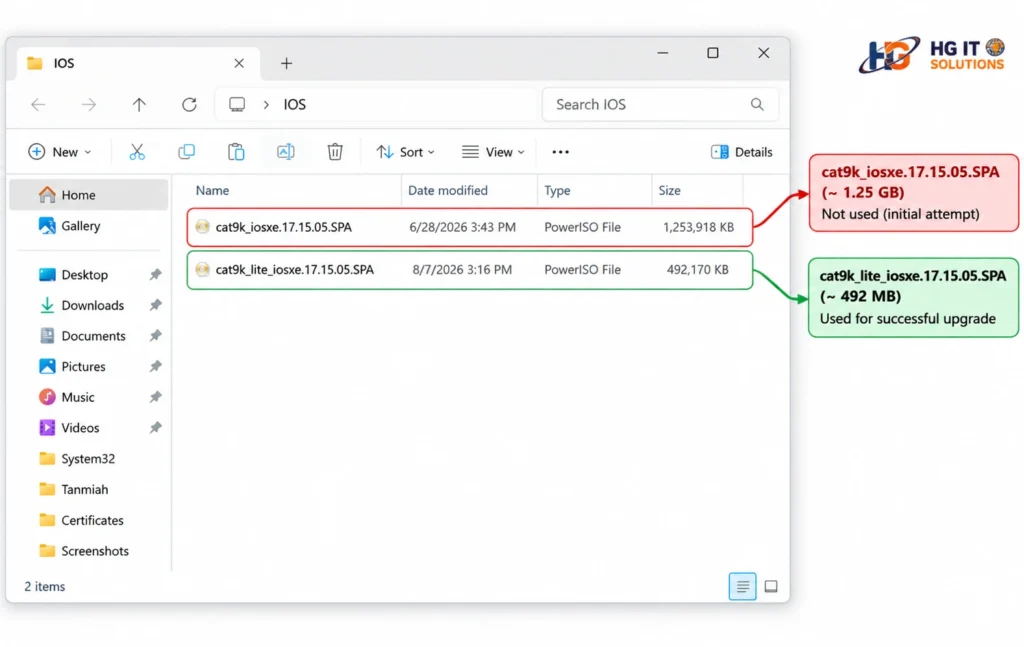
cat9k_lite_iosxe.17.15.05.SPA.binThere is an important distinction here.
I did not choose cat9k_lite simply because it was smaller.
Image selection should be based on the platform and Cisco’s documentation. The smaller file size helped with the storage situation I had encountered, but file size alone is not a valid way to select an IOS XE image.
That distinction matters, especially when you are working on production equipment.
Verify the USB Before Starting
I used USB as the image source.
Before starting the Cisco C9200L IOS XE upgrade, I verified that the switch could access the USB filesystem and that the expected image was available.
dir usbflash1:The file I was looking for was:
cat9k_lite_iosxe.17.15.05.SPA.binI would not skip this check.
A filename typo, unreadable USB drive, unexpected filesystem name, or wrong image discovered now costs a few seconds. Discovering it after you have already started changing the switch costs considerably more time.
I also checked internal flash again:
dir flash:After the storage problem from my first attempt, there was no reason to assume that flash was fine simply because I was now using a different image.
Save the Configuration
Before proceeding, save the running configuration:
copy running-config startup-configor:
write memoryI also prefer having console access available during switch software work. If the device does not return normally after reload, console access is much more useful than depending entirely on remote management.
Cisco’s Catalyst 9200 upgrade procedure likewise includes saving the configuration and verifying boot settings before installing the new image.
Run the IOS XE Installation
Once I was satisfied with the image and pre-checks, the upgrade could finally move forward.
The command used with the Lite image was:
install add file usbflash1:cat9k_lite_iosxe.17.15.05.SPA.bin activate commitThis is where I prefer to keep things simple: run the command and watch the console.
Don’t start another task and assume the switch will take care of everything.
Cisco documents install add file ... activate commit for install-mode upgrades. The installation process performs platform/image compatibility checks, handles the software packages, activates the new software, commits the change, and requires a reload as part of activation.
If the switch presents a reload confirmation, read the prompt before answering it. Make sure you are actually inside the approved maintenance window and that losing connectivity at that moment is expected.
Most importantly:
Do not interrupt power during the upgrade or reload.
Cisco explicitly cautions against power-cycling the switch during software upgrade operations.
After Reload, Verify the Switch
Seeing the switch come back online is not where I consider an upgrade finished.
The first check is the running software:
show versionConfirm that the switch is running the intended IOS XE release. Cisco also lists show version as a post-upgrade verification command for Catalyst 9200.
Then check the installation state:
show install summaryI would also review the boot configuration:
show bootAnd then move away from software commands and verify the actual purpose of the switch.
Check the important uplinks. Check management reachability. Check relevant VLANs and interfaces. If the switch serves critical devices, confirm that those devices have returned as expected.
A successful software installation and a healthy production switch are two different checks.
That is one of the habits that becomes increasingly important when you have spent years working through maintenance windows.
What Actually Solved This Upgrade?
There was no special command that fixed this Cisco C9200L.
The final install command was straightforward.
What solved the problem was correcting the preparation:
Wrong assumption → inspect the existing switch → identify the image family → verify storage → use the correct cat9k_lite image → upgrade → verify after reload.
That is also why I would not recommend treating an IOS upgrade failure as a reason to immediately delete files, download another random image, or keep repeating the installation command.
The error on the screen tells you where the process stopped.
It does not always tell you why you arrived there.
Final Checks I Would Use on the Next C9200L
For my next Cisco C9200L IOS XE upgrade, these are the checks I would complete before entering the install command:
show version
show install summary
dir flash:
dir usbflash1:
show boot
Then I would confirm the exact switch model, target release, correct image family, available storage, saved configuration, console access, stable power, and maintenance window.
None of these checks is complicated.
That is precisely why they should be done before the upgrade rather than after something fails.
Conclusion
This upgrade ended up being a useful reminder that IOS XE troubleshooting is often less about knowing more commands and more about checking the right information in the right order.
The image that worked for this Cisco C9200L upgrade was:
cat9k_lite_iosxe.17.15.05.SPA.binand the installation was initiated from USB with:
install add file usbflash1:cat9k_lite_iosxe.17.15.05.SPA.bin activate commitThe lesson I would carry into the next maintenance window is simple:
Never let the upgrade command be your first verification step.
Know the platform, know what is currently installed, verify the target image, check the storage, and know what you expect to see after the switch comes back.
That preparation usually takes minutes.
Troubleshooting the wrong assumption can take much longer.
Continue the Cisco C9200L IOS XE Troubleshooting Series
Part 1:
Cisco C9200L IOS Image Mistake: What I Should Have Checked Before Starting the Upgrade
Part 2:Cisco C9200L Not Enough Space on Device During IOS XE Upgrade: Issue and Resolution
Part 3:
Cisco C9200L IOS XE Upgrade from USB Using the Correct cat9k_lite Image
Official Cisco References
Cisco — Upgrade Catalyst 9200 Switches
Cisco — Catalyst 9200 IOS XE 17.15.x Release Notes

Pingback: Network Device Security: Practical Hardening Guide