
STOP carrying a monitor, keyboard & mouse just to access a physical server console.
That sentence summarizes a problem I have encountered repeatedly during more than 10 years of working with IT infrastructure.
If you need to access a server without monitor and keyboard during first-time setup, BIOS configuration or boot troubleshooting, normal remote-access methods may not yet be available.
A physical server needs attention. Maybe it is being installed for the first time. Maybe the operating system is not booting. Maybe I need to enter BIOS or UEFI, change the boot order, select installation media, inspect storage configuration, or simply see what the server is doing before an operating system loads.
At that point, SSH, RDP and most normal network-based remote-access methods may not help.
I need the physical server console.
The traditional solution sounds simple: connect a monitor, keyboard and mouse.
In a real server room, however, even that simple task can become surprisingly inconvenient.
Sometimes there is no spare monitor nearby. Sometimes a monitor is available but there is no convenient power outlet. A rack PDU may already be fully occupied. The available monitor may have a different power connector or power cord than the one I have with me. Then I still need the correct video cable, keyboard and possibly a mouse.
All of this equipment may be required just to spend five minutes inside a server’s BIOS.
Commercial portable crash-cart and laptop KVM solutions solve this problem very well, but they can also represent a significant expense when the requirement is occasional or when development and lab resources are limited.
After encountering this gap repeatedly throughout my IT career, I decided to experiment with another approach.
Could I use the laptop I already carry as the screen, keyboard, mouse and console recorder for a physical server?
That question eventually became the HGIT Console Capture Tool.
Table of Contents
The Problem Was Never Just Finding a Monitor
When people think about local server access, they often imagine a simple setup:
Server + Monitor + Keyboard + Mouse
In a lab, that may be easy.
Inside an operational server room or data center, the situation can be different.
Imagine arriving at a rack because a server requires local troubleshooting.
A monitor might be available somewhere in the room, but then several other questions appear:
- Is there an available PDU outlet?
- Do I have the correct monitor power cord?
- Does the monitor support the server’s video output?
- Is the correct video cable available?
- Where is the keyboard?
- Do I also need a mouse?
- Is there somewhere safe to place the monitor and peripherals?
- Will I have to repeat this process at another rack?
None of these is a major technical problem individually.
Together, however, they create unnecessary friction for what may be a very small maintenance task.
This becomes particularly noticeable for engineers who move between racks, server rooms, remote sites and lab environments.
My laptop is already with me.
That led to the obvious question:
Why can’t the laptop become the temporary physical-server console?
Power availability is another practical issue. A monitor may be available, but the nearest rack PDU may already be fully occupied, the required outlet may not be available, or the monitor power cord may not match the available connection.
These small infrastructure details are easy to overlook during maintenance. I have discussed similar power, PDU and working-access considerations in my Data Center Rack Installation checklist.
Why Accessing a Server Without Monitor and Keyboard Is Different from Remote Access
This distinction is important.
Searching for ways to access a server without a monitor often produces answers involving:
- SSH
- RDP
- VNC
- remote desktop software
- web administration
- server management interfaces
Those technologies are extremely useful, but they do not necessarily solve the problem I was trying to address.
My requirement was not simply:
How do I remotely connect to an already configured server?
It was:
How do I see and control the local console of a physical server when normal remote access may not yet be available?
Consider a new server.
It may not yet have:
- an installed operating system,
- an IP address,
- network connectivity,
- SSH enabled,
- RDP enabled,
- correct VLAN configuration,
- or a configured management interface.
Yet I may already need to interact with it.
That can happen during:
BIOS/UEFI configuration → Boot selection → Storage configuration → OS installation → Startup troubleshooting
This is a pre-OS and local-console problem, not simply a remote-desktop problem.
What About HPE iLO, Dell iDRAC and Other Out-of-Band Management?
Enterprise servers commonly include dedicated management technologies such as HPE iLO, Dell iDRAC and similar vendor platforms.
These are excellent technologies, and when properly configured and accessible they can eliminate many reasons for standing physically in front of a server.
But there are still situations where direct local-console access is useful.
For example:
The management interface may not yet be configured.
Its IP address may be unknown.
The management network may not be available.
Credentials may not be available during initial staging.
A network or VLAN problem may prevent access.
The engineer may simply be performing initial bench configuration before connecting the server to the production environment.
Therefore, the HGIT Console Capture Tool is not intended to replace iLO, iDRAC or enterprise out-of-band management.
It addresses a different operational requirement:
temporary local console access to physical equipment using the laptop already available to the engineer.
Traditional Crash Carts and Portable KVM Adapters
The problem itself is not new.
Data-center engineers have traditionally used crash carts or portable KVM solutions to obtain temporary keyboard, video and mouse access to servers.
Modern portable crash-cart adapters can even turn a laptop into a server console.
For example, StarTech currently offers USB crash-cart adapters designed to connect a laptop to a server and provide BIOS-level keyboard, video and mouse access. Its NOTECONS02 model is currently listed at $581.16 on the company’s U.S. website. StarTech.com The company’s Indian storefront currently lists the model at ₹44,576. StarTech.com
StarTech USB Crash Cart Adapter – official product page
These are purpose-built commercial products, and for many enterprise environments their integrated design, support and portability can justify the investment.
But that does not mean every engineer, home lab, small IT team or occasional maintenance scenario has the same requirement or budget.
That was the gap I wanted to explore.
I already had a Windows laptop.
Low-cost USB video-capture hardware was available.
USB HID-control hardware was available.
The missing part was a practical interface that could bring those pieces together into a usable server-console workflow.
So instead of purchasing a complete commercial solution, I started developing one around the hardware and resources available to me.
Introducing HGIT Console Capture Tool
HGIT Console Capture Tool is a Windows-based application I developed to provide a practical interface for viewing, controlling and recording the console of a physical computer or server using compatible USB video-capture and HID-control hardware.
The objective was straightforward:
Use the laptop I already carry as the interface to the physical server console.
Instead of carrying a separate monitor, keyboard and mouse, the workflow can use a laptop together with compact interface hardware.
The tool combines several functions that are useful during physical-server maintenance:
- USB video-console capture
- keyboard control
- mouse control
- BIOS/UEFI quick keys
- on-screen keyboard
- physical keyboard and mouse capture
- video recording
- custom watermarking
- resolution and frame-rate selection
- full-screen console viewing
- signal reconnection
- HID device management
Most importantly, I did not want this to remain only a software concept.
I tested it against an actual physical server.
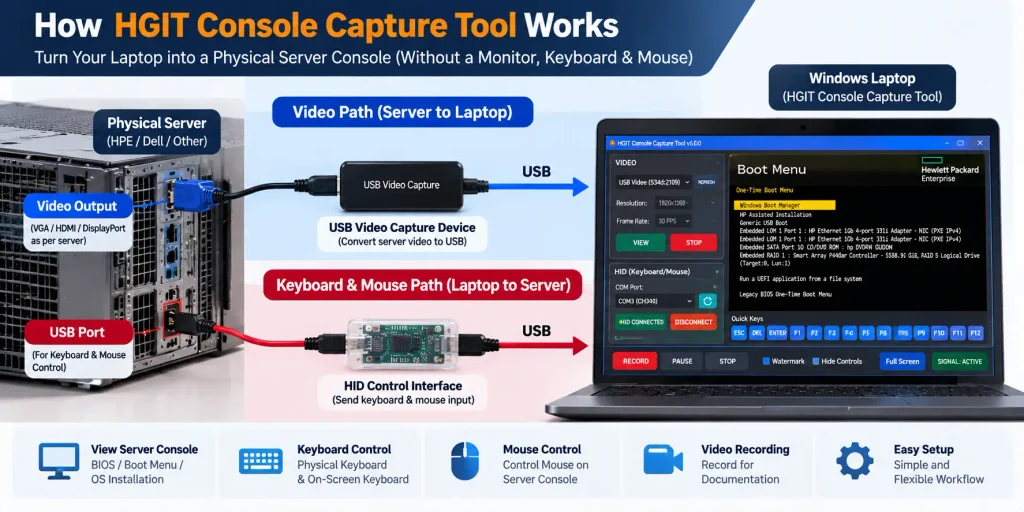
How the HGIT Console Setup Works
The architecture has two main paths.
Video path
Physical Server Video Output
↓
Compatible USB Video Capture Device
↓
Windows Laptop
↓
HGIT Console Capture Tool
The server’s video output is captured and displayed inside the HGIT application.
This makes the laptop display function as the temporary server-console screen.
Keyboard and mouse path
Control travels in the opposite direction:
Laptop Keyboard / Mouse
↓
HGIT Console Capture Tool
↓
Compatible USB HID Interface
↓
Physical Server USB
The important design point is that video capture and HID control are independent functions.
The video-capture interface receives the server display.
The HID interface provides keyboard and mouse input back to the physical server.
This separation also makes troubleshooting easier because video and input can be checked independently.
Hardware Required
The exact hardware can vary depending on the server and interface being used, but the test environment for the HGIT project is based around a few basic components:
1. Windows laptop
This runs HGIT Console Capture Tool and becomes the engineer’s console interface.
2. Compatible USB video-capture device
This receives the server’s video output and makes it available to the application.
Depending on the server’s physical video output, an appropriate adapter or conversion path may also be required.
3. Compatible HID-control interface
This provides keyboard and mouse input to the physical server.
During development, the HGIT application detects the HID interface through the corresponding COM connection.
4. Appropriate video and USB cables
Cable requirements depend on the server and hardware interfaces being used.
This is therefore not a software-only solution.
The application is one part of a combined hardware + software console workflow.
Connecting to a Physical Server
Once the required hardware is connected, the workflow is intentionally simple.
First, connect the physical server’s video output to the USB video-capture interface.
Connect the capture interface to the laptop.
Connect the compatible HID interface between the laptop and the server.
Then launch HGIT Console Capture Tool.
Under VIDEO, select the detected capture device.
The application provides configurable options for resolution and frame rate. In my physical-server test, the active console was captured at 1920 × 1080 at 30 FPS.
Select VIEW to display the incoming server console.
Once the HID interface is detected, select the appropriate COM device and establish the HID connection.
At that point, video and input are both available through the HGIT interface.
Real Test: Accessing an HPE Physical Server Boot Menu
The most important test was not viewing an already running Windows desktop.
I wanted to know whether the workflow would actually be useful during the stage where a physical console matters most.
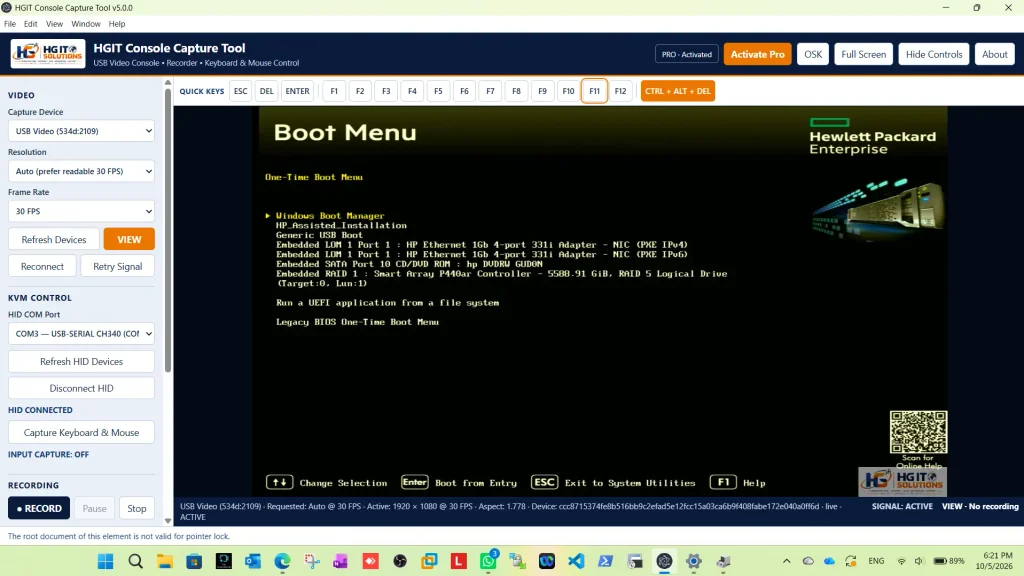
So I tested it against an HPE physical server and accessed the One-Time Boot Menu.
The server’s boot screen appeared directly inside HGIT Console Capture Tool.
The console showed options including:
- Windows Boot Manager
- HP Assisted Installation
- Generic USB Boot
- PXE IPv4
- PXE IPv6
- optical media
- Smart Array logical drive
- UEFI application
- Legacy BIOS One-Time Boot Menu
This is important because no Windows desktop, RDP session or SSH connection is involved at this stage.
I am interacting with the server’s pre-boot console.
This test validated the original use case that motivated the project.
BIOS and Boot Menu Quick Keys
Physical server administration frequently requires function keys during a very small boot-time window.
Depending on the hardware platform, an engineer may need keys such as:
ESC, DEL, ENTER, F1, F2 … F11, F12
HGIT Console Capture Tool therefore includes a dedicated Quick Keys bar above the console.
Instead of depending entirely on the laptop keyboard and hoping that function-key combinations are interpreted correctly, frequently used console keys can be sent directly from the interface.
The application also provides:
CTRL + ALT + DEL
as a dedicated console action.
This may sound like a small feature, but pre-boot administration depends heavily on these keys.
During testing I specifically worked on keyboard and arrow-key behavior because reliable navigation is much more important in a BIOS menu than simply displaying the video.
Physical Keyboard Control
I did not want server administration to depend only on clicking an on-screen keyboard.
The application therefore includes Capture Keyboard & Mouse functionality.
Once the compatible HID interface is connected, the laptop’s physical keyboard can be used to control the target server through the HGIT console workflow.
This makes interaction more natural during longer configuration sessions.
For example, the engineer can navigate menus, type configuration values and perform other keyboard-driven tasks while viewing the server output on the same laptop.
This was an important part of the development process because displaying the console is only half of a usable KVM workflow.
The engineer also needs reliable control.
On-Screen Keyboard
HGIT Console Capture Tool also includes a full on-screen keyboard.
The interface provides common keyboard sections including:
- alphanumeric keys
- Escape
- function keys
- Tab
- Caps Lock
- Shift
- Ctrl
- Alt
- Windows key
- Enter
- Backspace
- navigation controls
- Ctrl + Alt + Del
The on-screen keyboard is particularly useful when testing HID communication or when a particular key combination needs to be sent deliberately.
It also provides a visual way to verify which command is being sent to the target system.
Arrow-Key Navigation
BIOS and boot menus are heavily dependent on directional navigation.
For that reason, arrow-key handling became another important part of development and testing.
A console solution that displays the BIOS correctly but cannot reliably move between menu options is not particularly useful.
I tested navigation against the actual server interface and refined the keyboard behavior so that menu selections could be controlled from the HGIT environment.
This is one of the reasons I consider real-hardware testing essential for this project.
Something that works perfectly against a normal operating-system application does not automatically behave the same way inside every BIOS or UEFI environment.
Mouse Control
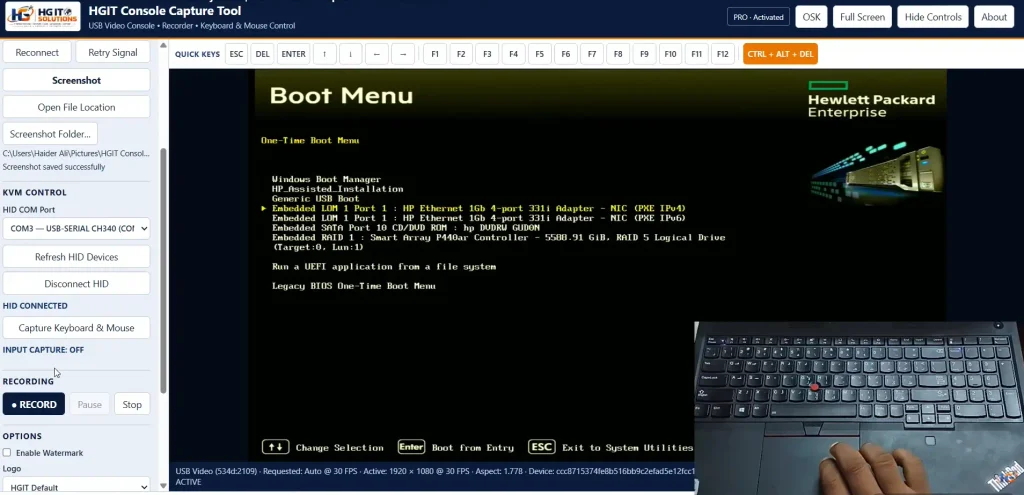
Keyboard input is critical for BIOS and boot-menu work, but mouse control becomes useful in graphical UEFI interfaces, operating-system installers and other environments.
The HID-control side of HGIT Console Capture Tool therefore also supports mouse input.
During development, mouse behavior required additional testing and refinement.
That process itself became useful engineering feedback.
Rather than assuming that a desktop-style mouse implementation would automatically behave correctly against every target, I tested it against the actual console and adjusted the application accordingly.
There is an important practical caveat here.
BIOS and UEFI mouse behavior varies between systems. Even commercial crash-cart vendors warn that mouse functionality can be limited in some BIOS/UEFI environments. StarTech.com
Keyboard navigation should therefore remain available even when a particular firmware environment provides limited mouse support.
Video Recording Built Into the Console
Another requirement became obvious during testing:
Sometimes I do not only want to access the server.
I want to record what happened.
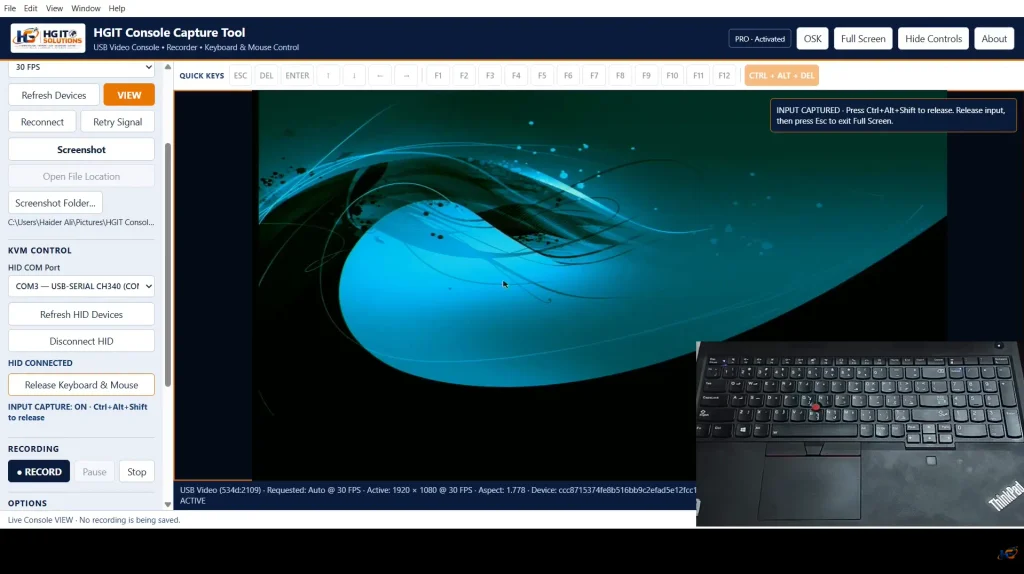
HGIT Console Capture Tool includes built-in recording controls:
RECORD → PAUSE → STOP
This can be useful for:
- documenting troubleshooting,
- creating technical training material,
- recording BIOS configuration procedures,
- capturing installation steps,
- reviewing a problem later,
- creating lab documentation,
- producing technical demonstrations.
The recording is saved to the configured local recording folder.
For my workflow, this also means the same tool used for console access can help create the technical material later used for documentation and training.
Custom Watermarking
The application also supports an optional watermark.
For HGIT demonstrations, I can enable the HG IT Solutions logo directly in the recorded console output.
The tool provides options to:
- enable or disable the watermark,
- select a logo,
- edit watermark settings.
This is useful when creating technical demonstrations or training material where the recorded content needs clear source identification.
It is not required for console operation and can be disabled when a clean recording is preferred.
Full-Screen and Hide-Controls Modes
A server console does not always need the complete application interface around it.
HGIT Console Capture Tool therefore includes:
Full Screen
and
Hide Controls
options.
Full-screen mode is useful when the server display itself is the main focus.
Hide Controls can provide additional viewing area while keeping the active console visible.
These features are especially useful during OS installation or longer troubleshooting sessions.
Video Reconnection and Signal Recovery
USB capture hardware does not always behave perfectly.
A server may reboot.
Its video mode may change.
A cable may be disconnected and reconnected.
The capture interface may need to rediscover the signal.
For that reason, the application includes controls such as:
Refresh Devices
Reconnect
and
Retry Signal
The intention is to make basic recovery possible without restarting the entire application whenever the video path changes.
Why Recording the Development Process Matters
HGIT Console Capture Tool did not appear as a finished application on the first attempt.
Keyboard handling required refinement.
Arrow-key behavior needed testing.
Mouse control needed correction.
Physical keyboard and mouse capture had to be tested against actual hardware.
This development process is important to document because physical console control is different from building an ordinary desktop interface.
There are several layers involved:
Application → USB/Serial HID Interface → Target Server → BIOS/UEFI/OS
A problem at any layer can look like an application problem.
The only reliable way to validate the workflow was to connect it to real hardware and test each function.
That is why this project has been developed iteratively rather than simply designed on paper.
Watch the HGIT Console Capture Tool Live Demo
I recorded a real demonstration showing the HGIT Console Capture Tool being used for physical server console access.
The demonstration includes actual server interaction rather than a simulated interface.
Watch the HGIT Console Capture Tool v5.0 Live Demo on YouTube
This is also where future development updates and practical demonstrations can be documented as the project evolves.
HGIT Console Capture Tool vs SSH, Remote Management and Crash Carts
It is important to understand where this project fits.
SSH/RDP/VNC
These are network-based remote-access technologies. They are extremely useful once the appropriate operating system, services and network connectivity are available.
They do not directly solve the same pre-boot physical-console problem.
HPE iLO / Dell iDRAC
These are purpose-built out-of-band server-management platforms.
They offer capabilities far beyond what this project is attempting to provide and remain the preferred management method in many enterprise deployments.
HGIT Console Capture Tool is not intended to replace them.
Traditional Monitor + Keyboard + Mouse
Simple, reliable and widely compatible.
The disadvantage is carrying, powering and physically arranging the equipment.
Commercial Portable Crash Cart / Laptop KVM
Purpose-built and highly portable.
Commercial products can provide integrated BIOS-level KVM functionality. For example, StarTech describes its USB Crash Cart Adapter as providing BIOS-level control through a laptop and positions it specifically for temporary headless-server maintenance. StarTech.com
The disadvantage for some users is acquisition cost.
HGIT Console Capture Tool
A development project designed around compatible, separately available video-capture and HID hardware, with the Windows laptop acting as the main interface.
Its purpose is to explore a practical, flexible console workflow using the resources available to me.
Is HGIT Console Capture Tool a Replacement for a Commercial Crash Cart?
Not necessarily.
That is not the claim behind this project.
Commercial crash-cart products are integrated devices engineered, tested and supported for their intended environments. Some include features that my current implementation does not attempt to reproduce.
HGIT Console Capture Tool was developed because my requirements were different.
I wanted:
- a practical lab and field console,
- control from the laptop I already carry,
- BIOS/boot-menu access,
- keyboard and mouse input,
- built-in recording,
- customizable workflow,
- and the ability to continue developing features myself.
The project should therefore be evaluated based on the problem it was designed to solve, not as a universal replacement for every commercial KVM product.
Where This Approach Can Be Useful
I see several practical scenarios for this type of console.
First-Time Server Setup
A newly installed server may not yet have a configured network or remote-management environment.
Direct console access allows the initial configuration to begin immediately.
BIOS and UEFI Configuration
The engineer can view and navigate firmware configuration without bringing a separate monitor.
Boot Menu Selection
USB installation media, network boot and local storage can be selected through the physical console.
Operating-System Installation
The captured console can remain visible during the installation process while keyboard and mouse control are provided through the HID interface.
Server Troubleshooting
When an operating system fails to start, normal remote-access services may never become available.
The physical console may reveal the actual error.
Lab Work
Home labs and development labs do not always have dedicated rack KVM infrastructure.
A laptop-based console can be useful for temporary configuration.
Remote-Site Visits
An engineer visiting a small server room may already carry a laptop but not a complete monitor, keyboard and mouse setup.
A compact console kit is easier to carry.
Current Limitations and Practical Considerations
I also want to be clear about what the project currently depends on.
HGIT Console Capture Tool requires compatible external hardware.
The server must provide an appropriate video output that can be connected to the selected capture hardware.
Keyboard and mouse control require the compatible HID interface.
Firmware behavior can vary between server models.
Video mode changes during boot can affect USB capture devices differently.
Mouse behavior can vary in BIOS/UEFI environments.
The application is currently part of an ongoing HGIT development project rather than a claim of universal hardware compatibility.
These limitations are not reasons to hide the project.
They are exactly what makes continued real-world testing useful.
Every server platform and firmware environment provides another opportunity to test compatibility and improve the tool.
Security Considerations
Physical-console access is privileged access.
Anyone who can interact with a server at BIOS or boot level may be able to make significant configuration changes.
The tool should therefore be used only on systems that you own or are explicitly authorized to administer.
Recorded console sessions can also contain sensitive information, including:
- hostnames,
- IP addresses,
- boot configuration,
- hardware information,
- usernames,
- infrastructure details.
Recordings should be stored and shared carefully.
For production environments, console access should remain part of the organization’s broader administrative and physical-security controls.
Physical console access should be treated as privileged administrative access. Anyone with access to the server console may be able to change boot options, firmware settings or other critical configuration.
The same principle applies to network infrastructure. Our Network Device Security guide explains why console and out-of-band management interfaces should be protected as privileged administrative paths.
What I Learned From Building It
One of the biggest lessons from this project is that useful IT tools do not always begin with a completely new problem.
Sometimes the problem has existed for years.
The opportunity comes from looking at it again from the perspective of the engineer doing the work.
Commercial crash carts already exist.
Enterprise remote-management platforms already exist.
Monitors and keyboards obviously exist.
But after more than a decade working around IT infrastructure, I kept encountering situations where I needed temporary physical console access and none of those options was as convenient as I wanted for that particular moment.
That repeated field experience became the reason to experiment.
The result was not:
“Let’s build another remote-access application.”
It was:
“I already have a laptop. What is the minimum practical setup I need to turn it into my physical-server console?”
HGIT Console Capture Tool is the result of working through that question.
What Comes Next
The current version already demonstrates the core workflow:
Server video → Laptop display
and
Laptop input → Server keyboard/mouse control
along with recording, quick keys and console-management features.
But the project is still evolving.
Future development and testing can explore additional hardware compatibility, workflow improvements, error handling, console controls and other features based on actual infrastructure requirements.
More importantly, future articles will document those developments individually rather than trying to put every technical detail into this introduction.
That will include deeper articles around hardware setup, HID architecture, troubleshooting, keyboard/mouse behavior and physical-server testing.
Final Thoughts
For years, the standard answer to local physical-server maintenance has been straightforward:
Find a monitor. Find a keyboard. Connect everything.
That works.
But after repeatedly facing the same practical problem across my IT career—missing monitors, unavailable PDU outlets, mismatched power cables, inconvenient rack locations and the cost of dedicated portable console hardware—I wanted to see whether the workflow could be approached differently.
HGIT Console Capture Tool started from that operational problem.
It combines a Windows laptop, compatible USB video capture, HID control and purpose-built software to create a practical physical-server console workflow.
The most important result for me is not simply that the application launches.
It is that I have used it against a real physical HPE server, displayed its pre-boot console, opened the boot menu, navigated it with keyboard controls, tested mouse functionality and recorded the process.
There is still more to develop and test.
And that is exactly why this project will continue.
Build the solution. Connect it to real infrastructure. Test it. Find the problems. Improve it. Automate where it makes sense.
That is the approach behind HG IT Solutions.

Pingback: Data Center Rack Size Guide: 42U vs 45U vs 48U