
Part 3 of the HGIT-DC-LAB Infrastructure Lab Series
Ubuntu Server 24.04 Initial Configuration is an important step after installing Ubuntu Server on VMware Workstation. In this part of our HGIT-DC-LAB series, we configure a static IP address using Netplan, verify DNS and internet connectivity, and establish reliable SSH access from Windows PowerShell.
Rather than treating these as isolated commands, this guide follows our actual lab configuration, including the network changes, SSH reconnection, and connectivity checks performed during the setup.
Installing Ubuntu Server is an important first step, but a successful installation does not automatically mean the server is ready for infrastructure workloads.
Before deploying services such as PostgreSQL, NetBox, monitoring tools, or other data center management applications, we need a reliable network configuration and a practical way to manage the server remotely.
In this guide, we continue building our HGIT-DC-LAB, a virtual infrastructure lab running Ubuntu Server 24.04 LTS on VMware Workstation Pro 17.
We will configure a static IPv4 address, adjust the VMware NAT DHCP range, establish SSH access from Windows PowerShell, verify internet and DNS connectivity, and check a few important system components.
This is not a simulated installation. The steps and results are based on our actual lab configuration, including the network changes and troubleshooting performed during setup.
Where We Left Off
In the previous two guides, we created the virtual machine and installed Ubuntu Server 24.04 LTS.
If you are following this series from the beginning, start with:
- Part 1: How to Create an Ubuntu 24.04 Lab VM in VMware Workstation Pro 17
- Part 2: How to Install Ubuntu Server 24.04 LTS on VMware Workstation
At the end of Part 2, our server was successfully installed, booting normally, and accessible using the local administrator account.
The next task was to make its network address predictable and enable convenient remote administration.
Table of Contents
1. Our Actual Lab Environment
The following configuration was used during this guide.
| Component | Lab configuration |
|---|---|
| Virtual machine | HGIT-DC-LAB |
| Hypervisor | VMware Workstation Pro 17 |
| Operating system | Ubuntu Server 24.04 LTS |
| Hostname | hgit-dc-lab |
| Administrator account | hgitadmin |
| Virtual CPUs | 4 |
| Allocated RAM | 12 GB |
| Virtual disk | 150 GB |
| Network adapter | ens33 |
| VMware network | VMnet8 — NAT |
| Network subnet | 192.168.26.0/24 |
| Static server IP | 192.168.26.200 |
| NAT gateway | 192.168.26.2 |
| DNS server | 192.168.26.2 |
| Remote administration | OpenSSH over Windows PowerShell |
Important: The IP addresses in this guide belong to our VMware lab. Your VMware NAT subnet and gateway may be different. Always check your own Virtual Network Editor before copying network-specific values.
2. Why We Changed the Server IP Address
During installation, Ubuntu Server received an IPv4 address automatically through DHCP.
Our initial address was:
192.168.26.137
DHCP is convenient during operating system installation because the virtual machine can obtain its network settings without manual configuration.
However, for a server that will eventually host infrastructure applications, relying on an automatically assigned address is not ideal.
For example, future services may need to connect to a database, monitoring endpoint, or web application using a consistent server address. If that address changes, connections and configuration files may need to be updated.
We therefore selected the following address for our lab:
192.168.26.200/24
We kept VMware NAT networking because it provides outbound internet connectivity while allowing our Windows host to communicate with the virtual machine.
Another practical benefit is that the lab remains independent of the Wi-Fi network used by the laptop. Switching between office Wi-Fi, home Wi-Fi, or a mobile hotspot does not normally change the VMnet8 subnet or our manually configured guest IP.
3. Inspect the Existing Ubuntu Network Configuration
Before modifying anything, we inspected the existing Netplan configuration.
Ubuntu Server 24.04 uses Netplan to define its network settings.
Run:
sudo cat /etc/netplan/50-cloud-init.yamlOur original configuration was:
network:
  version: 2
  ethernets:
    ens33:
      dhcp4: true
The important setting here is:
dhcp4: true
It means the ens33 network interface receives its IPv4 configuration automatically through DHCP.
Before making changes, confirm your network interface name. It may not be ens33 on every Ubuntu installation.
To check the interface and its current IPv4 address, run:
ip -4 addr show ens334. Back Up the Existing Netplan File
Changing network settings on a remotely managed server requires care. An incorrect IP address, subnet, or gateway can interrupt SSH connectivity.
For this reason, we created a backup before editing the configuration.
sudo cp /etc/netplan/50-cloud-init.yaml /etc/netplan/50-cloud-init.yaml.backupWe then verified the files:
ls -l /etc/netplan/Both the original YAML file and its backup were present.
Keeping a backup is a simple but useful administrative habit, especially when working on servers that may later host production-like infrastructure services.
5. Check VMware NAT and DHCP Settings
Before assigning our static IP, we checked the VMware Virtual Network Editor.
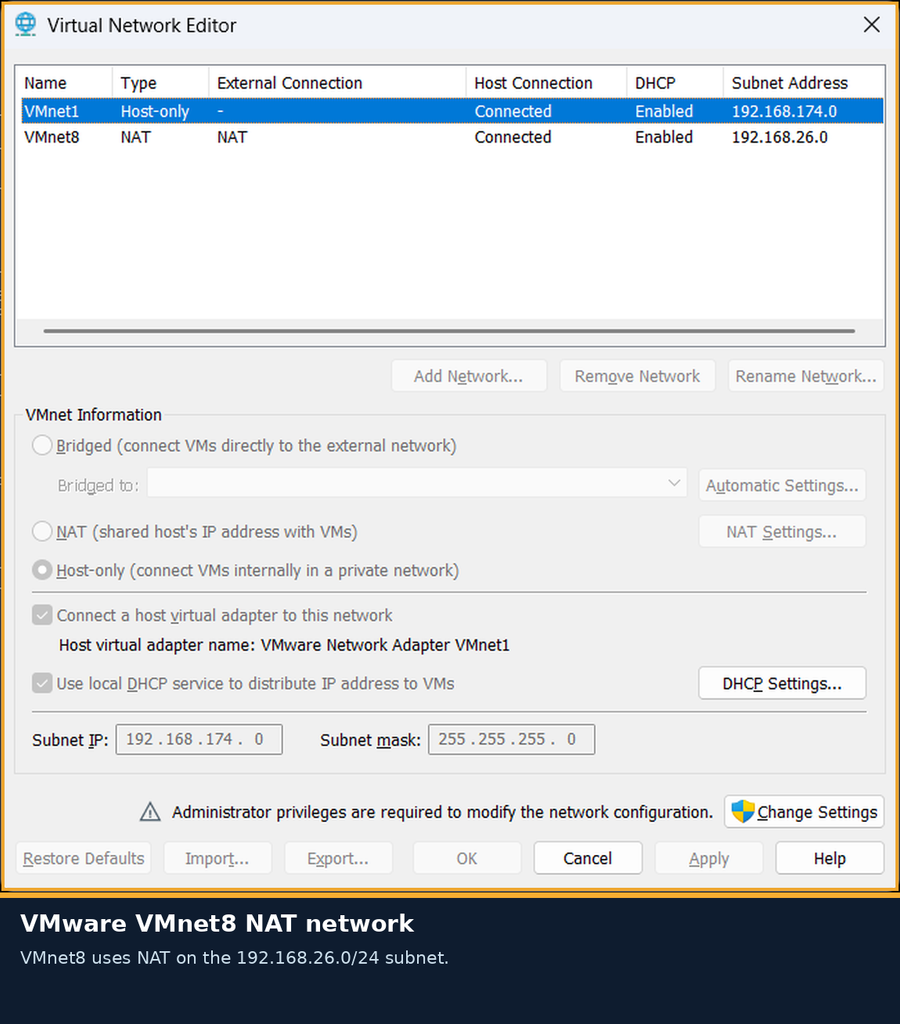
Our VMware network configuration showed two networks:
| VMware network | Type | Subnet |
|---|---|---|
| VMnet1 | Host-only | 192.168.174.0 |
| VMnet8 | NAT | 192.168.26.0 |
The Ubuntu virtual machine was connected to VMnet8, which is our NAT network.
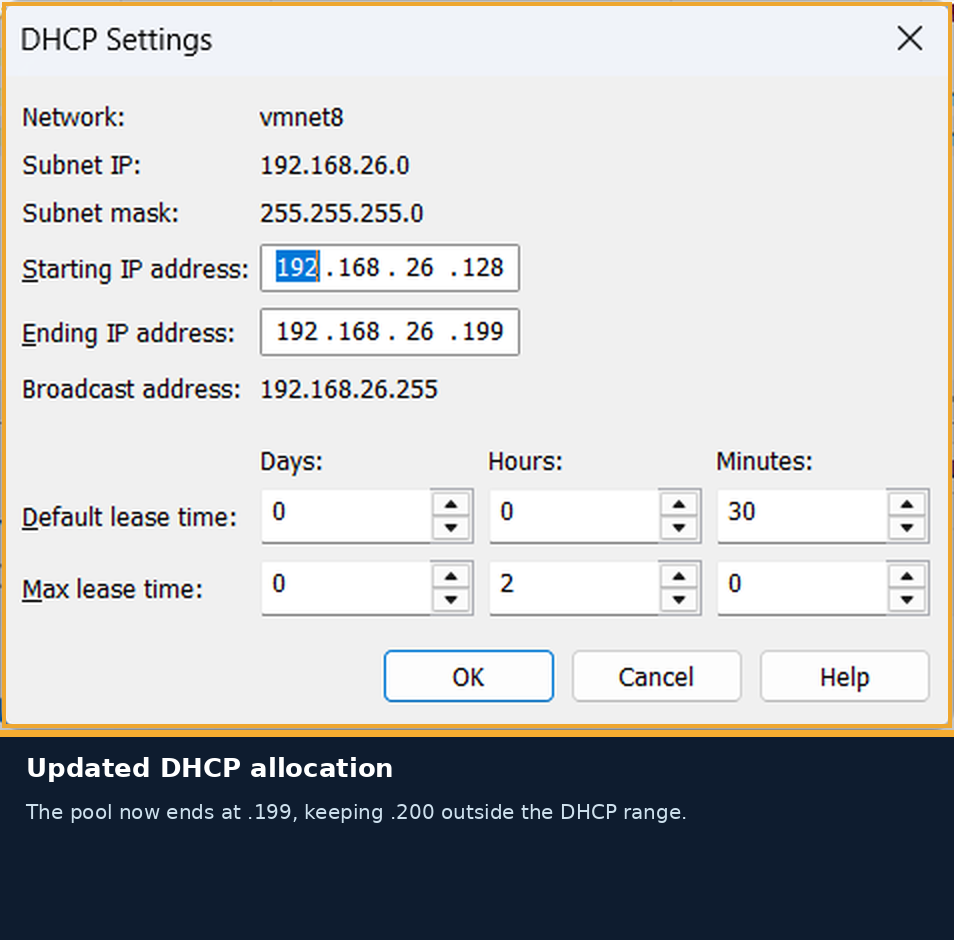
In the VMnet8 DHCP settings, the original address allocation range was:
- Starting IP: 192.168.26.128
- Ending IP: 192.168.26.254
This range included the static IP we intended to use, 192.168.26.200.
To avoid the VMware DHCP server potentially assigning that address to another virtual machine, we reduced the DHCP pool.
The updated range became:
- Starting IP: 192.168.26.128
- Ending IP: 192.168.26.199
This reserved 192.168.26.200 outside the DHCP allocation pool.
Our VMnet8 gateway remained 192.168.26.2.
To review these settings in VMware Workstation, open:
Edit → Virtual Network Editor → VMnet8 → DHCP Settings
Administrator privileges may be required to modify the virtual network configuration.
6. Ubuntu Server 24.04 Initial Configuration: Static IP Setup
After checking the VMware network, we updated the Ubuntu configuration.
Open the Netplan file:
sudo nano /etc/netplan/50-cloud-init.yamlFor our lab, the intended configuration is:
network:
  version: 2
  ethernets:
    ens33:
      dhcp4: false
      addresses:
        - 192.168.26.200/24
      routes:
        - to: default
          via: 192.168.26.2
      nameservers:
        addresses:
          - 192.168.26.2
For additional details about network configuration options, refer to the official Ubuntu Netplan documentation. This is a useful reference for understanding static IP addresses, default routes, and DNS settings in Ubuntu Server.
Understanding the configuration
dhcp4: false disables automatic IPv4 assignment.
addresses assigns 192.168.26.200/24 to the Ubuntu server.
routes defines the default gateway used to reach networks outside the local subnet.
nameservers configures the DNS resolver used to translate domain names into IP addresses.
YAML formatting is sensitive to indentation. Spaces must be used consistently, and tabs should be avoided.
After editing, save the file in Nano using:
Ctrl + O → Enter → Ctrl + X


Note: The final static IP was verified in our lab. Always review the saved configuration on your own server rather than assuming that a successful IP check alone confirms every DNS and routing setting.
7. Validate the Netplan Configuration
Before applying network changes, we checked whether Netplan could generate the required configuration successfully.
sudo netplan generateThe command completed without an error.
This is an important checkpoint because it helps identify configuration problems before the network settings are applied.
Next, we tested the changes:
sudo netplan try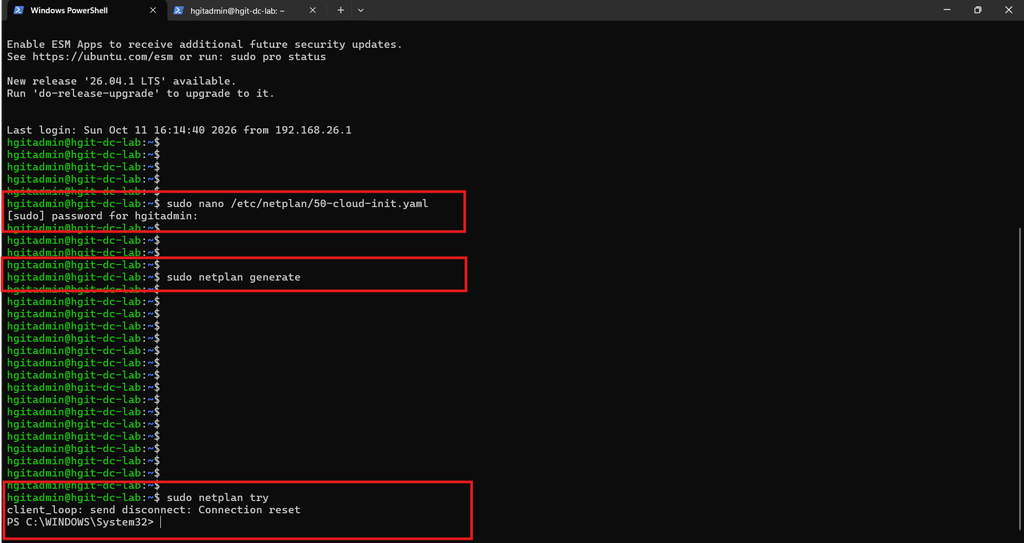
Why Our SSH Connection Disconnected
During our actual configuration, the SSH session disconnected after running netplan try.
The terminal displayed a connection reset message.
This happened because the server’s network configuration was being changed while we were connected to its previous DHCP address.
This is a normal possibility when changing a server’s IP remotely.
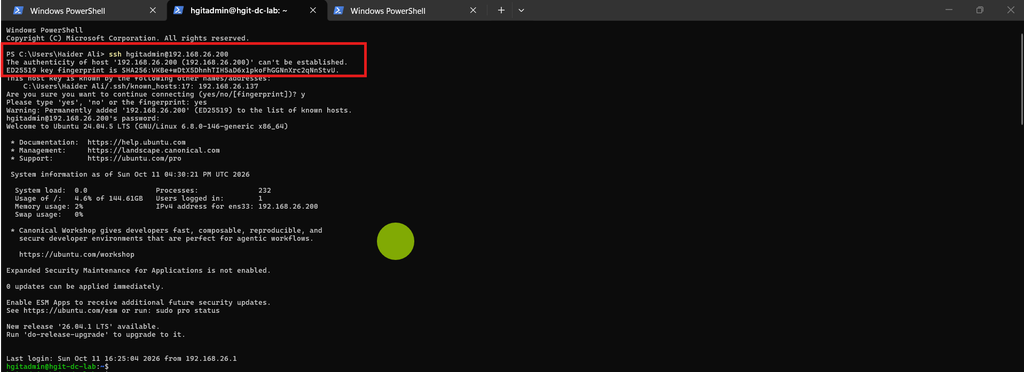
We reconnected using the new address:
ssh hgitadmin@192.168.26.200After reconnecting, we verified the interface address and completed the configuration with:
sudo netplan applyFor remote changes, remember that netplan try includes a confirmation and rollback mechanism. It is safer to perform network changes while VMware console access is available, especially if the SSH session is interrupted.
8. Verify the New Static IP Address
Once the new configuration was active, we checked the Ubuntu network interface again.
ip -4 addr show ens33Our output included:
2: ens33: <BROADCAST,MULTICAST,UP,LOWER_UP>
    inet 192.168.26.200/24 brd 192.168.26.255 scope global ens33
       valid_lft forever preferred_lft forever
The key result is:
inet 192.168.26.200/24
This confirmed that the Ubuntu server was using our selected static IPv4 address.
The valid_lft forever value was also consistent with a manually assigned address rather than a short DHCP lease.

9. Connect to Ubuntu Server from Windows PowerShell
One of the most useful improvements to our workflow was moving from the VMware console to SSH-based administration.
Typing commands directly inside a virtual machine console can be inconvenient, particularly when preparing documentation or copying longer configuration files.
Windows PowerShell provides a much more comfortable workflow.
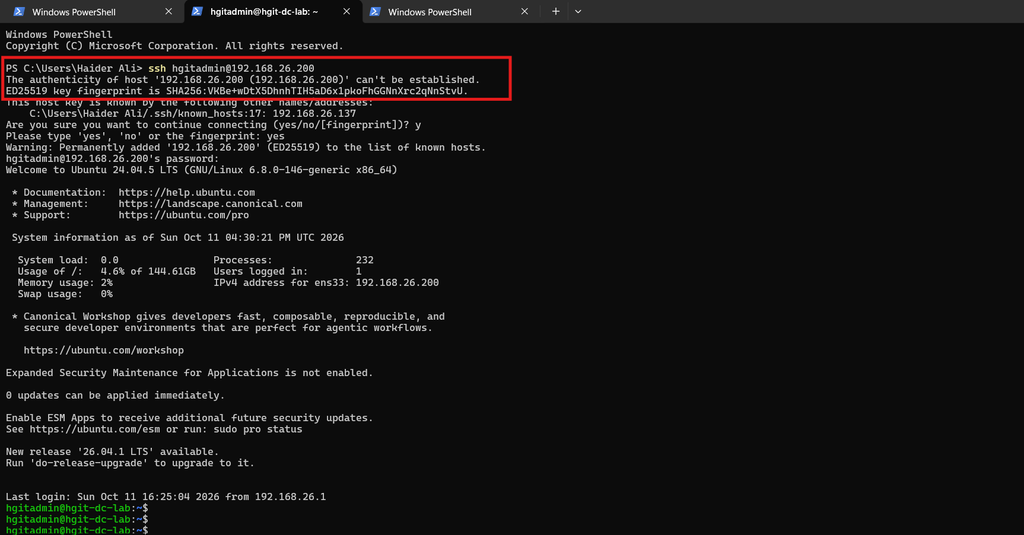
Open PowerShell or Windows Terminal on the host laptop and connect using:
ssh hgitadmin@192.168.26.200Enter the Ubuntu account password when prompted.
After authentication, the terminal displays the Ubuntu shell:
hgitadmin@hgit-dc-lab:~$We successfully established SSH connectivity to our new static IP.
From this point onward, most administrative commands can be executed directly from Windows Terminal.
This also makes copying commands from technical documentation significantly easier.
10. Verify VMware NAT Gateway Connectivity
With the static address configured, we tested connectivity to the VMware NAT gateway.
ping -c 4 192.168.26.2Our test returned:
4 packets transmitted, 4 received, 0% packet lossAll four packets were received successfully.
This confirmed that the Ubuntu virtual machine could communicate with the VMware NAT gateway.
It is a useful first network test because a server must be able to reach its local gateway before we can reasonably expect outbound connectivity to work.
11. Verify Internet Connectivity
Next, we tested outbound internet connectivity using a public IP address.
ping -c 4 8.8.8.8The result was:
4 packets transmitted, 4 received, 0% packet lossThis confirmed that our Ubuntu server could reach an external IP address through the VMware NAT connection.
The test was successful without changing the laptop’s active Wi-Fi network or switching the virtual machine to bridged networking.

12. Verify DNS Resolution
Being able to reach an IP address is not the same as being able to resolve a domain name.
To check DNS resolution, we tested a public domain:
ping -c 4 google.comOur terminal successfully resolved google.com to an IP address and received responses.
The observed test completed with:
4 packets transmitted, 4 received, 0% packet lossThe original continuous ping was stopped manually after successful replies. For documentation and repeatable testing, using -c 4 is more convenient because the command stops automatically.
This test confirmed that both domain-name resolution and external network connectivity were functioning.
At this stage, the server could communicate with the local NAT gateway, access the internet by IP address, and resolve public domain names.

13. Check the OpenSSH Server Service
We installed OpenSSH Server during the Ubuntu installation process in Part 2.
Now that we were managing the server remotely, we verified the SSH service status.
sudo systemctl status ssh --no-pagerThe output showed:
ssh.service - OpenBSD Secure Shell server
Active: active (running)
The service was listening on TCP port 22.
The status output also included successful SSH authentication entries for our hgitadmin account.
This provided additional confirmation that remote administration was functioning as expected.

14. Enable SSH at Startup
Although SSH was already running, we explicitly enabled the service to start automatically during system boot.
sudo systemctl enable sshThe command completed successfully and created the required systemd service links.
This means the SSH service is configured to start automatically when Ubuntu boots.
It is an important convenience for a headless server because we do not want to open the VMware console simply to start SSH after every reboot.
15. Check the Installed Python Version
Many infrastructure tools, automation scripts, and management applications depend on Python.
Before planning additional software installations, we checked the Python version available on the server.
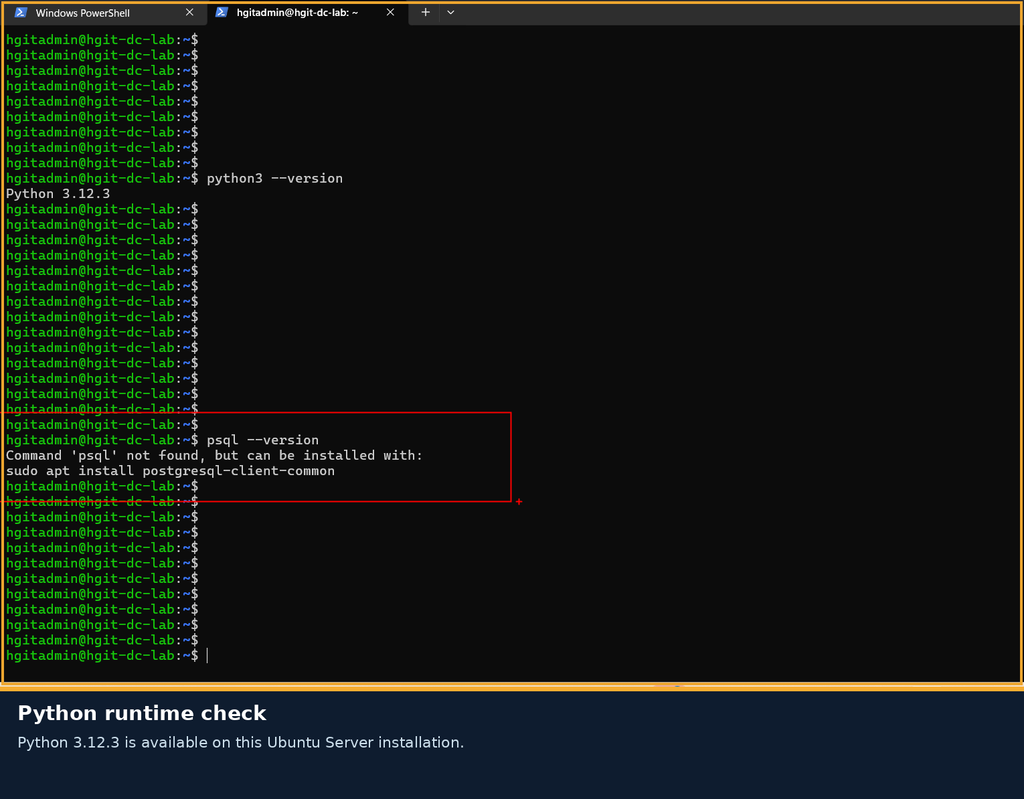
python3 --versionOur server returned:
Python 3.12.3This confirmed that Python 3 was available.
We did not install or modify Python during this step.
16. Check PostgreSQL Availability
PostgreSQL is an important component for many infrastructure management applications, including NetBox.
Before starting a database installation, we checked whether the PostgreSQL command-line client was already available.
psql --versionOur terminal returned:
Command 'psql' not foundThis was not a network error or an Ubuntu installation failure.
It simply indicated that the PostgreSQL client command was not installed.
We intentionally stopped here rather than installing database packages immediately.
PostgreSQL installation, database preparation, and application-specific configuration will be covered in a separate stage of the HGIT-DC-LAB series.
17. What We Actually Completed
By the end of this configuration session, our lab had reached the following state:
| Task | Result |
|---|---|
| Ubuntu Server 24.04 installed | Completed |
| Netplan backup created | Completed |
| VMware VMnet8 NAT reviewed | Completed |
| DHCP pool adjusted to end at .199 | Completed |
| Static IP 192.168.26.200 assigned | Verified |
| SSH connection from Windows | Successful |
| VMware NAT gateway connectivity | Passed |
| External IP connectivity | Passed |
| Public DNS resolution | Passed |
| OpenSSH service running | Verified |
| SSH auto-start enabled | Completed |
| Python version checked | Python 3.12.3 |
| PostgreSQL client checked | Not installed |
The most important outcome is that HGIT-DC-LAB now has a consistent management IP address and can be administered remotely through SSH.
This provides a much more practical starting point for future infrastructure services.
18. Troubleshooting Notes from Our Lab
SSH Disconnects After Changing the IP
When changing a server’s network address over SSH, the existing connection may be interrupted.
Reconnect using the new address:
ssh hgitadmin@192.168.26.200If the connection does not return, use the VMware console to inspect the active network configuration.
The Static IP Does Not Appear
Check the interface:
ip -4 addr show ens33Validate the Netplan configuration:
sudo netplan generateCheck that the intended IP address, interface name, and YAML indentation are correct.
The Gateway Responds but Internet Access Fails
Check the default route:
ip routeConfirm that VMware VMnet8 is configured for NAT and that the virtual machine is attached to the correct network.
Internet Works by IP but Domain Names Fail
Check DNS configuration:
resolvectl statusVerify that the active interface has a valid DNS server.
SSH Is Not Running
Check the service:
sudo systemctl status ssh --no-pagerIf OpenSSH Server is installed but not running, it can be started with:
sudo systemctl start sshDo not expose SSH directly to the public internet simply to access a local lab. Our setup uses the private VMware NAT network.
19. What Comes Next in the HGIT-DC-LAB Series?
We now have a working Ubuntu Server with a predictable IP address, successful SSH administration, and verified network connectivity.
The next phase will focus on preparing the server for infrastructure applications.
That work will include reviewing additional security controls, checking required software dependencies, and planning the database and application environment.
We will document those steps separately so that each guide remains focused, repeatable, and easy to troubleshoot.
Final Thoughts
A static IP address and SSH access might seem like small configuration tasks, but they make a significant difference when building a reliable infrastructure lab.
During this session, we encountered a real SSH disconnection while changing the network configuration, adjusted VMware’s DHCP range to avoid an address conflict, and verified connectivity from the local gateway all the way to public DNS resolution.
Those checks gave us confidence that the server was ready for the next stage.
Rather than rushing into installing multiple applications, we established a stable foundation first.
That is the approach we will continue following throughout the HGIT-DC-LAB Infrastructure Lab Series.
Published by HG IT Solutions
Practical IT Infrastructure, Data Center & Technology Guides

Pingback: Ubuntu Server 24.04 Infrastructure Verification Guide